How to view external links to a site in Google Search Console?


External links help search engines find pages and evaluate connections between websites. But website owners often don't know who is linking to their website, which content gets the most mentions, and where suspicious links originate.
You can check this data for free using Google Search Console. The “Links” section contains information about external domains, landing pages, anchor text, and internal linking. We'll cover how to use this report, find specific backlinks, and use the information for SEO.
What is the Links report in Google Search Console?
Google Search Console (GSC) is a free Google service for website owners, webmasters, and SEO specialists. It allows you to check search queries, clicks, impressions, average positions, page indexing, and technical issues detected by the search engine.
The Links report focuses on links to your website's pages. It shows which external resources Google detected referrals to your site from and how the pages within it are connected.
The data is collected when Googlebot crawls websites. Therefore, the list may differ from results from Ahrefs, Semrush, or other services that use their own crawlers and link databases.
What data does the Links report show?
The report presents several data groups that can be used to study a site's link profile. Each group answers a specific question: who is linking, where the links lead, what text is used, and how internal linking is structured.
Main sections of the report:
- External links – information about links placed on other sites and leading to your resource.
- Top linked pages – URLs of your own website that receive the highest number of detected external links.
- Top linking sites – the root domains from which Google found the most links to your site.
- Top linking texts – anchor texts used in external links.
- Internal links – information about which pages of the site link to other pages of the same resource.
This data helps understand the distribution of links across sections and identify situations that require further review. For example, a commercial page may receive almost no external links, even though several industry publications link to its informational articles.
How are external links different from internal links?
An external link is placed on a third-party website and leads to one of your resource's pages. For example, a construction portal publishes material on choosing windows and links to the manufacturer's instructions posted on their official website.
An internal link connects pages on a single website. If an article about window installation contains a link to an installation service page, this link is considered internal linking.
The difference is significant for SEO. External links can help search engines discover pages and evaluate their authority, while internal links help organize navigation, convey context between sections, and facilitate content discovery.
The number of links alone doesn't determine the quality of optimization. The analysis requires taking into account the source, anchor text, link location, target page content, and URL accessibility for search engines.
Answers to your questions
How to view all external links to a site in Google Search Console?
Open the property in Search Console, go to the “Links” section, and select the External Links table. This provides information about referring domains, target pages, and commonly used anchor text.
For a more detailed check, open the page or domain in question and then navigate to available URL sources. If necessary, export the data and supplement it with results from third-party services.
However, it's impossible to get a guaranteed complete list of links through Search Console. Google provides a sample of detected links and applies its own rules for merging duplicate URLs.
Is it possible to check competitors' backlinks through Google Search Console?
No, Links reports are available to users who have been granted access to the relevant property. To view someone else's website through Search Console, you must have verified rights or the appropriate permission from the owner.
For competitive analysis, people typically use Ahrefs, Semrush, and similar tools with their own link databases. They help find competitors' referring sites, study landing pages, and evaluate anchor text.
However, data from third-party services may also be incomplete. Before using a found donor for your own promotion, it's advisable to check its current content, region, topic, and placement conditions.
Why doesn't Search Console show recently purchased links?
After a post is published, Google needs to locate or recrawl the page on which the link appears. This may occur with a delay, as the frequency of visits depends on the specific characteristics of the site.
Furthermore, even a detected link won't necessarily be included in the available report data. Therefore, the absence of a new listing in Search Console doesn't prove Google isn't aware of it.
To verify a paid publication, it's best to use the direct URL of the donor page. You need to ensure the content is accessible, the link is present in the published HTML, and it leads to the approved landing page.
How do I find out which sites link to my site the most?
Open Google Search Console, select the desired property, and go to the “Links” section. In the External Links section, find the “Top Linking Sites” table and open the full list.
Domains are sorted by the number of links found, helping you quickly identify the most common sources. After selecting a domain, you can see which pages on your site receive links from that resource.
When interpreting, consider the grouping by root domains. Multiple links from a single site may arise due to cross-cutting elements and do not necessarily indicate a high donor value.
Is it possible to find out which backlinks are nofollow?
The Links report doesn't have a separate metric for reporting which links found contain the nofollow attribute. Google explicitly states this limitation in the official report documentation.
To check a specific link, you need to examine the published HTML of the source page. You can also use an SEO crawler that can identify link attributes.
When analyzing, it's worth paying attention to rel="nofollow," rel="sponsored," and other rel attribute values. These can influence how search engines process a link, but they don't determine the overall value of a publication for users.
How to remove bad links from Google Search Console?
Removing a link from a third-party website via Search Console is impossible, as Google doesn't control the content of other websites. If you need to remove a link, you should first contact the resource owner.
If you notice a significant number of artificial or spammy links that have led to manual actions or may lead to them, consider using the Disavow Tool. Before using it, carefully review the list to avoid accidentally disavowing valid links.
Disavowal tells Google which links should be ignored when evaluating a site. However, the links may still appear in Links, as the tool doesn't physically remove them.
How to add a link to Google search?
To add your own page, open the URL inspection tool in Google Search Console. Enter the full address, wait for the results, and use the Request Indexing feature if necessary.
If you need to notify Google about a large number of pages, prepare an up-to-date sitemap.xml and submit it through the appropriate section of Search Console. A sitemap helps discover URLs, but it doesn't guarantee their inclusion in the index.
If the goal is to obtain backlinks, other methods are used, including publishing on relevant resources and developing useful content. Indexing requests do not automatically generate external links.
Where can I find Google Search Console Links?
The official address of the report is https://search.google.com/search-console/links. After opening it, you need to log in using your Google account and select the website to which access has been granted.
In the interface, the relevant section is called “Links”. Inside, you'll find tables of external and internal links, referring domains, and anchor texts.
If the report doesn't open, check your authorization and access rights to the property. For a new site, you'll first need to add it to Search Console and verify ownership.
How do I open the Links report in Google Search Console?

To view links, you'll need a Google account with access to a verified Search Console property. If the site has already been added, you don't need to enable additional tools or install special plugins.
The service is available at Google Search Console. After authorization, you must select the desired website, as one account can contain multiple properties with different domains, protocols, and language versions.
Where is Google Search Console and how do I access the report?
You can access the report through the Search Console main menu or via a direct link. The latter option is convenient if you regularly check external links and want to reduce the number of clicks between sections.
Sequence of actions:
- Open Google Search Console and sign in using the Google account that has been granted access to the site.
- At the top of the interface, select the property you want and make sure you're opening the correct version of the domain.
- Find the “Links” section in the left menu and open the page with data on internal and external links.
- Select the desired table, such as “Top Linking Sites”, to drill down to detailed information.
- Click on the domain or landing page you're interested in, then explore the available related URLs.
Direct link to the report: https://search.google.com/search-console/links.
In English-language instructions, this address is sometimes searched for using the queries “google console link”, “google search console link”, “gsc link”, or “search console links”. All of these refer to navigating to the service or finding the links section within Search Console.
If the system prompts you to select a property, first make sure the relevant website has been added to your account. Without access to the property, it's impossible to view its private reports, even if the website itself opens freely in a browser.
What if the site is not yet added to Search Console?
When you first connect, you need to add your site to Search Console and verify ownership. To do this, open the list of properties, select Add property, and select the appropriate resource type.
Google offers two main options:
- Domain resource – combines data across HTTP and HTTPS protocols, as well as across subdomains of the selected domain.
- Property with URL prefix (URL-prefix) – collects data only for addresses starting with the specified prefix, including protocol and path.
For a domain property, verification is typically accomplished through a DNS record. For a URL prefix, various methods are available, including an HTML file, a meta tag, and some pre-configured Google services.
After confirmation, open Search Console and check the data in the main reports. If the property was recently added, information may appear gradually, so a blank section immediately after connection doesn't necessarily indicate a technical error.
How to view external links to a site in Google Search Console?

To analyze backlinks, open the “External Links” section of the Links report. Here, Google groups information by landing pages, referring domains, and anchor text, allowing you to drill down from overall statistics to individual URLs.
It's best to start checking pages that receive the most links. After that, it's worth examining the main referring domains and anchor text to understand which resources mention the site and how closely these mentions relate to its topic.
Most Linked Pages
The Top linked pages table displays the pages of your site to which Google has detected external links. This list helps you determine which sections are most frequently referenced on other resources and which materials attract the attention of third-party authors.
Let's imagine an online building materials store with a product catalog and a blog with instructions. A report might show that an article on calculating tile quantities has received more inbound links than the store's main page.
This is a useful observation for further content management. If informational materials attract topic-specific mentions, it's worth checking how easily users navigate from these articles to relevant products and services.
However, just because a page isn't among the top performers doesn't mean it has no backlinks at all. Google displays a limited sample of data, and some URLs are merged with canonical versions.
How do I find out which websites link to a specific page?
First, open the “Top Linked Pages” table and click “More”. Select the URL you're interested in to see the domains Google has found linking to that page.
After selecting a domain, you can navigate to specific referring pages. This method is convenient when you need to check backlinks to a specific service, product, article, or landing page.
For example, a company promotes a page describing legal support for businesses. The report can show whether it's linked to from relevant publications, reference materials, or websites unrelated to legal services.
When analyzing, also pay attention to the final link address. If a third-party publication points to an old URL that redirects users via a 301 redirect, it's worth checking that the redirect is correct and that the new page is accessible.
Google may display a separate destination URL if the actual link address differs from the selected canonical address. Therefore, it's advisable to compare the report results with actual traffic and the current state of the pages.
Sites that link the most

The Top linking sites table contains domains from which Google has found links to your resource. The list is sorted by the number of links and helps identify the most common sources of external citations.
When counting, Google groups URLs by root domain. For example, links from www.example.com and blog.example.com may appear under the same group as example.com, so the number of links and the number of unique domains are not considered the same metric.
A large number of links from a single site doesn't necessarily indicate its high authority. Sometimes the cause is cross-cutting elements: a menu, footer, sidebar, or a repeating block that appears on hundreds of pages.
To evaluate a domain, you need to open the source and examine how the links are placed. It's especially helpful to check whether the site's topic matches your niche and whether the links are located within the main content of the publications.
If an unknown domain appears on the list, don't be too quick to dismiss it as spam. First, open the available source pages, check their content, and figure out why they mention your resource.
How can I view the URLs of the pages the links come from?
Open the “Top Linking Sites” section and select the desired domain from the table. Google will display the pages on your site that are linked to from the selected source.
Then click on a specific landing page to access a list of referring page URLs. This helps you figure out where exactly the link is located and how the original post and your content are related.
When checking the URL found, it's a good idea to open the page in a browser and find the corresponding link yourself. It could be in an article, a comment, a navigation block, or another element that isn't always obvious from the URL alone.
Links that lead through redirect chains or to error pages deserve special attention. These cases should be checked technically, as the user may be directed to outdated content or receive a 404 server response.
Not all URLs present in Search Console necessarily still contain the discovered links. Google retains data on previously discovered links, so the relevance of a specific placement should be confirmed by checking the source page.
The most common link texts

Anchor text is the visible text portion of a link that takes a user to another page. The Top Linking Text report shows which wording is most commonly used in external links to a website.
For example, a resource may be linked to by its company name, website address, article title, or commercial keyword. For SEO analysis, it's useful to distinguish between branded, thematic, diluted, and anchorless mentions.
Google groups identical texts in a case-insensitive manner. However, image links without a text anchor may be displayed as “no text”.
The list helps identify unexpected wording and evaluate anchor text diversity. However, the report doesn't provide all the necessary link profile details, so it's impossible to draw conclusions about artificial promotion based solely on this list.
How to identify unnatural anchors?
Suspicion may arise if a significant portion of links use the same commercial phrases, especially on resources with no thematic connection to your site. For example, dozens of little-known sites may link to a single page through a repeated query about buying a specific service.
In this case, it's necessary to check the donor pages, placement context, and link building history. A single commercial anchor or several similar links does not prove a violation of Google guidelines.
When checking your anchor list, it's helpful to divide your links into main groups:
- Branded – contain the name of a company, product, or official website and usually look natural when referring to an organization.
- Exact-match commercial – match the search query, for example, “buy an air conditioner,” and require an assessment of the placement context.
- Diluted – include a thematic query along with additional words that clarify the content of the target page.
- Anchorless – use URLs, images, or neutral links, such as “on the manufacturer’s website.”
Anchors should be compared with the topic and content of the landing pages. If a link promises information about a bank loan, but the user is redirected to a page for a completely different service, this placement should be reviewed.
Individual text matches don't provide a complete picture, especially if Google has combined duplicate links. For a more detailed analysis, it's helpful to use data export and an additional SEO crawler.
How to check internal links using Google Search Console?
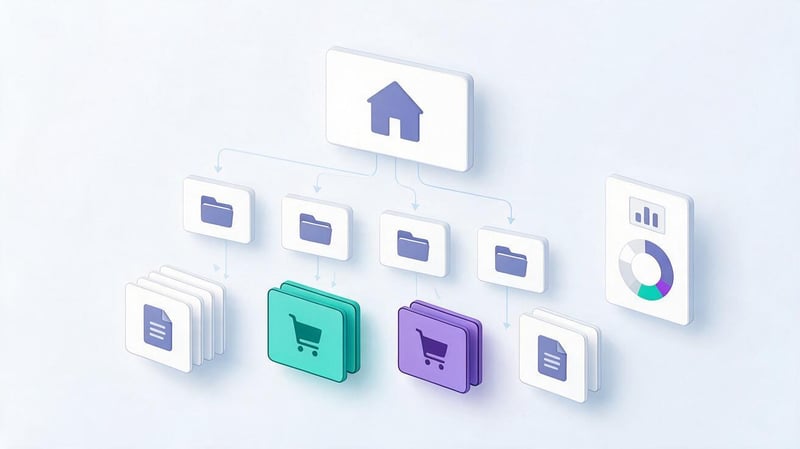
Internal links help search engines find website pages and understand the connections between sections. For users, they create clear paths: from general information to detailed material, from an article to a service, from a category to a product.
In the “Internal Links” section, you can see which URLs receive the most links from other pages on your site. This data is useful for an initial review of your site's architecture and identifying important pages with weak interlinking.
Which pages get the most internal links?
Open the “Top Linked Pages” table within the “Internal Links” section. It displays the URLs receiving internal links and the corresponding number of links Google detected.
Typically, the home page, main categories, and sections present in cross-cutting navigation are among the top-ranked pages. This is expected, as menus and other common elements can be found across many pages.
When analyzing a commercial website, it's worth additionally checking pages for priority services. If an important section receives virtually no internal links, it may be more difficult for users and search engines to find it through the site's structure.
The number of internal links alone doesn't automatically determine a page's importance. Link placement, target URL accessibility, navigation context, and overall navigation structure must be considered.
How to find pages linking to a specific URL?
Go to the internal links table, open the full list, and select the desired landing page. Search Console will display the source URLs from which Google detected internal referrals to the selected address.
Let's say a law firm's website has a page on business registration. Using the report, you can check whether it's linked to from articles on choosing a legal form, taxation, and preparing incorporation documents.
If your content doesn't include such links, consider adding them at appropriate points in the text. They should help readers further explore the topic, not be used solely for SEO purposes.
You should also check whether internal links point to old redirected URLs. If possible, it's best to update them immediately to the current final URLs to reduce unnecessary clicks.
How can you use this data to improve interlinking?
Start by identifying pages that are important for your business and organic promotion. These could be services, product categories, key informational content, or high-converting pages.
Then compare their internal connectivity with other sections of the website and check how logically the links are distributed. For example, an article about treating a disease might include a link to a related medical service if such a link is beneficial to the patient.
When adjusting the structure, pay attention to several factors:
- Links should connect materials that are truly related in meaning and help the user continue their search for information.
- It is advisable to write anchors naturally so that the reader understands the content of the target page even before clicking on it.
- Important pages should be accessible through clear navigation, rather than isolated from the main sections of the site.
- Internal links should be regularly checked for 404 errors, unnecessary redirects, and links to outdated content.
After making changes, re-crawl your site with an SEO crawler and check that the links are correct. Updating Search Console data may take some time, so the changes may not appear immediately.
How to export links from Google Search Console?

Built-in tables are convenient for viewing individual domains and pages, but for a large site, their capabilities may be insufficient. Exporting helps you consolidate data, sort URLs, compare lists, and prepare tasks for fixing detected issues.
The Links report allows you to export data to CSV and Google Sheets. These files can be processed independently or compared with results from third-party backlink analysis services.
Export to Google Sheets and CSV
To export, open the desired spreadsheet and find the export or download button. Depending on the selected view, Google will suggest available formats and prepare the data for further processing.
CSV is convenient for use in Excel, Google Sheets, and programs that work with large lists of URLs. When exporting, check the encoding, column headers, and address formatting to avoid accidentally damaging the data.
After exporting, you can group links by domain, highlight commercial pages, and add custom columns for verification. For example, it's useful to record the donor topic, the status of the source page, the anchor type, and any further action needed.
Don't automatically merge all rows with similar URLs. Differences in protocols, parameters, or canonical URLs sometimes have technical implications and require separate verification.
What is the difference between Latest Links and More Sample Links?
Google's exported data provides two options for selecting external links. They serve different purposes, so it's useful to review both lists for a detailed audit.
Latest Links, or “New Links”, contains links recently discovered by Google, sorted by discovery time. This list is useful for regularly monitoring new mentions of a site and checking the results of link promotion.
More Sample Links, or “Other Link Examples”, contains an additional sample of the total number of links known to Google. This is useful when you need to expand your analysis and check sources that may not have been included in the list of recently discovered placements.
The discovery date doesn't necessarily match the link's publication date. The page may have existed earlier, but Google found it later, so the export shouldn't be taken as an exact posting history.
What are the limitations of the Links report?
The main limitation is the incompleteness of the sample. Google explicitly states that the report contains a subset of the internal and external links detected, not a complete list of all links between web pages.
Standard tables display up to 1,000 rows. Using special external link export options, you can retrieve up to 100,000 rows for the corresponding selection.
Individual URLs are combined with canonical addresses, and duplicate links can be combined. Furthermore, the report does not include information about the nofollow attribute and can retain information about links that have already disappeared from their source pages.
| Data type | Where to find | What does it show? | How to use |
|---|---|---|---|
| External landing pages | External links → Top linked pages | Which pages receive external links? | Identify the most frequently referenced materials |
| Referring domains | External links → Top linking sites | Domains containing links to the site | Check backlink sources |
| Anchor texts | External links → Top linking text | Frequently encountered link texts | Study anchors and suspicious repetitions |
| Internal landing pages | Internal links → Top linked pages | Which pages receive internal links? | Assess the distribution of interlinking |
| Recently found links | Export → Latest Links | Links by time of discovery | Check new external mentions |
| Additional sampling | Export → More Sample Links | Other Google-known links | Expand the analysis of sources |
A detailed description of the restrictions and methods of export is published in official Google help. When preparing SEO reports, it is advisable to indicate the export date and take into account the specifics of URL grouping.
How to analyze a website's link profile using GSC data?

After exporting the data, it's necessary to determine which external links require attention and which appear natural for the site's topic. Simply counting donors provides a limited understanding of the link profile and doesn't explain the quality of specific placements.
It's best to conduct analysis across multiple areas: source relevance, link text, landing pages, URL status, and promotion history. This approach helps identify problems without making hasty decisions based on a single indicator.
How to evaluate the relevance of referring sites?
First, research the domain and the content of the page hosting the link. For a law firm, a mention in a professional publication usually makes more sense than a link from a website devoted to a completely unrelated topic.
Then check the language, region, context of the publication, and whether the landing page matches the anchor text. If the article is about banking products in Kazakhstan, a link to a Kazakhstani bank's dedicated page might be appropriate for readers of the article.
When analyzing, it is useful to consider:
- Thematic correspondence between the donor site and the page to which the link leads, including the content of the surrounding text.
- Regional and linguistic relevance of the publication, especially when the site operates in multiple markets.
- The type of placement and its position on the page, including the main content, comments, and repeating navigation elements.
- Availability of the source page and destination URL, absence of technical errors and unnecessary redirect chains.
- The naturalness of the anchor text and the usefulness of the click for the person reading the original publication.
Google Search Console doesn't display DR, Trust Flow, or other ratings from third-party SEO platforms. These metrics can be used as additional benchmarks, but they don't replace page content review.
Lead SEO specialist — Gennady
In my work, I don't evaluate a link profile solely by the number of backlinks. I first look at which sites link to the project, how closely they relate to its topic, and where exactly the links lead.
Google Search Console helps you see the connections Google has identified, but I always keep the report's limitations in mind. A large number of links from a single domain doesn't necessarily mean it's more valuable than a few relevant mentions.
I usually start with referring domains, landing pages, and anchor text, then check suspicious URLs manually. I then compare the results with other SEO tools and only then determine which issues actually require fixing.
How to find suspicious external links?
Suspicious placements are often characterized by duplicate commercial anchors, low thematic relevance, and frequent appearance on similar pages. However, no single indicator proves that the link violates Google's policies.
For example, an unknown website might automatically copy an article along with its outgoing links. In another case, a large number of identical mentions may appear due to a sitewide block placed on a partner's pages.
Links that were previously purchased to artificially influence rankings should be especially carefully examined. The history of such placements, the content of agreements with contractors, and the nature of the referring pages help assess potential risks.
Don't automatically mark every foreign domain or low-traffic page as spam. Sometimes a link turns out to be a natural mention, and an erroneous disavowal can result in the loss of a valuable signal.
When do you need the Google Disavow Tool?
The Google Disavow Tool is designed to disavow unwanted backlinks that may violate search engine guidelines. This tool should be used with caution, as errors can impact how links are processed.
According to official Google instructions, it is recommended to consider disavowing if there is a significant number of artificial or spam links, if manual actions have been applied or are likely to be applied because of them.
Before using Disavow, it's a good idea to try removing problematic links on the source sites. If this isn't possible, you can prepare a text file with the URLs or domains you want to disavow.
To disavow an entire domain, use the domain:example.com entry. It's important to note that the tool doesn't support Search Console domain properties and requires selecting a suitable property with a URL prefix.
Uploading a new file replaces the previous list of disavowals for the corresponding property. The disavowal itself does not remove links from third-party sites, and they may continue to appear in the Links report.
How to supplement Search Console data?
For a comprehensive backlink analysis, it's helpful to compare multiple sources of information. Ahrefs, Semrush, and other tools use their own databases, so they can find URLs that aren't in Search Console.
Differences between services don't necessarily indicate errors. They relate to crawling frequency, database size, and the handling of redirects, canonical URLs, and duplicate links.
For technical verification, you can use an SEO crawler and server response analysis. This is especially useful for investigating internal links, inaccessible pages, and old URLs that continue to receive external traffic.
For example, after a site migration, some publications may link to old URLs. Search Console will help you detect such mentions, and a technical check will show whether redirects are working correctly and the destination pages are accessible.
How to add a link or page to Google search?

Queries like “how to add a link to Google search” or “Google search link” may refer to adding your own page to the search engine. This task is accomplished through other Google Search Console features.
If you need to notify Google about a new URL or updated content, use the URL inspection tool. For many pages, a sitemap.xml file is submitted, which helps the search engine crawler find the site's URLs.
How do I submit a URL for indexing via Search Console?
Open Google Search Console and select the verified property to which the page you want belongs. Enter the full URL in the top bar of the interface and wait for the verification results.
Search Console will display information known to Google about the page, including indexing information and the selected canonical URL. If necessary, you can check the published version of the page and submit an indexing request.
For individual URLs, use the “Request Indexing” feature if it's available for the page you're checking. When working with a large number of new or updated URLs, it's more convenient to maintain an up-to-date XML sitemap.
Resubmitting a URL doesn't make Google crawl it faster. Furthermore, an indexing request doesn't guarantee a page's appearance in search results, as Google makes its own decision about whether to include content in the index.
Is adding a page to the index and getting a backlink the same thing?
Adding a page to the search index means Google has processed it and can use it in search results. A backlink appears when another site links to that page.
These processes may be related to content discovery, but they serve different purposes. Submitting a URL through Search Console does not create external links, and the presence of backlinks does not guarantee indexing of the page.
For example, an online store might publish a new category and submit its URL for indexing. If a niche blog later posts a link to this category, this mention will be a separate event that Google can detect during crawling.
You should check the indexing status using the URL inspection tool and the corresponding Search Console reports. To analyze external citations, use the Links section, which displays a selection of detected links.
Why doesn't Google Search Console show all links?

The absence of a link in the report doesn't always mean it doesn't exist or wasn't noticed by Google. Search Console displays a selection of detected links, and individual URLs are combined according to URL processing rules.
This limitation becomes especially noticeable when analyzing large websites. The number of links in specialized SEO services can differ significantly from Search Console data, so comparing the figures without taking the methodology into account is inappropriate.
Why are links from Ahrefs missing from Google Search Console?
Ahrefs uses its own search robots and builds an independent link base. Google uses different algorithms for discovering, crawling, and processing pages, so the two services may display different sets of URLs.
The link found by Ahrefs may not have been included in Search Console's sample. Google may also merge it with the canonical URL or not show the duplicate placement as a separate line.
The opposite is also possible: Google stores information about a source that isn't in the third-party service's current database. Therefore, it's more accurate to compare specific URLs than to compare only the overall backlink count.
To verify, use the source page, destination URL, and available redirect information. If the link is indeed posted, it's important to separately assess its relevance and significance for your link profile.
Why do deleted links continue to appear?
Google collects link information as it crawls the web and may store information about previously discovered links. If a third-party site owner removes a link, the corresponding entry may not immediately disappear from the report.
Additionally, the search engine may not have visited the original page in a long time. Until Google updates the information about it, the report may retain outdated information.
To check, open the source page and find the link in the published content. If it's missing, further check for possible redirects, canonical URLs, and changes to the site structure.
You can't determine whether a link has been removed solely based on the presence or absence of a line in Search Console. This is especially true for regular placement reports, when it's important to confirm the integrity of paid publications.
Why are there few links or no data at all in the report?
Google may find a small number of backlinks on a new website, especially if the resource was recently published and has had few external mentions. In this case, the lack of a large list of domains is to be expected.
It's also worth checking that the correct Search Console property is selected. If the site is running on HTTPS, but a separate property with an HTTP prefix is opened, the available data may differ.
When searching for the cause, it is useful to check the following in sequence:
- Are the rights to the property verified and is the domain or URL prefix selected correctly?
- Has enough time passed since the site was connected and the first external mentions appeared?
- Are there available donor pages with real links to the desired address?
- Whether the URLs being checked are merged with other canonical versions of pages.
- Is the lack of specific links due to the limited sample size of the report itself?
If the resource has been operating for a long time and links are definitely present, compare the data with other sources. However, the absence of entries in Links does not in itself prove penalties or indexing issues.
Google Search Console Link Checklist

It's best to regularly check links using the same sequence to avoid missing important sources and landing pages. The frequency depends on the site's size, external promotion activity, and the number of new publications.
For the initial audit, you can use the following list of actions, and record the results in a table with the audit date.
- Verify that the Google Search Console property is correct and that you have access to the correct version of the domain.
- Open the Links section and examine the overall distribution of external and internal links.
- Find landing pages that receive the most external mentions.
- Check the domains that most frequently link to the site and evaluate their topics.
- Study the main anchors and highlight recurring commercial formulations.
- Check backlinks to priority commercial pages and key informational materials.
- Look at internal links to important sections and find pages with weak interlinking.
- Export available data to CSV or Google Sheets for further processing.
- Check suspicious placements manually and determine whether intervention is required.
- Create a list of fixes, including the URL, the issue found, and the proposed action.
After checking, it's worth prioritizing tasks. Technical errors in navigation and inaccessible important pages usually require more immediate attention than minor differences between link bases.
It's advisable to perform a re-analysis while saving previous exports. This will help you track changes in your link profile, verify the results of your work, and spot new issues.
The Links report in Google Search Console helps you check backlinks, examine referring domains, anchor text, and internal linking. Its data is useful for initial analysis, but a detailed audit requires consideration of the limited sample size and additional review of specific placements.
If you need to address the quality of your link profile, identify suspicious sources, or fix interlinking issues, Seo-Gen specialists will conduct an SEO audit of your website and prepare recommendations with specific URLs and prioritized fixes.
Order an SEO audit from Seo-Gen to get a link profile check and a clear plan for further work.


