Google Search Console: what is it and how to use it?


Google Search Console helps you see your website from the Google search engine's perspective. You can check which pages are known to the search engine crawler, which URLs are indexed by Google, which queries are driving impressions and clicks, and any technical issues preventing crawling or indexing.
The service is useful both after launching a new website and when working on a project that has been receiving organic traffic for a long time. GSC makes it easy to check indexing status, identify pages with lost impressions, analyze CTR, view internal and external links, manage sitemaps, and diagnose individual URLs.
Google Search Console is free. All you need is a Google account and the ability to verify your website ownership. Enabling the panel alone doesn't improve search rankings or guarantee indexing. Its purpose is to provide data that can help you identify problems and make decisions.
What is Google Search Console and what is it used for?
Google Search Console, or GSC, is a Google service for website owners, SEO specialists, webmasters, and developers. Previously, a similar set of features was known as Google Webmaster Tools, which is why older manuals still refer to it as Google Webmaster Console, Google Webmaster Panel, and Google Webmaster Tools.
Google Search Console lets you see how your pages perform in organic search. It displays queries, clicks, impressions, CTR, average position, and index data. It also includes reports on sitemaps, HTTPS, Core Web Vitals, links, manual actions, and security issues.
GSC is needed for regular website monitoring. For example, after publishing a new section, you can check whether Google has detected it. After changing the Title, you can see whether click-through rates have changed. After migrating, you can track the status of old and new URLs. If traffic drops, you can determine which pages and queries have lost impressions.
What data can I get from Google Search Console?
The primary source of SEO data is the Performance report. It displays Google search clicks, page impressions, average CTR, and average position. Data can be broken down by search query, URL, country, device, search type, and time period.
The Indexing section shows pages Google was able to crawl and URLs that remained unindexed. A separate URL inspection tool helps understand a specific page: Google displays the document version known to it, crawl information, the selected canonical, and any indexing limitations.
Search Console also contains data on internal and external links, sitemaps, page quality, HTTPS, structured data, and some security issues. This set covers a significant portion of daily SEO diagnostics, although a full-fledged technical audit usually requires additional tools.
Who needs Search Console?
Search Console helps business owners monitor their website's visibility in Google and which sections attract organic traffic. You don't need to understand all the technical reports: for regular monitoring, simply monitor click dynamics, indexing of important pages, and issue notifications.
An SEO specialist uses Google GSC much more deeply. They analyze queries and landing pages, compare time periods, look for pages with low CTR, check indexing, diagnose performance issues, and monitor optimization results.
Developers benefit from data on HTTP responses, page availability, canonicals, HTTPS, and URL inspection results. Content managers can assess whether new content has appeared in Google and for which queries it has started receiving impressions.
Answers to your questions
What is Google Search Console?
Google Search Console is a free Google service for monitoring your website's presence in organic search. It displays clicks, impressions, search queries, average position, index status, and a range of technical reports.
The service is used by website owners, SEO specialists, developers, and marketers. To get started, you need to add a property and verify ownership.
Do I need to connect Google Search Console for my site to appear in Google?
No, Google can find and index a website without the panel enabled. The search engine robot finds URLs through links, sitemaps, and other sources.
Connecting to GSC provides site owners with data and diagnostic tools. You can check indexing, submit a sitemap, analyze search queries, and receive notifications about certain website issues.
How to add a website to Google Search Console?
You need to sign in to the service using your Google account, add a property, and select a Domain or URL prefix. You'll then need to verify your ownership.
A DNS TXT record is typically used for a domain property. Other options for the URL prefix include an HTML file, a meta tag, and linked Google services.
How to verify a domain in Google Search Console?
When adding a Domain property, Search Console displays a TXT record. This record must be added to the domain's DNS zone with a registrar or DNS provider.
After updating the DNS, a check is performed in Search Console. If the record hasn't propagated yet, the check is repeated later. Don't delete the verification record after successful setup unless necessary.
How to check if a page is indexed in Google?
Enter the full URL into the URL inspection tool. Search Console will show you whether the version of the page known to Google is indexed, as well as crawl and canonical information.
For a quick additional check, you can use the operator site:, but the number of results found this way should not be taken as the exact number of URLs in the index.
How to add a new page to Google index?
The page must be accessible to a search robot, return a correct HTTP status, not have a noindex prohibiting it, and be connected to the rest of the site via internal links.
After verification, you can use Request Indexing via URL Inspection. For a large number of pages, it's better to use a Sitemap. Requesting indexing doesn't necessarily mean Google will include the URL in the index.
How to view search queries in Google Search Console?
Open the “Performance” section and go to the “Queries” table. This displays the keywords for which the site received impressions in Google's organic search results.
Data can be sorted by clicks, impressions, CTR, and average position. To analyze a single page, first filter by URL and then examine related queries.
How is Google Search Console different from Google Analytics?
Search Console contains data on a website's performance in Google's organic search results. It analyzes queries, impressions, clicks, rankings, and indexing.
Google Analytics 4 is designed to analyze visitor actions after landing on a website and other traffic sources. For SEO, it's more convenient to use both systems together.
How to link Google Analytics 4 and Search Console?
Integration requires permissions to the relevant Search Console and Google Analytics 4 properties. The connection is configured in the GA4 administrative section by selecting the desired property and web stream.
Once configured, some search data can be analyzed alongside Analytics data. This helps correlate organic visibility with subsequent user behavior.
How to use Search Console in practice?
Google Search Console should be checked regularly, but the frequency depends on the size and dynamics of the project. After publishing new sections, it's important to monitor URL discovery and indexing. For an active website, it's useful to compare performance over time, monitor important landing pages, and analyze noticeable traffic changes.
The basic workflow is simple: connect the property, verify rights, check the sitemap, ensure key pages are indexed, and begin analyzing queries, clicks, impressions, and CTR. If the data indicates a problem, move from the general graph to the specific URL and cause.
How to connect a website to Google Search Console?

To connect a website, open Google Search Console under the desired Google account and add a new property. First, the service will prompt you to select a domain property or a property with a URL prefix. This choice affects data coverage and the method for verifying ownership.
Once added, you'll need to verify your site's management. Google uses a DNS record, HTML file, meta tag, or linked Google services to do this. Once verification is complete, data will gradually begin to appear in the interface. Immediately after connecting, it's a good idea to check your sitemap and main pages using URL Inspection.
Domain or URL Prefixed Property – Which to Choose?
A domain property covers the entire domain, including protocols and subdomains. If a site is accessible via https://example.com, has a www version, or has separate subdomains, a domain property is more convenient for overall control. DNS is used to verify such a property.
A property with a URL prefix applies only to the specified address. For example, https://www.example.com/ and https://example.com/ will be considered different prefixes. This option is useful when you only need access to a specific version of the site or when DNS management is not possible.
For a typical commercial site where the domain's DNS is available, a domain property is often chosen. When working with a separate folder, subdomain, or limited permissions, a URL prefix may be more convenient.
How to verify website ownership?
Ownership verification demonstrates to Google that the user actually controls the property. The method depends on the selected property type and the site's technical capabilities.
A TXT record is typically added to the DNS for a domain property. For the URL prefix, you can use an HTML file, a Google Site Verification meta tag, Google Analytics, or Google Tag Manager. After successful verification, do not delete the file or record used for verification if it continues to be used for access verification.
Domain verification via DNS
In Search Console, copy the TXT record and add it to the domain's DNS zone at your registrar or DNS provider. After saving, Google will check for the record's presence. DNS changes may not propagate immediately, so you can recheck later.
This method is convenient because it verifies the entire domain. If a project involves a developer, an SEO specialist, and a business owner, it's better to give each person separate access to Search Console rather than sharing a shared Google account password.
Confirmation via HTML file or meta tag
For a property with a URL prefix, Google may offer to download an HTML file. Place it in the site's root directory so that the file opens at the specified address. Then, run a check in Search Console.
Another option is to add a meta tag to the <head> section of the home page. The code must remain in the original HTML and be accessible to search engines. If the site template is updated automatically, ensure that the verification tag does not disappear after the next release.
Verification via Google Analytics or Google Tag Manager
If a suitable Google Tag Manager container or Google Analytics code is already installed on your site, you can use them for verification if you have the necessary permissions. In practice, the queries “Google Search Console GTM” and “Google Tag Manager Search Console” refer to exactly this task.
Once confirmed, GTM continues to perform its functions, and Search Console receives confirmation of property management. These services are not interchangeable: Tag Manager manages tags, Analytics collects user behavior data, and GSC displays organic search data.
How do I grant access to another user?
Access is configured within a specific property. The project owner should retain primary control and grant contractors the rights they need to perform their tasks. This is more secure than using a single account for the entire team.
An SEO specialist typically requires access to the property's reports and settings. A developer may need access to diagnose technical issues. After the end of the collaboration, the rights of former employees and contractors should be removed.
Regular user verification is especially necessary for agencies and companies with changing team members. Old accesses often go undetected for years.
How to use Google Search Console?

It's helpful to start working with Google Search Console not by reviewing all the menu items, but by asking a specific question. If you need to understand the reasons for a drop in organic traffic, open “Performance”. If a page isn't appearing in Google, use the URL inspection and indexing sections. If a large new section has been published, check the Sitemap.
This arrangement saves time. The dashboard contains many metrics, but not every one requires daily monitoring. For most projects, the basic workflow consists of Performance, Page Indexing, URL Inspection, Sitemaps, Links, and site issue reports.
Performance report
The Performance report shows how a website performs in Google search. Key metrics include clicks, impressions, CTR, and average position. Data can be compared across time periods and filtered by search queries, pages, countries, and devices.
The most useful part of the report is below the graph. Here you can see the queries for which Google is already showing your site, identify pages with increasing or decreasing visibility, and understand which URLs are receiving organic traffic.
Looking only at the overall click curve is not enough. A rise in one section may mask a decline in another, so if you notice a noticeable change in data, you need to focus on specific queries and landing pages.
Clicks, impressions, CTR, and average position
A click is counted when a user navigates from Google results to your website. An impression is recorded when a result with your page appears in the search results under the conditions Google uses for reporting. CTR is calculated as the ratio of clicks to impressions.
Average position requires careful interpretation. It's an aggregated metric, not a precise site position that all users see equally. The result is influenced by the search query, URL, device, region, search element type, and other factors.
For example, a page might receive 20,000 impressions with a CTR of 0.8%. This case is worth investigating: check the actual queries, positions, search intent, title, and description. A low CTR alone doesn't prove a snippet issue, so the data should be considered in the context of the position and query type.
How to view search queries and pages?
To understand the keywords that users use to find your site, open the “Performance” report and the “Queries” tab. Here you can sort data by clicks, impressions, CTR, and position, as well as set the desired time period.
If the task concerns a specific landing page, it's easier to first select the “Pages” tab, open the URL, and then navigate to the queries. This way, the list will only apply to the selected document.
This filtering helps separate branded queries from commercial ones, informational from transactional ones, and reveal the true semantics of each page. GSC data is useful for comparing with the semantic core, as Search Console only displays queries for which the site has already achieved some visibility.
How to use filters and regular expressions?
Filters help analyze a specific segment of data. You can select a specific country, device, page, or query. For large sites, this is often enough to pinpoint the area where the change occurred.
Regular expressions, or regex, are used to combine a group of queries according to a specific rule. For example, you can collect branded spelling variations or queries containing multiple names of the same service.
There's no need to use complex syntax unless absolutely necessary. The practical purpose of regex in Search Console is to quickly select the desired group without manually sifting through hundreds of lines.
How to check website indexing?

The Page Indexing report provides a comprehensive picture. It shows pages known to Google and the reasons why some URLs are not indexed. The presence of unindexed URLs does not in itself indicate an error. Duplicate pages, redirects, deleted pages, and URLs with a correct noindex may be excluded from the index by design.
For SEO, it's more important to check whether pages that should receive organic traffic are indexed: the homepage, categories, services, products, articles, and other target pages. If a commercial page isn't indexed, the cause should be investigated separately.
Google recommends using URL Inspection to check a specific page because the overall indexing report is designed to analyze the health of a group of URLs.
What reasons should you check for missing pages in the index?
First, you need to make sure the URL should actually be indexed. If the page is technical, a duplicate, or a redirect to another address, its absence from the index may be normal.
For the page in question, they check the HTTP status, robots.txt, noindex directive, canonical, Googlebot accessibility, and the presence of internal links. Soft 404s, server errors, and situations where the URL has been detected or crawled but not yet added to the index are also encountered.
The cause should be considered in conjunction with the page type. For example, mass indexing of online store filters can create duplicates, while the absence of an important category in the index requires further investigation.
How to check a specific URL in Google?
Enter the full page address in the top line of Search Console. URL Inspection displays information about the version known to Google's index and allows you to test the current document.
The report shows whether the URL is in Google, when it was crawled, which canonical URL the search engine chose, and whether any restrictions were detected. Live Test is useful after fixing a technical issue: it shows whether the current version of the page is available for review.
The “URL is on Google” status means the document is indexed and eligible for search, but it doesn't guarantee it will be shown for every query. Indexing and ranking are different stages of the search process.
How to request indexing of a page?
After checking the URL, you can use Request Indexing. Google first performs a quick availability check, after which the URL is queued for recrawling. Requests are limited, and submitting them doesn't guarantee the page will be indexed.
There's no point in clicking the button every day. If a document isn't indexed, you need to find the cause: check the response status, robots.txt, noindex, canonical, internal linking, sitemap, and the quality of the page itself.
For large numbers of new or updated URLs, Google recommends using a Sitemap rather than submitting each page manually.
How to add a Sitemap to Google Search Console?

A sitemap is an XML file containing a list of URLs that the website owner wants to share with search engines. It is typically accessible at /sitemap.xml, although the structure and number of files depend on the size of the project.
In Search Console, open the Sitemaps section, enter the file's address, and submit it. Once processed, a status will appear indicating whether Google was able to parse the sitemap and whether it found any errors.
Adding a sitemap helps search engines discover URLs, but it doesn't guarantee indexing. The site must also have functioning internal navigation. For a large project, a sitemap is especially useful when publishing new categories, products, articles, and other pages.
How to check Core Web Vitals and HTTPS?
Core Web Vitals reports help identify URL groups where Google has data on user experience. These signals should be considered alongside technical diagnostics, and specific performance issues should be further investigated in PageSpeed Insights and browser tools.
The HTTPS report helps you monitor which pages are served via a secure protocol. If issues arise after migration or certificate changes, check redirects, mixed content, canonical links, and internal links.
In this case, Search Console reveals the scope of the problem. The cause usually has to be looked for at the code, server, CDN, or website template level.
How to check external and internal links?
In the “Links” section, you can view pages with external links, referring domains, common anchor text, and internal linking data. This report is useful for an overall assessment of which URLs Google considers the most linked.
This data is insufficient for a comprehensive link analysis. Search Console does not replace specialized services for evaluating donors, link dynamics, DR, traffic, and placement quality.
Internal links are useful when diagnosing a poorly indexed page. If an important URL receives almost no traffic from other pages on the site, it's harder for search engines to regularly find and crawl it.
Security issues and manual actions
The Security Issues and Manual Actions sections should be checked if there are sudden, unexplained changes in visibility, after a site has been hacked, or if you receive a notification from Google.
Security issues can be related to malicious code, page substitution, and other threats. Manual actions are triggered when Google reports violations that require remediation by the website owner.
After fixing the issue, follow the steps outlined by Google. A simple technical indexing error and a manual action are different situations, so don't attribute every traffic drop to a penalty.
How to use Google Search Console for SEO?

GSC's usefulness begins with specific questions about the data. The report alone won't tell you which title to rewrite, which page to expand, or where to change internal linking. A specialist makes the decision after analyzing the URL, queries, and search results.
The working diagram looks like this:
Metric change → specific page → specific queries → check indexing and technical condition → intent analysis → edit → compare new period.
This scheme allows you to analyze growth, decline, and points for further optimization without constantly checking dozens of disparate indicators.
Find pages with high impressions and low CTR
First, choose a sufficiently long period and find pages with a significant number of impressions. Then, look at the queries that generate these impressions, their average position, and CTR.
If a URL frequently appears at the top of search results but receives few clicks compared to comparable pages, check the title, description, display snippet, and relevance to the query. Sometimes the problem lies in the search results themselves: ads, maps, videos, or other elements are taking up a significant amount of attention.
Changing your snippet just because of a low CTR isn't worth it. First, you need to understand which queries and which positions are driving the CTR.
Find queries that are just short of the TOP-10
Queries with an average position of approximately 5-20 are often of interest for further optimization, especially if they have a significant number of impressions. First, identify the page ranking for the keyword and ensure it matches the intent.
Next, compare the document structure with competitors, checking the completeness of the answer, internal linking, Title, H1, content, and commercial elements. Adding an exact match keyword is not necessary just for ranking reasons.
Priority should be given to queries that can bring in the target audience and are related to the main topic of the page.
Find pages that have lost clicks and impressions
In the Performance report, you can compare two periods and sort changes by pages or queries. This shows which URLs accounted for the majority of the decline.
After this, check the search query dynamics. If rankings remain the same but impressions have decreased, the cause may be a decline in search demand. If impressions, clicks, and rankings have all dropped simultaneously, it's necessary to examine changes in search results, competitors, the page, and the site's technical condition.
This type of analysis is much more accurate than the general phrase “traffic has dropped” because it leads to a specific URL and set of queries.
Find indexing issues
When working with a large site, there's no need to index every URL known to Google. Filters, parameters, duplicates, service pages, and deleted documents can be correctly left out of the index.
Priority is given to pages that are expected to attract search users. Commercial categories and services are checked first, followed by important informational materials and other target documents.
If such URLs are massively excluded from the index, the following templates are analyzed: canonical, meta robots, HTTP status, internal links, sitemap, and content accessibility for search robots.
How to link Google Analytics and Search Console?
Google Analytics 4 and Search Console answer different sets of questions. GSC shows how a website is represented in Google's organic search results: queries, impressions, clicks, and rankings. GA4 shows user actions after landing on the website.
Linking helps you trace the path from a search query to visitor behavior. For example, in Search Console, you can find a page with a high number of organic clicks, and in Analytics, you can see post-click interactions and conversions.
For SEO, this type of analysis is more useful than simply assessing traffic. A high number of clicks doesn't always mean a landing page solves a user's problem.
Lead SEO specialist — Gennady
I use Google Search Console as a source of SEO signals. If a page gets a lot of impressions but few clicks, I check the keywords, CTR, rankings, and snippets. If traffic drops, I compare the periods and look for specific URLs that caused the drop. If a new page isn't indexed for a long time, I start by checking URL accessibility, canonical, robots.txt, internal links, and sitemap. Resubmitting for indexing occurs after these checks.
How to add a website or new page to Google search?
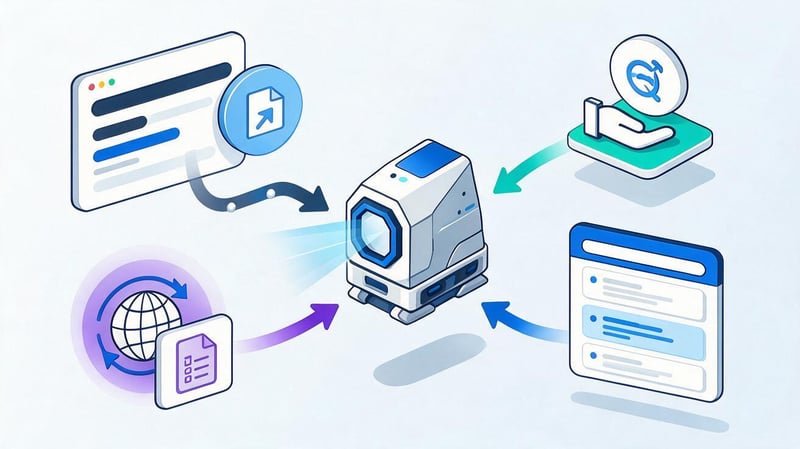
Queries like “register a website with Google”, “add a Google URL”, and “submit a website to Google” typically refer to indexing. Separate registration of each website in the search directory is not required to appear in Google.
Search engines can detect a new website through links and a sitemap. It's helpful for project owners to connect to Google Search Console, verify the property, and submit a valid sitemap. For individual new pages, indexing can be requested via URL Inspection.
However, technically submitting a URL doesn't replace a proper website structure. If the new document isn't linked internally, duplicates an existing page, or is blocked from indexing, the Request Indexing button alone won't solve the problem.
How to check if a website or page is in Google?
For a specific page, the primary verification method is URL Inspection in Search Console. It displays index information for the URL and helps check the page's current availability.
You can also search with the site: operator. This method is convenient for quickly checking example pages, but the number of results does not accurately reflect the number of site documents indexed.
For important pages, use URL Inspection, and for the overall picture of a large site, use Page Indexing. Google also notes that it may be normal for some URLs to be missing from the index if they are duplicates, redirects, noindex, or deleted pages.
What should I do if a new page is not indexed for a long time?
First, check whether the URL opens with a 200 status code and is accessible without authorization. Then, check robots.txt, meta robots, canonical, sitemap, and internal links.
If the page is technically accessible, it's worth evaluating the document itself. Google doesn't guarantee indexing of every URL, so duplicate or unhelpful content may remain out of the index for a long time.
After making corrections, you can test the page using Live URL Test and submit a Request Indexing request. For a large number of documents, it's best to update the sitemap with the correct lastmod.
Google Search Console vs. Google Analytics 4 – What's the Difference?

Both services are used to analyze a website, but their data differs. Search Console focuses primarily on a website's interaction with Google Search, while Google Analytics 4 records events and visitor behavior on the website itself.
Therefore, discrepancies in numbers between the two systems are considered normal. They use different sources, processing rules, and metrics. GSC clicks cannot be compared with GA4 sessions as identical metrics.
| What are we analyzing? | Google Search Console | Google Analytics 4 |
|---|---|---|
| Search queries | Yes, for Google organic search | Limited through integration |
| Google impressions | Yes | No |
| Clicks from search | Yes | Other traffic metrics are used |
| Average position | Yes | No |
| URL indexing | Yes | No |
| Sitemap | Yes | No |
| Events on the site | No | Yes |
| Conversions | Not the main report | Yes |
| User behavior | Limited | Yes |
| Traffic sources | Google Organic Search | Different channels |
A comprehensive SEO analysis typically requires both systems. GSC helps understand where a user came from in organic Google and which queries led to site visibility, while GA4 shows the visitor's subsequent actions.
Common Mistakes When Working with Google Search Console
One common mistake is to view the average position as a fixed site position. Users see different results, and the GSC metric aggregates data across multiple impressions. Analysis requires looking at the query, page, country, device, and time period.
The second mistake is trying to eliminate all unindexed URLs. For technical pages, duplicates, redirects, and closed documents, not being indexed is often a design feature of the site.
The third mistake is constantly submitting the same page via Request Indexing. If Google regularly fails to index a URL, the cause should be looked for in accessibility, document quality, canonical, interlinking, and overall architecture.
Another problem is analyzing only general charts. A 15% drop in clicks doesn't reveal the cause. We need to determine which pages, queries, countries, or devices are driving the difference.
The last common mistake is comparing Search Console clicks and GA4 metrics as if they were identical data. The systems measure different actions, so they're used together, but don't expect the numbers to match exactly.
A website's SEO requires systematic monitoring of indexing, technical condition, and search visibility. If Search Console is already enabled, the next step is to review key reports and compile a list of pages that require technical or content improvements.


