How to grant guest access to Google Analytics 4?


Website owners often need to share Google Analytics with SEO specialists, marketers, web analysts, developers, or agencies. There's no need to share your Google account login and password: in GA4, you can add a separate user, assign them a suitable role, and restrict access to a specific property.
If you searched for “how to grant guest access to Google Analytics”, we'll walk you through the entire process step by step below. We'll show you where to manage access, which role to choose for a contractor, the difference between an account level and a property level, and how to later change or remove user permissions.
What is Google Analytics guest access?
There's no separate “Guest” role in the Google Analytics 4 interface. Guest access typically refers to adding another user to GA4 with specific permissions tailored to their work tasks. The analytics owner retains their account and controls which data and settings are available to the invited specialist.
This method is more convenient than a shared account, as each employee or contractor is assigned their own user rights. If collaboration ends, a specific person's access can be removed without changing passwords or affecting other team members.
Who might need access to GA4 and why?
Access to Google Analytics is often required by specialists working with traffic, advertising, user behavior, or technical website configuration. The set of permissions depends on the specific task, so a single role for all employees is usually not required.
Most often, access is granted to the following specialists:
- SEO specialists are provided with reports on organic traffic, landing pages, events, and conversions, which are necessary for analyzing promotion results.
- PPC specialists are provided with data on advertising clicks, audiences, conversions, and other metrics related to advertising campaigns.
- A web analyst may need advanced permissions to inspect events, property settings, data streams, and related integrations.
- An agency or external contractor is typically granted access only to the Property the team is working with within the project.
- You can leave viewing rights to a manager or client if they need to regularly check reports without changing settings.
Before adding a new user, it's best to define their specific tasks in advance. This approach helps you select the minimum required access level and avoid opening settings the specialist won't need.
What do you need before granting access?
To add a user, you'll need the email address associated with their Google Account or Google Workspace Account. The person granting access to Google Analytics must also have sufficient administrative rights at the required account or property level.
Before you begin, check the selected GA4 account and the specific Property, as companies often use multiple properties simultaneously. An error at this stage could result in the contractor gaining access to another site or multiple company projects.
Answers to your questions
How to grant guest access to Google Analytics 4?
Open the “Administrator” section, select Account or Property access control, add the user's email address, and assign the appropriate role. After saving, verify that the user appears in the list and can access the desired property.
Before adding a contractor, determine the necessary permissions in advance. Full administrative access is usually not required for simply viewing reports.
Is it possible to grant access to Google Analytics without sharing the password?
Yes, Google Analytics allows you to add a user using their own Google Account address. The website owner retains their password and doesn't share their primary account information with anyone else.
This option is more convenient than shared authorization, since each participant's permissions can be changed or removed individually. Other users continue to work without changes.
What role should you give an SEO specialist in GA4?
Viewer may be sufficient for viewing basic reports, while Analyst is suitable for more in-depth analytical work. Editor is needed when an SEO specialist is involved in changing the property's settings.
The Administrator role should only be granted when user and access management is required. For a standard SEO audit, such rights are usually excessive.
Is it possible to open access to only one site?
Yes, if website analytics is located in a separate Property, you can add a user at the property level. Other account Properties are not automatically available with this setting.
This option is especially convenient for external specialists and agencies. They receive project data without access to other company websites.
How do I grant an agency access to Google Analytics?
Find the Google Account of the responsible agency specialist and add them to the desired Property. Then assign a role that matches the agreed-upon scope of work for analytics, SEO, or advertising.
Don't use a shared password for the website owner's account. A separate user makes it easier to control permissions and subsequently remove access.
How to delete a user from Google Analytics?
Open Admin, go to Access Management, find the email address you need, and select “Delete User”. After saving, the user will lose access at the level where their permissions were removed.
If a user was added to multiple properties separately, check each property. Removing permissions in one place doesn't always remove all previously granted access.
Why can't I add a new user in GA4?
Most often, the issue is related to insufficient permissions on the current account. Managing users requires appropriate administrative access at the Account or Property level.
Also, make sure you're working with the right property and the correct Google account. This kind of confusion is quite common in companies with multiple projects.
How to grant guest access to Google Analytics 4?
The process takes a few minutes if you know the user's email address and the required role in advance. All steps are performed through the admin section, so before you begin, make sure you've selected the correct Google Analytics 4 account and the correct website property.
Step 1: Open the Administrator section
Log in to Google Analytics using your account, select the desired account and property, and then open the “Administrator” section. This is where you'll find account settings, properties, integrations, and user management.
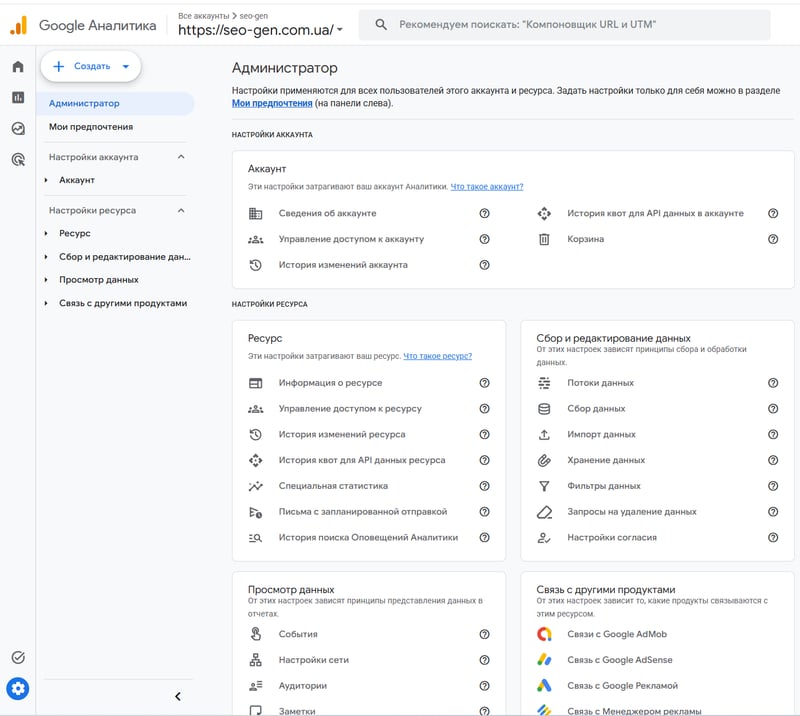
Before proceeding to the next step, double-check the property name. This is especially important for agencies and companies where a single account contains analytics for multiple sites or applications.
Step 2: Choose what to share
Google Analytics 4 allows you to manage users at the account and property level. This selection determines what data an invited user will have access to after being assigned the appropriate role.
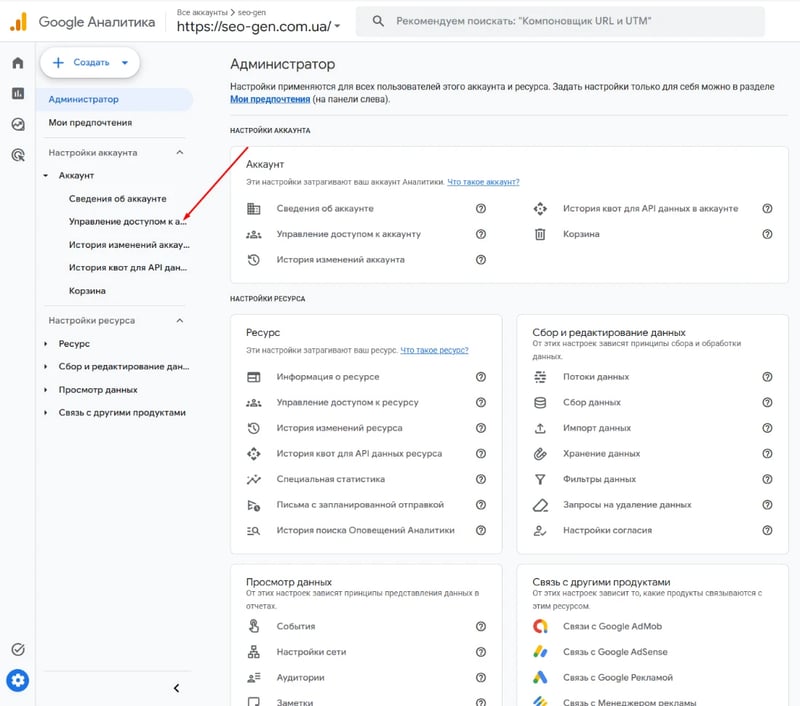
The simplified diagram looks like this:
Account → Property → User → Role → Data restrictions
If a specialist works with only one website, adding them to a specific property is usually sufficient. Access to the entire account is needed much less frequently and should be aligned with the user's actual work responsibilities.
Account-level access
A user added at the Account level receives rights within the account and its properties according to the assigned role. This option is suitable for employees who actually work with multiple Properties or are responsible for the company's overall analytics system.
For a temporary contractor or SEO specialist, this level of access is often excessive. Before granting access, it's worth checking whether the person needs access to data from other websites and apps within the account.
Property-level access
When adding a user at the Property level, their permissions apply only to the selected property. Other projects in the account remain inaccessible with this setting unless specific permissions have been granted for them previously.
For SEO, PPC, auditing, or an external agency's work, this option is suitable in most cases. The specialist receives the necessary data for a specific website, and the owner does not provide access to the company's other projects.
Step 3: Open Access Control
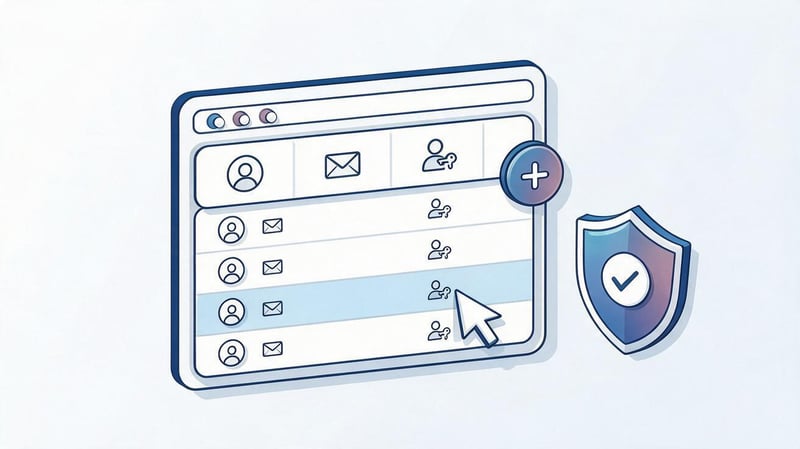
In the administrator section, select Manage account access or Manage property access based on your previous decision. Once opened, a list of users with existing permissions will appear.

Before adding a new user, it's helpful to review this list in its entirety. This way, you can identify old employee or contractor accounts that no longer require access, and simultaneously perform a quick security audit.
Step 4: Add a new user
Click the Add User button and enter the email address of the person you want to grant access to Google Analytics. The email address must be linked to a valid Google account, otherwise the user will not be able to log in properly.
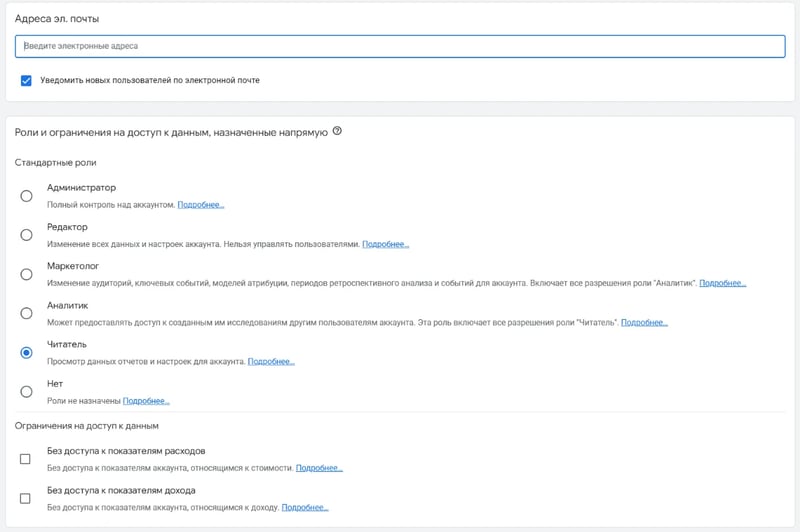
If an agency is receiving access, clarify in advance which work address should be added. It's best to use the personal or corporate account of the responsible specialist so that it's clear later who exactly has the assigned rights.
Step 5: Select a user role and permissions
After entering your email address, you must select a user role in Google Analytics 4. This role determines whether the user can only view reports, analyze data, change property settings, or manage access for other users.
Don't automatically assign Administrator to every contractor. Limited roles are suitable for viewing analytics, while Editor is required when a specialist actually needs to change GA4 configuration, events, or other property parameters.
Step 6: Send an invitation and check access
After selecting the role, save the user and, if necessary, enable email notifications. Then check the list of members and ensure the desired email address appears in the selected account or Property.
Ask the specialist to log in to their own Google Account and open the GA4 property. This check takes a few minutes and immediately shows whether the correct access level has been selected and whether the required reports are available.
What access levels are available in Google Analytics 4?

In GA4, it's important to distinguish between the level at which a user is added and the role assigned to them. The level defines the scope of access, while the role determines the actions the user can perform within that scope.

The main options are conveniently compared in the table:
| Level | What does the user get? | When to use |
|---|---|---|
| Account | Access to account properties within the assigned role | For the owner, internal analyst, or employee working with multiple properties |
| Property | Access only to the selected Property | For SEO, PPC, external analyst, agency or other contractor |
If a person needs just one website, access to the property is often sufficient. Granting permissions to an entire account without a business need increases the amount of available data and complicates subsequent user control.
What user roles are there in GA4?
Google Analytics 4 uses several standard roles with different capabilities. When choosing a role, focus on the user's actual work, not their job title or company name.
| Role | Key Features | Who is it suitable for? |
|---|---|---|
| Administrator | Full control over settings and users | The owner and responsible analytics administrator |
| Editor | Change most settings without managing users | An analyst or GA4 setup specialist |
| Marketer | Working with marketing functions and related objects | Marketer and advertising specialist |
| Analyst | Data analysis and analytical research | SEO specialist and web analyst |
| Viewer | View reports and available data without changing configuration | A client, manager, or specialist who only needs viewing |
It's a good idea to check the difference between roles before each new contractor is added. Project needs may change, so user rights can be increased or restricted later.
Administrator
The Administrator has the broadest rights and can manage other users. This role is suitable for the analytics owner or the employee responsible for access, settings, and system administration.
An external contractor only needs the Administrator role in certain cases. If a specialist needs to analyze data or change property settings, a more limited permissions role can usually be selected.
Editor

The Editor role can change many property settings, so it's used for fully configuring Google Analytics 4. It may be needed by a web analyst who configures events, conversions, audiences, or related parameters.
If the work is limited to auditing reports and troubleshooting, broader privileges may not be necessary. After the technical work is completed, the role can also be reassigned to a more limited one.
Marketer
The Marketer role focuses on GA4 marketing functions, including linked audiences and ad scenarios. This role can be used by someone working on advertising analytics and promotions.
Before assigning a Marketer, it's worth reviewing the specialist's responsibilities within the project. If the person only needs to view completed reports, additional access to marketing functions may be unnecessary.
Analyst
An Analyst is suitable for users who need to work more deeply with analytical data and research without full administrative oversight. This role often aligns with the responsibilities of an SEO specialist or web analyst during an audit.
Users gain more analytical capabilities than with standard data viewing, without the need to manage other users or have full control over account settings.
Viewer
The Viewer role is suitable for situations where a person only needs to view available reports and metrics. This role is convenient for a manager, client, or contractor who needs to verify data without changing the configuration.
If a specialist later requires additional functionality, permissions can be changed through access control. Therefore, granting a broader role upfront “just in case” is usually unnecessary.
How to restrict access to expense and income data?
GA4 allows you to further restrict the visibility of expense and revenue data. This option is useful if a contractor requires statistics on user behavior or traffic sources, but does not require disclosure of the project's financial metrics.
Data restrictions should be chosen in conjunction with the user's primary role. They help fine-tune access and limit access to only the information a user actually needs to complete their job.
What access should I give to an SEO specialist or agency?
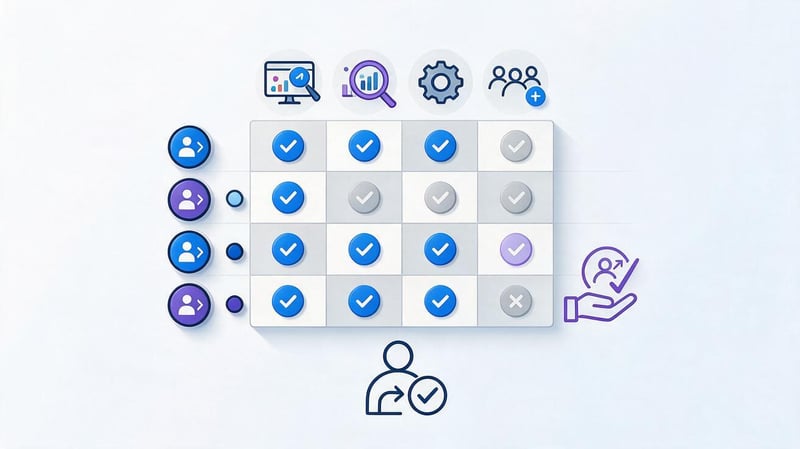
There's no single role for all SEO tasks, as the scope of work varies across projects. One specialist only analyzes organic traffic, another checks events and conversions, and a third is involved in setting up the entire web analytics system.
When selecting access rights, it's best to start with the minimum necessary privileges. If, during the work, you discover that certain functions are unavailable, you can change the role without creating a new user.
For SEO audit and traffic analysis
Viewer or Analyst are usually sufficient for checking channels, landing pages, user behavior, and conversions. The choice depends on which analysis tools the specialist plans to use within GA4.
Administrative rights are usually not required for a routine audit. It's more important for an SEO specialist to accurately view property data, events, and reports than to manage other users.
For web analytics work
A web analyst may need the Analyst role for data exploration or the Editor role for configuration changes. The role is selected after the precise tasks within Google Analytics 4 have been defined.
If a specialist simultaneously works with Google Tag Manager, DataLayer, and event configuration, permissions for each service are granted separately. Access to GA4 does not automatically grant access to other Google products.
To set up analytics
When setting up the property itself, the Editor role is often required, as a specialist must modify GA4 parameters. The Administrator role is only needed when the work involves managing users and granting permissions to other team members.
Lead SEO specialist — Gennady
I recommend granting external specialists access only to the Google Analytics property they actually work with. Administrative rights aren't required for report analysis, and after a project is completed, I always review the user list and remove any temporary access.
How to change user permissions in Google Analytics?
If a person's responsibilities have changed, there's no need to create a new account. Open “Administrator”, go to access management for the desired account or Property, find the user's email address, and open their settings.
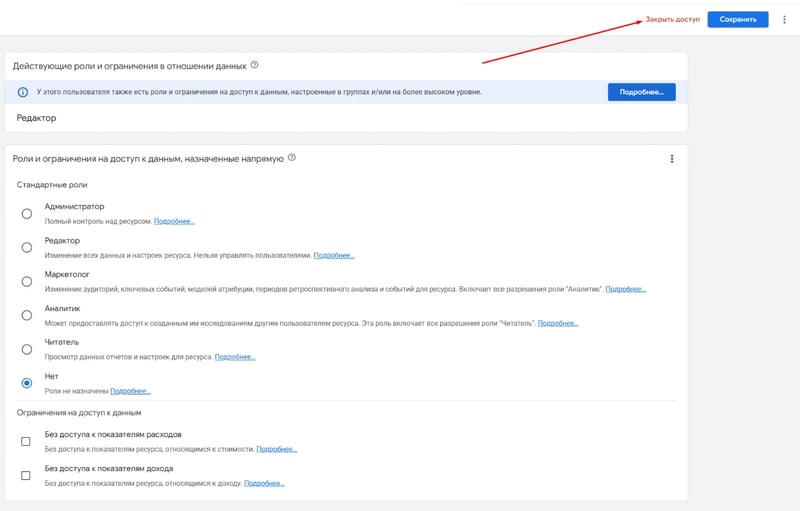
After this, change the role, additional data restrictions, and save the settings. This approach is convenient when a specialist transitions from auditing to analytics setup or after completing the technical portion of the project.
How do I revoke access to Google Analytics?

After collaboration ends, it's best to remove a user from GA4 if they no longer require ongoing access. To do this, open the access management section, find the relevant email address, and select “Delete User”.

Regular monitoring is especially useful for websites that have worked with various agencies and contractors for several years. Such accounts often contain old users who haven't been involved in the project for a long time but still have access to analytics data.
How to securely share GA4?
Secure Google Analytics work begins with a clear distribution of permissions among team members. Avoid using a single shared account for all contractors, as it will be difficult to determine who owns what actions and which access rights have expired.
For regular work, it's enough to follow a few rules:
- Please do not share your Google Account login and password, as each specialist can be added through their own account.
- Assign the minimum necessary rights that correspond to the user's actual task within a specific project.
- Choose a Property instead of an entire Account if a person only needs analytics for one website or application.
- Review user management periodically and remove former employees, agencies, and temporary contractors.
- Limit expense or income data unless the person needs the financial information to do their job.
After any permissions change, it's helpful to test access with the user. This quick check helps identify erroneous properties, inappropriate roles, or unnecessary permissions before starting the actual work.
Common mistakes when granting access
Most issues are related to selecting the wrong level, insufficient permissions for the current user, or using outdated instructions for Universal Analytics. Before changing settings, it's worth checking that the instructions apply specifically to Google Analytics 4.
Below are some situations that most often prevent users from being added or create unnecessary risks for the site owner.
There is no add user button
If the Add button is unavailable, first check your permissions for the selected account or property. A user without the necessary administrative permissions will not be able to manage other members.
Also, make sure the correct Access Management level is enabled. Access to a single Property does not automatically grant the ability to manage users for the entire account.
The user is not granted access
Check the email address you provided when adding the user and make sure it's linked to their Google Account. Even a single character error will prevent the right person from accessing the property.
After correcting the email, recheck the assigned role and selected Property. If the information is correct, the user should be able to sign in using their own Google account.
Access to the entire account was selected instead of a single property
If a contractor only needs one site, Account-level access may grant them more properties than they need to complete their work. In this case, it's best to remove the unnecessary permissions and add the user directly to the desired Property.
Before granting access, it's a good idea to review your account structure. This should be done especially carefully by companies that store analytics for multiple brands or client sites in a single account.
The instructions for Universal Analytics are used
Legacy content may contain the View level, as well as the Edit, Share, and Read & Analyze permissions. These names refer to the previous version of Google Analytics and should not be used as a valid guide for GA4.
In the modern interface, focus on Account, Property, and the Administrator, Editor, Marketer, Analyst, and Viewer roles.
Guest access to Google Analytics 4 is configured by adding a separate user, so there's no need to share the site owner's password. First, select an Account or a specific Property, then enter an email address, assign the minimum required role, and test access after saving.
If GA4 is already used by several employees and contractors, start by reviewing current users and their permissions. To set up web analytics, audit GA4, and properly transfer access rights to specialists, submit a request to Seo-Gen – we'll review the analytics structure and configure access rights based on your team's needs.


