Transition from Universal Analytics to GA4


After Universal Analytics was discontinued, many websites continued to use old analytics settings. UA tags remained in the code, outdated triggers remained in Google Tag Manager, and some important user actions were never tracked in Google Analytics 4.
Due to such errors, website owners face reporting discrepancies, inaccurate lead data, and difficulties evaluating advertising campaigns. Sometimes GA4 is installed and collecting visits, but sales, form submissions, or user inquiries are missing from the statistics.
We'll explore the differences between Google Analytics 4 and Universal Analytics, how to check installed tags, set up events, and link analytics to Google Ads and Search Console. We'll also cover saving historical data, e-commerce, and ways to verify the new system's functionality.
Universal Analytics and GA4: What's Changed Since the Transition?
Universal Analytics has been used for many years to analyze website traffic, traffic sources, and user behavior. After the release of Google Analytics 4, Google gradually phased out support for the previous system and transitioned analytics development to a new data collection model.
Today, migrating from Universal Analytics to GA4 requires reviewing existing settings and configuring the current analytics system. Even if a GA4 property was created automatically several years ago, this doesn't guarantee proper tracking of events, inquiries, and purchases.
When did Google discontinue Universal Analytics?
Google announced the retirement of Universal Analytics in 2022, giving site owners time to prepare for the transition. For standard properties, new data processing ended on July 1, 2023, and for Universal Analytics 360, on July 1, 2024.
Starting in July 2024, Google also began shutting down access to the Universal Analytics interface, API, and historical data. After the final shutdown, UA properties ceased to be an accessible source of analytics information.
Key transition dates:
| Date | Change |
|---|---|
| March 2022 | Google announced the retirement of Universal Analytics |
| July 1, 2023 | Standard UA properties stopped processing new data |
| July 1, 2024 | Universal Analytics 360 stopped processing new data |
| July 2024 | Final shutdown of access to UA properties and history began |
Therefore, instructions recommending continuing to collect data in parallel between Universal Analytics and GA4 are now obsolete. In 2026, you need to work with an active Google Analytics 4 property.
What happened to the old Universal Analytics data?
Historical Universal Analytics data was not automatically migrated to Google Analytics 4. The two systems use different measurement models, so previous sessions, goals, and events cannot simply be loaded into the new property as full GA4 history.
Before UA was disabled, website owners could export reports to CSV, Excel, Google Sheets, and other formats. Some Universal Analytics 360 clients also had the option to export data to BigQuery.
If the archive was saved in advance, it can be used to analyze past periods, prepare comparison tables, and restore individual business metrics. If no export was performed, it is no longer possible to retrieve deleted history through the standard Google Analytics interface.
When comparing archived reports with new statistics, it's important to consider differences in methodology. For example, user, session, and conversion metrics are calculated using different rules in the two systems.
Should we switch to GA4 in 2026?
If your site continues to send data only to the old Universal Analytics ID, up-to-date statistics will not appear in GA4 without the appropriate configuration. If you don't have a working property, you'll need to create a Google Analytics 4 property and connect your site to it.
Projects with GA4 already installed typically require an audit of the existing implementation. This includes a particular focus on events, key user actions, e-commerce settings, and integrations with advertising services.
Signs of analytics problems:
- GA4 reports do not show visits, although real users regularly visit the site.
- The number of recorded leads differs significantly from the actual number of inquiries in the CRM.
- The purchase event is triggered again after the order confirmation page is refreshed.
- Google Ads receives multiple conversions after a single user action.
- The source code contains both old and new methods of connecting analytics.
The presence of such signs does not necessarily prove a specific error. The cause must be determined after checking the tags, events, and data processing settings.
Answers to your questions
What is the main difference between Universal Analytics and GA4?
Universal Analytics used a hit- and session-based measurement model, while Google Analytics 4 records interactions primarily through events and their parameters. However, GA4 also stores sessions and user metrics.
Differences affect the property structure, calculation of individual metrics, goal settings, and reporting capabilities. Therefore, the metrics of the two systems cannot be compared without taking into account the measurement methodology.
Is it possible to migrate from Universal Analytics to GA4 in 2026?
You can create a new Google Analytics 4 property or customize an existing one, replace outdated tags, and implement the necessary events. However, Universal Analytics itself has been discontinued, so the legacy system will not be able to continue collecting data alongside GA4.
If the site only retains the old settings, a new, working implementation of the measurement will be required. After installation, it's important to verify the transfer of visits, key events, and e-commerce data.
Is it possible to migrate historical Universal Analytics data to GA4?
Google does not support transferring historical Universal Analytics events directly to a Google Analytics 4 property. Old sessions, goals, and transactions cannot be restored to the new system using a standard import.
If the company retained UA archives before the service was shut down, they can be used separately. Spreadsheets and BI tools are suitable for comparative reports, taking into account differences in measurement methodology.
What is the Google Analytics Universal Tag?
The Google Analytics Universal Tag query typically refers to information about the legacy Universal Analytics code or the current Google tag. The name does not refer to a separate, existing Google analytics system.
To determine the type of solution installed, you need to check the identifiers and connected scripts. For example, UA- points to the previous Universal Analytics property, and G- is used for the GA4 web data stream.
Should I remove the Universal Analytics code from my website?
It's recommended to remove unused UA tags after checking your current analytics system. This helps reduce the number of outdated settings and simplify website maintenance.
Before deleting, check dependencies in Google Tag Manager and ensure that GA4 and Google Ads tags continue to fire correctly. Changes should be tested before publishing.
Why does Google Analytics 4 show different data than Universal Analytics?
Systems use different approaches to measuring interactions and calculating individual metrics. The number of users, sessions, bounce rates, and conversion statistics may differ.
In addition to methodology, discrepancies are influenced by tag settings, user consent, and the correctness of event registration. Analysis requires comparing metric definitions and verifying the technical implementation of the measurement.
How to check that GA4 is installed correctly?
First, you need to check the installed tags using Google Tag Assistant and ensure that events are being sent to the correct property. Then, enable debug mode and view the event sequence in DebugView.
Realtime and standard reports are also checked after data processing. For service websites, a test inquiry is submitted, and for online stores, a test purchase is made, verifying the transmitted parameters.
How to link Google Analytics 4 with Google Ads?
Accounts are linked through Google Analytics administrative settings or the corresponding Google Ads features if you have the necessary permissions. Once connected, you can use analytics data and create ad conversions based on relevant events.
Before using conversions to optimize your ads, it's important to verify their purpose and counting settings. A single actual user action shouldn't be mistakenly counted as multiple primary conversions.
What is the difference between Google Analytics 4 and Universal Analytics?

The main change relates to the way user actions are measured. Universal Analytics focused on hits and sessions, while Google Analytics 4 uses an event-based model, where interactions are recorded as individual events with parameters.
Differences affect property structure, reporting, goal settings, and integration with other Google products. Therefore, after the transition, familiar metrics may change even if site traffic remains roughly the same.
Event-based data model instead of hits
Universal Analytics tracked interactions using various types of hits: page views, events, transactions, and other data. User actions were grouped into sessions, which were central to reporting.
In GA4, most interactions are described by events. A page view is recorded as page_view, the start of a session is recorded as session_start, and a purchase can be transmitted via the purchase event.
Each event can contain additional parameters that clarify the circumstances of the action. For example, for a purchase, the order price, currency, transaction ID, and information about the purchased items are passed.
This structure facilitates the analysis of individual interactions on the website and in the mobile app. However, it requires careful configuration of events and consistent rules for parameter transfer.
Users, sessions, and engagement
In Universal Analytics, one of the primary metrics was the number of sessions, while visitor activity was often assessed through page views and bounce rate. GA4 also stores session statistics but additionally utilizes engagement metrics.
An engaged session is defined as one that lasts more than 10 seconds, contains a key event, or includes at least two page or screen views. The time threshold can be adjusted in the GA4 settings.
For example, a visitor opened an article from a search result and read it attentively for several minutes without navigating to other pages. In the old system, such a visit might have been counted as a bounce, whereas GA4 can classify it as an engaged session.
GA4 also has a bounce rate, but it's calculated relative to engaged sessions. Therefore, comparing it directly with older Universal Analytics reports is inaccurate.
Universal Analytics Goals and GA4 Key Events
Universal Analytics used goals to measure important actions. They were configured to measure specific page visits, session duration, number of views, or the recording of a specific event.
In GA4, important actions are marked as key events. For example, a key event might be successfully submitting an application, placing an order, or completing a registration.
To set this up, first identify an event that corresponds to a real user action. Then, mark it as a key event in the Google Analytics 4 interface.
Google Ads conversions have a separate purpose. They are used to evaluate campaigns and optimize bids, so when linking analytics to advertising, it's important to choose the right actions that influence the learning of your advertising strategies.
Reporting, Attribution, and Integrations
GA4 offers standard reports on user acquisition, traffic sources, interactions, and monetization. For a more detailed analysis of visitor behavior, there's an Explore section with action sequences and segments.
The attribution model determines which user interactions are assigned the credit for a key event. However, the settings and available credit distribution methods differ from the previous Universal Analytics system.
GA4 supports integration with Google Ads, Google Search Console, and BigQuery. This allows you to compare data on traffic, organic search results, and ad conversions.
| Parameter | Universal Analytics | Google Analytics 4 |
|---|---|---|
| Basic measurement model | Hits and sessions | Events and parameters |
| Property structure | Property and views | Property and data streams |
| Target actions | Goals | Key events |
| Web ID | UA-XXXXXXXX-X | G-XXXXXXXXXX |
| Engagement | Mostly old session metrics | Engaged sessions and other metrics |
| Web and apps | Different approaches to measurement | Unified event model |
| Data export | BigQuery for UA 360 | Exporting GA4 to BigQuery |
| Current status | Discontinued | Active system |
Changes to the measurement model impact the content of SEO reports and marketing effectiveness assessments. When analyzing trends, it's important to consider which metrics are truly comparable across periods.
Google Analytics Universal Tag: How to identify old and new tags?

Websites with a long history of analytics development often retain different versions of Google code. A single project might contain the old UA identifier, the gtag.js library, the Google Tag Manager container, and the modern Google tag.
Before changing settings, you need to determine the purpose of each element. Deleting a running container or reinstalling a tag without checking can disrupt data collection and create duplicate events.
What does the Google Analytics Universal Tag query mean?
When searching for “google analytics universal tag”, users are typically looking for information about the old Universal Analytics tag or trying to understand modern ways to connect to Google Analytics.
In official terminology, Universal Analytics and Google Tag refer to different stages of the measurement system's development. There is currently no universal product with a separate, official name, Google Analytics Universal Tag.
The old UA code was used to transfer data to Universal Analytics properties. The modern Google tag is used to connect supported Google products, including Google Analytics 4 and Google Ads.
Therefore, before replacing the code, it's necessary to determine which identifier is used on the site and where the events are sent. The name of the installed library alone doesn't always indicate the state of the analytics.
What's the difference between analytics.js, gtag.js, and Google tag?
The analytics.js library was used for Universal Analytics. In the old code, you can find a call to ga('create', ...) and an identifier starting with UA-.
The gtag.js library emerged as a way to integrate Google measurements directly through JavaScript. It was used, among other things, for Universal Analytics, and the current Google Tag implementation also uses this library.
The name “Google tag” refers to the current system for setting up and managing Google tags. A single, properly configured tag can transmit the necessary data to multiple connected products.
Google Tag Manager performs a different task – it manages tag firing, triggers, and variables through a container. It's convenient when you need to track forms, clicks, purchases, and additional events on your website without constantly editing the source code.
What do the identifiers UA-, G-, GT- and AW- mean?
The identifier format helps determine which system an installed tag belongs to. However, additional settings must be taken into account when diagnosing, as a single modern Google tag can have multiple associated identifiers.
Both the website code and the Google Tag Manager container configuration should be checked. It's also important to determine which events are actually being sent to Google Analytics and advertising systems.
UA-XXXXXXXX-X – deprecated Universal Analytics identifier
Identifiers with the UA- prefix were used to identify Universal Analytics properties. They can be found in the source code of older websites, CMS settings, and saved Google Tag Manager tags.
The mere presence of a UA identifier doesn't mean the site continues to collect functional analytics. After Universal Analytics is discontinued, old hits no longer create accessible history in GA4.
During the audit, you need to find all the places where the obsolete identifier is used and determine the purpose of the corresponding tags. If they are no longer needed, they can be removed after testing the live system.
G-XXXXXXXXXX – GA4 measurement identifier
The G- prefix identifier is used for the Google Analytics 4 web data stream. It can be found in the GA4 admin panel by opening the desired property and the corresponding data stream settings.
This identifier is used when connecting a site via Google Tag, Google Tag Manager, and supported CMS integrations. It helps route events to the correct data stream.
When working with multiple sites, be especially careful when checking the selected property. An error in the identifier can result in visits being sent to a different or test stream instead of the main one.
GT-XXXXXXXX and AW-XXXXXXXX – Google tag and Google Ads identifiers
The GT- prefix denotes the Google tag identifier, which is used to manage tag settings and assignments. In some implementations, Google tag may also use identifiers associated with individual Google products.
AW-IDs are used in Google Ads and are linked to advertising measurement. They can be used in conjunction with additional parameters required to record specific advertising conversions.
The GTM- prefix, which stands for Google Tag Manager container, is also common. This is the container identifier that can contain tags from various systems.
How do I find the installed Google Analytics tag on my website?
You can start by checking the page's source code, opening it with your browser's tools. Searching for the strings UA-, G-, GT-, GTM-, gtag, and analytics.js helps identify common connection patterns.
However, some tags are loaded dynamically, so simply viewing the HTML isn't enough. For more accurate diagnostics, we recommend using Google Tag Assistant and GTM's preview mode.
Verification procedure:
- Open the website's home page and several typical internal pages, including the service page, article, and checkout page, if available.
- Check your source code and included scripts to find old identifiers and active Google tags.
- Run Tag Assistant and see which Google tags and GTM containers are detected on the pages you're checking.
- Open your browser's network requests and check that data is being sent to the appropriate analytics property.
- Compare the found identifiers with the settings of the current GA4 property and Google Tag Manager container.
After checking, it's worth creating a short table of installed tags, their purpose, and current status. This list will be useful when updating analytics and will help you avoid deleting working integrations.
Should I remove the old Universal Analytics Tag?
Deprecated Universal Analytics tags are generally not needed for further website traffic measurement. Removing them simplifies analytics maintenance, reduces unnecessary configuration, and reduces the risk of erroneous use of old identifiers.
Before deleting, ensure that the change won't affect the running configuration of GA4, Google Ads, or other services. Be especially careful when working with shared GTM containers, where necessary triggers and variables may be located alongside old tags.
A safe course of action involves backing up the container, disabling specific outdated tags, testing, and publishing a verified version. Deleting the entire container to remove a single outdated tag is not necessary.
Preparing for GA4 Setup: Auditing Current Analytics

Before installing new tags, it's important to determine what data the site owner needs and what events are already being sent to Google Analytics 4. Without a preliminary audit, you could end up with a technically functional system that doesn't address key business needs.
For example, an information portal values content views and audience engagement, while an online store needs to track products, carts, order placements, and revenue. The composition of events should be tailored to the specific project's objectives.
What metrics and events should be monitored?
First, identify the key user actions that indicate the achievement of business goals. For a service website, this could include submitted inquiries, calls, and registrations, while for an online store, this could include completed and paid orders.
Secondary interactions can also be useful if they help explain audience behavior. For example, viewing contact information or starting to fill out a form allows us to explore the interim stages of the customer journey.
Main groups of indicators:
- Traffic: users, sessions, views and audience acquisition sources.
- Engagement: engaged sessions, content interactions, and visitor actions.
- Lead generation: successful inquiries, registrations, and confirmed user requests.
- Sales: purchases, order value, products and e-commerce metrics.
- Marketing effectiveness: key events and their distribution between traffic sources.
Not all button clicks need to be marked as key events. For business evaluation, it's more useful to measure completed actions and use intermediate interactions to diagnose user behavior.
How to check existing GTM tags and container?
The audit begins with an inventory of all installed analytics and ad tracking systems. It's important to determine whether direct gtag.js code, Google Tag Manager, built-in CMS integration, or a combination of these methods are used.
Next, check account access rights, the active measurement ID, and event sending settings. If you don't have the necessary rights, it's best not to initiate changes, as fixing errors may require access to multiple systems.
In the GTM container, review the list of tags, triggers, variables, and the history of published versions. Old UA tags, custom JavaScript, and settings related to forms and e-commerce deserve special attention.
It's advisable to save audit results in a separate table. For each tag, indicate its purpose, identifier, trigger condition, status, and the need for modification.
How to create a map of the correspondence between old goals and new events?
If a company has retained previous Universal Analytics documentation, it can be used to restore tracking logic. The names of old goals help clarify which business actions were previously tracked and which events need to be implemented in GA4.
However, previous settings should not be copied without verification. For example, the thank you page visit goal may not be a suitable solution if the form is now submitted without redirecting to a separate URL.
Example of a correspondence map:
| Action | Previous UA goal | GA4 event | Check |
|---|---|---|---|
| Submitting an inquiry | Reaching the thank-you page | generate_lead | Form submitted successfully |
| Registration | Completion of registration | sign_up | Confirmed registration |
| Purchase | E-commerce transaction | purchase | Created order |
| Start of checkout | Cart event | begin_checkout | Opening the order form |
| Clicking the phone number | Click event | Custom event | Actual click |
Event names should be chosen based on Google recommendations and the site's technical implementation. Each event should have a clear trigger condition that can be reproduced during testing.
How to avoid losing new data during setup?
The main danger when updating analytics is deleting working tags before checking the new ones. If you change the configuration on all pages at once and make a mistake, the site may stop transmitting important events.
Before making changes, it's recommended to export the GTM container and save the current settings. Then, test the new implementation in preview mode, verifying the sequence of user actions.
Changes should be published after validating events, parameters, and key actions. If an issue is discovered after updating, it is important to be able to restore the previous working version of the configuration.
How to Set Up Google Analytics 4: A Step-by-Step Guide
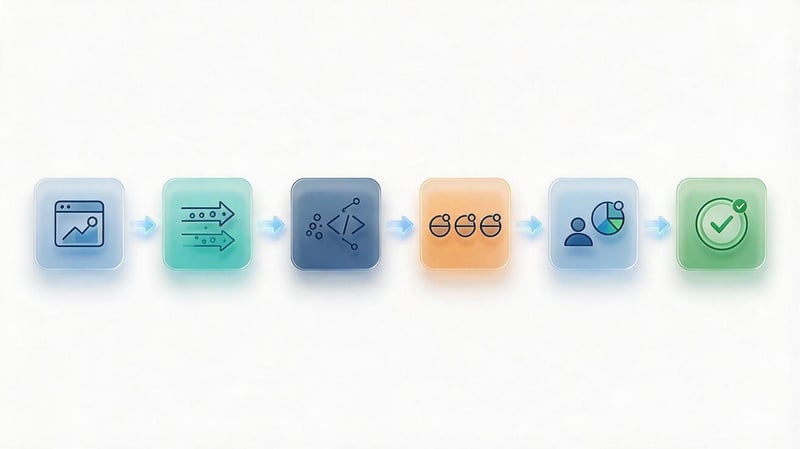
GA4 setup begins with selecting the active analytics property and verifying its connection to the desired website. If a property already exists and is receiving accurate data, creating a second one is usually not necessary.
Further steps depend on how analytics is connected. For most projects, installing via Google Tag Manager, using CMS integration, or directly embedding a Google tag in the code is suitable.
Step 1. Create a Google Analytics 4 property
Open Google Analytics and go to your account's administrative settings. If your organization already has an account, you can create a new property within it if you have the appropriate access rights.
When creating a property, specify the name, reporting time zone, and currency. These parameters must be appropriate for the business, as they affect the presentation of data and financial indicators.
Once created, you should review the access, data storage, and privacy settings. For corporate projects, it's advisable to use company-owned accounts to ensure analytics aren't dependent on just one employee's personal email address.
Step 2. Create a data stream and get an ID
In the admin panel, open the data streams section and select Create a web stream. Enter the website address, stream name, and review the available enhanced measurement options.
Once saved, GA4 will create a measurement ID with the G- prefix. This must be used when connecting the site if the selected installation method requires specifying a stream ID.
For a site with multiple domains or subdomains, it's important to define a common measurement scheme in advance. This will determine how user transitions between domains will be counted and what cross-domain tracking settings will be required.
Step 3. Install the Google tag on your website
The Google tag transmits events and parameters from your website to related Google products. Installation can be done using direct JavaScript code, a Google Tag Manager container, or a supported CMS integration.
Before choosing a connection method, check whether a tag is already running on your site. Reinstalling it without proper configuration may result in duplicate views and events.
Setting up the Google tag via Google Tag Manager
Open Google Tag Manager and select the desired website's container. In the tags section, create a new tag of the Google tag type and specify the corresponding ID obtained from your Google Analytics settings.
For the base tag, configure it to fire on page initialization according to the latest Google documentation. Then save the configuration and open the preview mode.
In Tag Assistant, verify that the tag fires on the intended pages and passes data to the correct property. After successful testing, publish a new version of the container with a clear name for the changes.
If a Google tag is already running in the container, first check whether the existing setup can be used. Unnecessarily creating an additional tag complicates diagnostics and increases the likelihood of duplicate events.
Installing the Google tag via gtag.js
Direct connection is suitable for projects where the developer controls the website's source code and doesn't plan to use GTM to configure additional events. The ready-made code should be taken from the installation instructions section of the GA4 admin panel.
The script is typically placed at the beginning of the head section and should be loaded on all pages requiring analytics. When using a shared templating system, simply include it in the relevant common section of the site.
Don't manually assemble the code from outdated Universal Analytics instructions. To verify the connection, use the official Google tag snippet and ensure the correct ID is specified.
After implementation, test page loading and basic event registration. Check especially closely sites where navigation occurs without a full document reload.
Installation via CMS
Many content management systems support analytics integration via built-in integrations or special settings. Typically, you just need to select the desired service and specify the measurement ID or connect an existing Google account.
When using a CMS, check what events it sends automatically. For example, an online store module might automatically send information about purchases and the shopping cart.
If similar events are additionally configured in GTM, the system may register the same action multiple times. Therefore, before enabling the new integration, it's important to check your current data submission method.
For a custom CMS, it's preferable to store identifiers and analytics settings in the site-specific configuration. This approach allows you to update templates and components without losing individual measurement settings.
Step 4. Set up automatic event tracking
Google Analytics 4 automatically records a number of technical events after proper installation. These include session start, user's first visit, and other platform-specific events.
Enhanced measurement is also available for the web stream, allowing you to track additional interactions without implementing each event separately. The available features and their status should be checked in the stream settings.
Depending on the configuration, you can monitor:
- Page views and individual user navigation actions.
- Scrolling the page to the threshold set by the system.
- Clicks on external links that meet the measurement conditions.
- Downloads of files of supported types.
- Interactions with video and individual forms when technical conditions are met.
Automatic event recording doesn't guarantee that every interaction will be measured accurately. For example, custom forms and video players may require separate configuration.
Step 5. Set up custom events
If the required action isn't automatically tracked, it can be registered as a separate event. To do this, define the trigger condition and parameters to be passed to GA4.
On a service website, this action might be successfully submitting an inquiry, while in a personal account, it might be completing a registration. Choose a descriptive name for the custom event and ensure it complies with Google's recommended schema.
Configuration via GTM is performed using a Google Analytics event tag linked to the active Google tag. The trigger should fire when the desired action is actually completed, not every time a button is clicked.
For example, if a user clicks “Submit” but a required field is left blank, the successful inquiry event must not be recorded. For accurate measurement, it's necessary to track confirmation of successful form processing.
Step 6. Check data transfer to GA4
After installation, open the site in test mode and perform a few actions that you want analytics to record. Check page loads, navigation, form submissions, and other configured events.
In Google Tag Assistant, ensure the appropriate tags are firing under the correct conditions. Then, open DebugView in GA4 and view the sequence of events from the test device.
Additionally, check the Realtime report, which shows recent user activity. Full standard reports may be delayed in updating, so don't rely solely on them immediately after installation.
| Action | Where | How to check |
|---|---|---|
| Creating a GA4 property | Google Analytics Admin | The property is available in the account |
| Creating a web stream | Data streams | A G- ID is received |
| Installing the Google tag | GTM, CMS or site code | The tag is found in Tag Assistant |
| Setting up events | GA4 and GTM | Events are visible in DebugView |
| Setting up key events | GA4 Admin | The necessary events are marked as key |
| E-commerce verification | Website and GA4 | The purchase and order parameters are transmitted |
| Publishing a configuration | Google Tag Manager | The tested version of the container is active |
After completing the setup, it's a good idea to save the event list and brief tag documentation. This will speed up testing and help avoid repeating old mistakes when making future changes to the site.
How to transfer goals and set up GA4 key events?

Old Universal Analytics goals can't be automatically used in GA4 without validating the corresponding actions. For the new system, it's necessary to define events that reflect real business results and configure their recording.
Particular attention should be paid to actions that affect reporting on inquiries and advertising campaigns. An error in the trigger condition can significantly affect metrics even if the primary tag is set correctly.
What events does GA4 automatically collect?
Once connected, Google Analytics 4 begins recording basic events needed to measure visits. For example, session_start is used to identify the beginning of a session, and first_visit helps identify a user's first visit to the site.
Additional events can be collected through enhanced measurement. These include scroll, click, file_download, and some form and video interactions, if the relevant features are enabled and supported by the site's implementation.
User registration, purchase, and confirmed inquiry events typically require separate testing or implementation. Even with automated form tracking, it doesn't always correspond to successful inquiry receipt.
A full list of events and parameter passing rules are available in the official Google Analytics documentation. When setting up events, it's recommended to start with the recommended event names and create your own only if necessary.
How to create a key event?
A key event represents an action that has particular significance for a business. For example, for a dental clinic's website, such an action might be a confirmed appointment.
First, you need to set up a regular event and ensure it's being sent correctly. Then, you can mark it as a key event in the Google Analytics admin section.
Once configured, key event data is used in GA4 reports to analyze important user actions. However, marking every minor interaction as key is impractical.
If ordinary page scrolling is made a key event, the final metrics will reflect reading activity, not the number of actual inquiries. To evaluate inquiries, use the event corresponding to successful form completion.
How do I set up tracking for inquiries and form submissions?
To track leads, Google recommends using the generate_lead event when a visitor actually submits a form or performs a relevant action. If necessary, you can additionally measure the initial interaction with the form.
The registration method depends on how the website is built. Some may track a JavaScript event after a successful server response, while others rely on a confirmed transition to a thank-you page.
For diagnostic purposes, it's useful to separately track the events of form start and successful form submission. This helps determine how many users started an inquiry and how many were able to complete it.
A simple click on the submit button can't be considered a successful inquiry. This approach inflates the statistics when the user makes an error, doesn't fill in required fields, or encounters a technical issue.
How to avoid double counting of conversions?
Duplication occurs when the same action is simultaneously recorded by multiple tags or is sent twice due to site logic errors. For example, a purchase may be recorded through the built-in store integration and an additional Google Tag Manager tag.
When checking, you need to determine which source is sending the event and how many times it occurs after a single action. If two tags are recording identical purchases, a simple comparison of orders with GA4 will reveal inflated statistics.
For e-commerce, a valid transaction ID helps GA4 dedupe certain repeat purchase events in web streams. However, it doesn't replace validation of the actual event implementation.
For inquiries, you should additionally monitor the moment of submission, the reopening of the thank you page, and possible repeated JavaScript calls.
Setting up GA4 e-commerce

For online stores, simply measuring page views and visitor counts isn't enough. To analyze sales, it's necessary to configure e-commerce events that provide information about products, carts, checkouts, and purchases.
Proper setup helps you analyze your sales funnel, evaluate the effectiveness of product pages, and identify order sources. It's also a good idea to regularly compare GA4 data with actual orders in your store's system.
How is GA4 e-commerce different from Universal Analytics?
Universal Analytics used separate mechanisms for e-commerce and enhanced e-commerce. They transmitted information about transactions, products, and user actions in the format of the old measurement model.
GA4 uses recommended e-commerce events with specific names and parameters. For example, a product view is recorded via view_item, an addition to cart is recorded via add_to_cart, and a completed purchase is recorded via purchase.
Therefore, the old Enhanced Ecommerce settings cannot be considered fully compatible with GA4. When updating the site, it is necessary to check the event names, the structure of the objects passed, and the compliance of the parameters with Google documentation.
What e-commerce events does an online store need?
The list of events depends on the store's structure and which checkout stages need to be analyzed. For a standard purchase, it's useful to track product viewing, cart interaction, checkout initiation, and checkout completion.
Key events:
- view_item – viewing of a single product by the user.
- add_to_cart – adding a product to the cart.
- begin_checkout – start of checkout.
- add_shipping_info – transfer of information about the selected shipping.
- add_payment_info – transfer of information about the payment method.
- purchase – registration of a completed purchase.
- refund – transfer of information about the refund of funds.
The sequence of these actions helps build the purchase funnel and identify the stages at which users abandon the checkout process. For accurate analysis, it's important to ensure that these events correspond to actual actions, not just the opening of individual pages.
E-commerce funnel diagram:
| Stage | GA4 event | What we analyze |
|---|---|---|
| View product | view_item | Interest in the product |
| Add to cart | add_to_cart | Intent to buy |
| Start of checkout | begin_checkout | Proceed to order |
| Payment selection | add_payment_info | Progress through checkout |
| Completing the order | purchase | Purchases and revenue |
The difference between stages helps identify potential challenges in the user journey. For example, a high number of checkouts initiated with a small number of purchases may indicate issues with the form, payment, or delivery terms.
How to set up dataLayer and parameter passing?
DataLayer is often used to transmit structured e-commerce data. This is a JavaScript array that a website uses to transmit user interaction and product information to Google Tag Manager.
When adding an item to the cart, you can pass the ID, name, price, and quantity. When purchasing, you also need the total order price, currency, and a unique transaction ID.
Key parameters of e-commerce:
- items – an array of products participating in the event.
- item_id – identifier of a specific product.
- item_name – product name.
- value – the numerical value of the cost.
- currency – currency code, for example UAH.
- transaction_id – unique purchase identifier.
When setting up, it's important to maintain a consistent data structure across all stages of the purchase process. For example, the product ID in the view, cart, and order events should refer to the same product.
Numeric price values must be transmitted without currency symbols. Incorrect data types and inconsistent parameters can lead to financial reporting errors.
How can I verify purchase and revenue data?
Testing begins with a test order that goes all the way from product view to purchase confirmation. In DebugView, you need to check for the presence of the purchase event and the validity of the passed parameters.
The order ID, total price, currency, and product list are then compared with the information in the online store's system. If the event does not contain the required data, e-commerce statistics may be incomplete.
Reopening the order confirmation page is checked separately. It shouldn't result in a new purchase being registered with a different ID if the user hasn't actually made a repeat purchase.
Lead SEO specialist — Gennady
When checking Google Analytics 4, I first look at the reliability of the data being collected. If the site still has old Universal Analytics tags, multiple Google tags are running simultaneously, or key events are configured incorrectly, the reports may present a distorted picture.
For example, a single form submission is sometimes recorded multiple times, causing the number of conversions to be higher than the actual number of inquiries. Therefore, I first check event transmission through Tag Assistant and DebugView, then compare GA4 metrics with actual inquiries and orders. Only then do I use analytics to evaluate SEO and advertising campaigns.
GA4 integration with Google Ads and Search Console
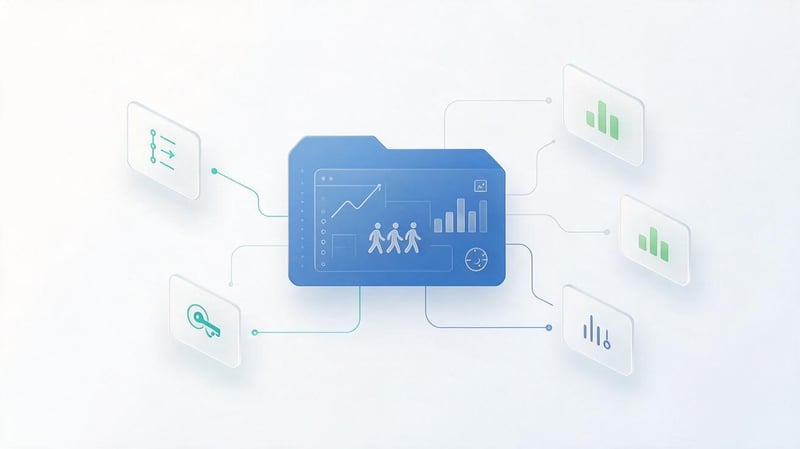
After setting up core GA4 events, you can link them to Google's advertising and search tools. These integrations help analyze visitor sources, evaluate advertising performance, and understand organic audience behavior.
Each system maintains its own measurement methodology. Therefore, click, session, and conversion figures may vary even after accounts are correctly connected.
How to link Google Analytics 4 with Google Ads?
To connect, open the Google Analytics administrative settings and find the section for connections to other Google products. Select Google Ads, choose the desired account, and complete the setup if you have the necessary access rights.
Once linked, additional options for managing advertising data and audiences become available. The specific functionality available depends on account settings, user consents, and available integration options.
Before connecting, ensure the correct advertising account is selected. For agencies working with multiple clients, an error at this stage can lead to incorrect data exchange between projects.
How to use GA4 key events in Google Ads?
Once your accounts are linked, you can create ad conversions based on Google Analytics events. To do this, select actions that are truly meaningful for evaluating and optimizing your advertising campaigns.
Google Ads has primary and secondary conversion actions. Primary actions are used for standard bid optimization purposes, while secondary actions are typically used for monitoring and analysis.
For example, successfully submitting an application can be used as the primary conversion, and starting to fill out a form can be used as a secondary conversion. This approach helps avoid situations where the advertising system optimizes the campaign primarily for intermediate actions.
If a single business action is measured simultaneously by a separate Google Ads tag and through GA4, you should check your conversion counting settings. Otherwise, you risk using multiple conversions for a single result.
How to connect Google Search Console to GA4?
Integration requires access to a Google Analytics 4 property and verified ownership of the corresponding Search Console property. Connection is completed through the Google Product Links administrative section.
Once the integration is set up, reports containing Google organic search data become available. These allow you to explore search queries, landing pages, and relevant metrics from Search Console and Analytics.
Please note that Search Console reports may not appear in the standard GA4 navigation immediately after linking. If necessary, the corresponding report collection can be published through the library.
The integration also has limitations on combining dimensions from the two systems. For example, not all Search Console metrics can be freely combined with all GA4 parameters.
What reports are useful for an SEO specialist after setting up GA4?
To analyze organic performance, we first examine the sources of user acquisition and sessions. This helps determine the share of search traffic and see which pages are visited by Google audiences.
Then they move on to reports on landing pages, engagement, and key events. This allows them to determine which content brings in users and which helps generate leads and purchases.
Useful areas of analysis:
- Organic sessions and users from search engines.
- Landing pages that receive traffic from Google.
- User engagement after visiting the site.
- Key events and purchases related to organic traffic.
- Differences in behavior between mobile and desktop audiences.
- Traffic dynamics after changes to the site's content and structure.
To analyze impressions, clicks, CTR, and average position, use Search Console. GA4 helps supplement this information with data on user behavior after landing on your site.
Is it possible to migrate historical Universal Analytics data to GA4?
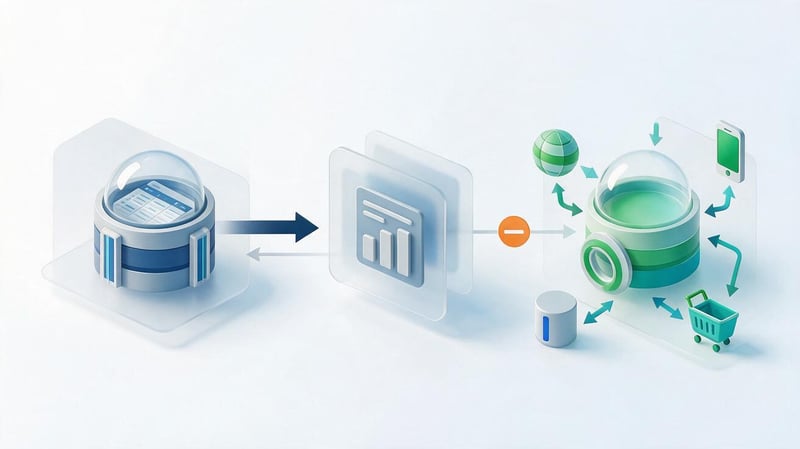
It's not possible to transfer historical Universal Analytics data directly to a GA4 property. Google hasn't provided a way to import previous UA history in a format that would allow old sessions, goals, and transactions to be displayed as fully-fledged Google Analytics 4 data.
However, pre-saved archives can be analyzed separately. This can be done using spreadsheets, data visualization systems, and in-house storage.
What options were there for preserving historical data?
Before the permanent shutdown of Universal Analytics, users could export individual reports to CSV, Excel, and Google Sheets. APIs, automated exports, and connections to external analytics systems were used for some tasks.
Universal Analytics 360 clients could also use their existing data export methods to BigQuery. These archives allowed statistics to be stored regardless of whether the UA interface kept working.
If the export was completed, it is recommended to check the completeness of the saved periods and the presence of the required indicators. It is also important to ensure that the archive contains the information that will actually be needed for further comparison.
If historical information wasn't saved before access was terminated, it can't be restored by creating a new GA4 property. The new system begins collecting data from the moment it's configured.
How to combine archived UA reports and new GA4 reports?
For comparison, you can create a separate report containing historical Universal Analytics metrics and more recent GA4 data. For example, in Google Sheets or a BI system, you can show traffic trends over several years.
At the same time, it's important to preserve information about the methodology and indicate the date of the change to the analytics system. User, session, engagement, and conversion metrics are not always directly comparable.
For analysis, it's helpful to select metrics whose definitions can be reconciled fairly closely. If direct comparison is not possible, differences should be explained in the report's notes.
Conversions and e-commerce require particular caution. Changing event registration principles can have a greater impact on metrics than actual changes in customer behavior.
How to use BigQuery to store new GA4 data?
Google Analytics 4 supports exporting event data to BigQuery with the appropriate integration setup. This option is useful for projects that require more detailed analytics or long-term storage of their own measurement history.
BigQuery lets you run SQL queries, merge data with other permitted sources, and create your own analytical tables. For example, an online store can compare website events with anonymized order status data.
Before connecting, consider export restrictions, data storage and processing costs, and privacy requirements. For a small website, standard GA4 reports are often sufficient, so the need for BigQuery depends on the business objectives.
How can I check if GA4 is working properly after setup?

After installing GA4, you need to test data transfer in practice. The presence of an identifier in the website code only confirms a certain part of the setup, but does not indicate the correctness of user events and conversions.
It's best to test analytics events using a sequence of real actions on a test site or in safe mode. The results should be compared with the expected tag behavior and actual system data.
Checking events via DebugView
DebugView displays events coming from devices with debug mode enabled. This tool helps you verify the order of events, their names, and the parameters passed.
To begin, open your website using Google Tag Manager Preview mode or another supported method for enabling debugging. Then, perform the target action and find the corresponding event in DebugView.
For example, after a form is successfully submitted, an event provided for by the inquiry measurement scheme should appear. By opening its parameters, you can inspect additional information and ensure that the correct values are being passed.
If the event is not displayed, check the tag's trigger conditions, the selected property, and user consent settings. In some situations, privacy restrictions prevent the transmission of diagnostic events.
Checking tags using Google Tag Assistant
Tag Assistant is used to check installed tags and diagnose their execution. It helps determine which tags are running on a page and which actions trigger events.
After connecting to the site being tested, navigate through several pages and perform the required actions. For each event, determine which tag was triggered and what conditions affected its execution.
Testing is especially useful after updating templates, installing new modules, and changing forms. Such modifications can disrupt previously configured triggers or create duplicate events.
Once testing is complete, you must save the test results and publish only the correct configuration.
Checking traffic in the Realtime report
The Realtime report is designed to analyze recent user activity. After installing the Google tag, you can open the site from a test device and check whether the relevant data appears in GA4.
This report displays users and events for a recent period. However, Realtime is not designed for full verification of attribution and all standard reporting metrics.
The absence of a specific event immediately after an action doesn't always indicate a technical error. Data transfer delays, consent restrictions, and the state of the installed tag must be taken into account.
When troubleshooting, it's best to pair Realtime with Tag Assistant and DebugView. This combined testing provides a more complete picture of how analytics are performing.
Checking key events and e-commerce
For a service website, you should perform a test form submission and ensure that the corresponding event is registered only once. Then, you should check whether it is marked as a key event and whether the required parameters are being passed.
For an online store, it's necessary to run a full test order and verify GA4 data against the sales system. This includes checking the transaction ID, price, currency, products, and correct behavior when the confirmation page is reopened.
Typical problems and ways to check:
| Problem | Possible cause | What to check | Correction |
|---|---|---|---|
| No page views | The tag is not installed or does not fire | Tag Assistant, site code | Fix the connection |
| Duplicate views | Several independent installations | GTM, CMS, gtag.js | Eliminate redundant sending |
| No inquiries | Incorrect event condition | Submitting a form, DebugView | Fix the trigger |
| Purchases are inflated | Repeated purchase event | transaction_id, tags | Set up correct registration |
| Incorrect revenue | Value or currency errors | Event parameters | Fix types and values |
| No events in DebugView | Debugging is not enabled or sending is blocked | Debug mode, consent | Check settings |
After fixing the errors, testing should be repeated. The corrected configuration should work correctly on the actual website pages, not just in preview mode.
Common Mistakes When Switching from UA to GA4

Most post-migration issues are related to outdated settings and incorrect event implementation. However, errors can remain undetected for a long time if no one compares analytics statistics with actual user activity.
Regular auditing helps identify such discrepancies before they begin to impact management decisions and advertising campaign settings.
The site still has old Universal Analytics tags
After UA was discontinued, some websites retained old scripts and GTM tags. These may be loaded every time a page is visited, even though their purpose is no longer relevant.
This problem is especially common in projects where analytics have been configured multiple times by different contractors. As a result, a single container can contain multiple generations of tags.
The fix begins with searching for all UA identifiers and checking dependencies. After that, deprecated elements are disabled, the current configuration is tested, and unnecessary code is removed.
Events are transmitted multiple times
Duplication often occurs after installing an additional plugin, updating the CMS, or manually adding a Google tag. If different connection methods independently send the same events, the data in reports may be inflated.
For example, a page view can be recorded simultaneously through the built-in integration and Google Tag Manager. A similar issue occurs when events are re-sent after a site interface update.
To diagnose the issue, it's necessary to reproduce the action and check all sent events. The fix should eliminate the underlying cause of the repeated data transmission, rather than simply hide incorrect results in reports.
Key events are not configured correctly
Errors occur when key events are used to mark actions that don't correspond to actual business results. For example, clicking the booking button doesn't mean the user has completed the inquiry.
There are also situations where an event is sent when a page loads, regardless of the visitor's actions. This results in inflated conversion counts, and the analysis of inquiry sources becomes unreliable.
To fix this, you need to review the registration conditions and select events related to confirmed actions. After configuration, you should test several scenarios, including unsuccessful form submission attempts.
Data discrepancies between GA4 and Google Ads
Google Analytics and Google Ads may show different conversion numbers even when integrated correctly. These figures are affected by attribution models, the timing of actions, counting settings, and the availability of user information.
For example, an advertising system may associate a conversion with the moment of interaction with an ad, while other reporting may associate it with the date the target action occurred. Therefore, it's important to compare metrics under identical conditions.
Before searching for technical errors, check your goal settings, conversion windows, and primary and secondary actions. It's also important to ensure that the same result isn't being recorded twice by multiple sources.
Users' consent to data processing is not taken into account
Analytics setup must comply with personal data laws and user consent policies. Google has additional consent setup requirements for specific regions and use cases.
Google Consent Mode helps communicate user-selected permissions to supported Google products. Its implementation depends on the consent management system and the tags used.
You can't assume that GA4 always works without cookies or that enabling Consent Mode completely resolves legal issues. It's important to check your data collection settings and applicable privacy requirements.
When testing analytics, it's important to separately test website behavior with different consent options. This helps ensure that data collection is consistent with the user's chosen settings.
How does GA4 help with SEO and website performance evaluation?

Once properly configured, Google Analytics 4 helps analyze organic search visits and user actions after landing on your site. This data is useful for evaluating landing pages, testing hypotheses, and identifying user journey issues.
However, GA4 doesn't provide a complete picture of a site's visibility in search results. To analyze queries, impressions, clicks, and rankings, you need to use Google Search Console.
Organic traffic analysis
In acquisition reports, you can study users and sessions associated with organic channels. To do this, select the appropriate traffic source parameters and check traffic dynamics over the desired period.
It's also useful to analyze landing pages, devices, and visitor engagement. This helps determine which sections of the site attract audiences and how users interact with the content.
When assessing trends, consider seasonality, changes in site structure, and potential measurement issues. A sharp drop in traffic is sometimes due to a technical error in analytics, so the data should be compared with Search Console.
Measuring conversions from search traffic
Properly configured key events allow you to analyze the actions of users arriving from organic search. For a service website, the primary metric might be confirmed inquiries, while for an online store, it might be purchases and revenue.
For example, one page might attract a lot of visitors but generate almost no inquiries. Another might receive fewer visits, but users are more likely to complete the desired actions.
This information helps identify pages that require improvement in content, contact forms, or commercial elements. However, these metrics should be analyzed taking into account the volume of data and the specifics of the user journey.
Landing page and user behavior analysis
Landing page reports help you see which URLs initiate visits and what actions users take after landing. This is especially useful when working with commercial sections and informational articles.
If a page attracts organic traffic but users rarely engage with its content, it's worth checking its relevance to search intent. This could be due to unsuitable content, poor structure, slow loading, or technical errors.
GA4 helps identify such patterns, but it doesn't automatically determine the cause. Further analysis of the page, search queries, and actual visitor behavior is required to draw conclusions.
What metrics should be included in an SEO report?
The report's composition depends on the project's goals, but the basic metrics should describe traffic, audience behavior, and the results of target actions. Search metrics and interaction data are best presented separately.
Recommended indicators:
- Organic sessions and users for the reporting period.
- Landing pages that receive search traffic.
- Engaged sessions and content interaction metrics.
- Key events, inquiries and confirmed purchases.
- Organic revenue with proper e-commerce setup.
- Impressions, clicks, CTR, and average position from Google Search Console.
It's helpful to include significant technical changes in the report that may have impacted data collection. If tags were updated or events were corrected during the month, this should be taken into account when comparing metrics.
After migrating to Google Analytics 4, you need to ensure your website is collecting reliable data and accurately recording important user actions. Pay particular attention to outdated UA tags, duplicate events, and whether statistics correspond to actual inquiries and orders.
The audit should cover the site's main pages, forms, e-commerce, and integrations with other Google services. Even a correctly installed Google tag doesn't guarantee that all business metrics are being measured accurately.
Post-setup checklist:
- Google Analytics 4 receives data from the desired website.
- The Google tag is installed correctly and is not duplicated unnecessarily.
- Deprecated Universal Analytics tags have been reviewed and removed where no longer used.
- Events are configured that correspond to the actual actions of visitors.
- Key events are recorded when specific business goals are achieved.
- For the online store, purchases, products, currency, and order value were verified.
- Google Ads is receiving accurate ad conversions.
- Google Search Console is linked to the desired GA4 property.
- Analytics performance has been verified using Tag Assistant, DebugView, and Realtime.
- Documentation with a list of events and current settings has been saved.
If GA4 data deviates from actual inquiries, purchases, or advertising campaign metrics, it's important to first check the technical implementation of the measurement. Correcting analytics errors helps generate reports that can be used to make informed decisions.
Need a Google Analytics 4 audit? Seo-Gen specialists will audit your installed tags and check event transmission, key action settings, and integrations with Google Ads and Search Console. Based on the audit results, you'll receive a list of identified issues and recommendations for fixing them.


