gtag purchase – a purchase event in GA4 for an online store


An online store may receive orders but show zero revenue or incomplete sales data in Google Analytics 4. This is usually due to the purchase event setup: purchase data is not sent, is transmitted with errors, or is reported multiple times in Analytics.
Using gtag purchase, you can transfer the order number, product price, currency, quantity sold, and other transaction parameters to GA4. This information is used to analyze sales, evaluate advertising campaigns, and study customer behavior.
We'll explore setting up the purchase event via gtag.js and Google Tag Manager, the structure of the transferred data, verification methods, and errors that can cause online store metrics to diverge from analytics reports.
What is a purchase event in Google Analytics 4?
The purchase event in Google Analytics 4 records the purchase of a product or service. It is a recommended e-commerce event and is used to collect information about completed orders. Unlike automatically collected events, purchasing events typically need to be configured manually or through a trading platform integration.
When a customer places an order, the website generates transaction details and sends them to GA4. The system processes the received parameters and uses them to calculate e-commerce metrics.
A properly configured event helps determine which products are purchased most often, how much revenue sales generate, and which traffic sources are driving customer acquisition. To do this, simply sending the event name isn't enough: analytics requires data on the purchase itself.
What purchase data does GA4 collect?
Google Analytics 4 retrieves transaction information from the purchase event parameters. The key parameters are the order ID, the cost of the purchased items, the currency, and the items array containing information about each product item.
You can also transfer taxes, shipping costs, applied coupons, and product specifications. This helps you analyze sales for specific categories, compare product selection, and identify differences between orders.
For example, a customer purchased two T-shirts and one jacket. The event could include the total price of the items, the order ID, and the three items purchased, along with their corresponding prices and quantities.
The information content depends on the parameters transmitted by the online store. If you send only the event name without the financial data, GA4 will be able to register its receipt, but full revenue and order accounting will not work.
How is purchase different from other e-commerce events?
GA4 e-commerce uses several recommended events. Each corresponds to a specific visitor action, from product viewing to order placement and refund processing.
The sequence of these events helps us understand at what point customers abandon their checkout. For example, a high number of additions to cart with a small number of purchases may be a reason to check shipping costs, the payment process, or the ease of checkout.
| Event | Buyer action | Purpose |
|---|---|---|
| view_item_list | View product list | Analysis of product impressions in the catalog |
| view_item | View product card | Assessing interest in a specific item |
| add_to_cart | Adding a product to the cart | Shopping Cart Interaction Analysis |
| remove_from_cart | Removing an item from the cart | Exploring changes in basket composition |
| view_cart | Viewing the contents of the cart | Analysis of the transition to checkout |
| begin_checkout | Starting the order process | Measuring the start of purchase |
| add_payment_info | Entering payment information | Payment stage analysis |
| purchase | Making a purchase | Accounting for transaction and sales data |
| refund | Refund | Accounting for full and partial returns |
The purchase event is sent after the store-selected status, which signifies a completed purchase, is reached. Therefore, it occupies a special place among funnel events and requires special attention to the accuracy of financial parameters.
Answers to your questions
What does the purchase event mean in GA4?
The purchase event is used to record a completed purchase in Google Analytics 4. It transmits transaction details, including the transaction ID, product price, currency, and order contents.
This data helps analyze online store sales and e-commerce performance. For accurate reporting, it's necessary to transmit standard parameters and use the correct event timing.
If an event only contains a name without the amount or products, analytics capabilities will be limited. Therefore, the purchase setup must include the generation of reliable order data.
How do I send a purchase using gtag.js?
To transmit a purchase, use the gtag('event', 'purchase', {...}) command, which specifies the transaction parameters. The Google tag must be correctly installed on the page before the event is triggered.
It's recommended to pass the transaction_id, value, currency, and items array in the object. These values should be retrieved from the confirmed order, rather than using the constant data from the demo example.
After implementation, you should make a test purchase and verify the delivery in Tag Assistant. The event receipt and its parameters are further verified in GA4 DebugView.
Is it necessary to pass transaction_id in purchase?
Google considers the transaction_id a mandatory parameter for purchase events. This identifier is needed to associate analytics data with a specific transaction and prevent duplicate purchases from being counted in web streams.
Typically, this field uses the order number from the online store system. Different values should be passed for different purchases, and the original number should be retained when resending the same order.
An empty string is not allowed for normal accounting. If multiple purchases are submitted with the same empty ID, GA4 may incorrectly treat them as duplicate transactions.
Why is there a purchase event, but the revenue in GA4 is zero?
One possible cause is missing value and currency parameters or incorrectly formatted values. For example, the amount may be sent as a string with a currency designation instead of a numeric value.
When using GTM, you need to check that ecommerce data transfer is enabled and that the variables are configured correctly. If the tag only contains the event name, purchase price information may be missing.
Also, keep in mind the delay in processing standard Google Analytics reports. To diagnose this, first check the actual request sent and then compare the values with the revenue report.
Why aren't products showing up in the purchase event?
Most often, the issue is related to the items array, which is missing or has an incorrect structure. Google Analytics expects a list of product objects with the corresponding parameters.
You need to check for the presence of item_id or item_name, price, and quantity for each item. Extra square brackets, incorrect field names, or passing an array as a string may disrupt processing.
If the object is correctly generated on the site, the next step is to check the GTM settings. When manually mapping variables, the array must be passed to the items parameter.
Is it possible to set up purchases via GTM without gtag.js?
Yes, a purchase event can be transmitted through Google Tag Manager using the GA4 Event tag. However, the online store must transmit transaction details to the Data Layer.
GTM reads the purchase event, fires the configured trigger, and sends parameters to Google Analytics. This requires the correct Google Tag configuration in the container.
An additional direct call to gtag('event', 'purchase') is usually unnecessary with this implementation. If both schemes are used simultaneously, it is necessary to check whether they create duplicates.
How to avoid double counting of purchases in GA4?
A stable, unique transaction_id must be transmitted for each transaction. In web streams, Google Analytics uses this parameter to de-dupe purchase events with the same ID.
Additionally, it's necessary to check how many mechanisms are sending the event. Duplicates can occur due to the simultaneous operation of a ready-made CMS module, custom JavaScript, and GTM tags.
After eliminating duplicate sends, make several test purchases with different order numbers. Then, ensure that refreshing the confirmation page doesn't create new transactions.
How can I check that the purchase is being transferred correctly?
Start with a test order with a pre-determined order number, amount, currency, and product listing. Then test the Google tag or GTM container using Tag Assistant.
In GA4 DebugView, locate the purchase event and verify that it arrived at the correct property. If necessary, further inspect the browser's network request to verify the contents of the items array.
After processing the data, compare the results with the e-commerce purchase report. The setup can be considered verified when the event arrives once, contains the correct parameters, and matches the order in the CMS.
When should the purchase event be triggered?

The timing of a purchase depends on how the online store processes orders. Some stores confirm the purchase immediately after successful online payment, while others process the order before receiving funds.
Before setting up analytics, it's necessary to determine which order status is considered a purchase. This decision impacts the number of transactions recorded and the ability to compare GA4 data with the order management system.
If an event is sent every time the checkout button is clicked, unsuccessful purchase attempts may be captured in analytics. If the event is sent solely on the thank-you page, some paid orders may not be registered.
Transferring an event after order confirmation
For an online store with online payment, it makes sense to send the purchase after successful payment confirmation. The source of this information should be the verified transaction status received from the payment system or the store's backend.
Clicking the “Pay” button does not confirm receipt of funds. The buyer may close the payment form, be rejected by the bank, or abort the transaction before it's completed.
The situation is different when paying after receiving the goods. The store may consider a confirmed order a purchase, even if payment occurs later. In this case, such a transaction will be processed according to the established business logic, and subsequent cancellations will need to be processed separately.
For one-click orders, it's important to distinguish between a submitted request and a created order. If the operator still needs to confirm product availability, price, or delivery, it's better to record the simple form submission as a separate event.
The rule must be applied equally to all store orders. Otherwise, the purchase report will combine paid transactions, pre-orders, and incomplete checkouts.
Tracking a purchase on the thank you page
A thank-you page is often used to convey the purchase event. After successful checkout, the user is redirected to a separate address where they see the order number, its contents, and confirmation of the transaction.
On this page, the site can generate an object with transaction data and submit the purchase. This method is convenient if the page receives reliable information about the completed order and does not display data from other transactions.
Problems arise when the buyer doesn't return from the payment service page. The money may have been debited, and the browser may have been closed before confirmation appeared. In this case, the event, which depends solely on the page loading, won't be sent.
In an SPA, where order placement occurs without a full reload, the event should be associated with a change in the application's state. Expecting a normal page transition is pointless here.
For a reliable implementation, it's necessary to verify the successful order status, the availability of purchase data, and a mechanism to prevent resending. The thank-you page URL alone doesn't confirm the existence of a new transaction.
How can I avoid resending my purchase when I refresh the page?
If the purchase code is executed every time the thank-you page is loaded, the buyer can re-execute it by simply refreshing the browser. A similar situation occurs when returning to a saved order link.
GA4 web streams use the transaction_id parameter to deduplicate purchases with the same ID. Therefore, each order requires its own persistent ID that doesn't change across repeat visits.
However, you shouldn't rely solely on analytics deduplication. It's advisable to monitor event sending in the application, eliminate duplicate triggers, and ensure that multiple independent integrations aren't connected.
For example, a store can store information about a previously submitted browser purchase in the app's state or other suitable mechanism. This type of tracking doesn't replace the unique transaction_id, as browser data can be reset.
An empty transaction ID is especially dangerous. In GA4, repeat purchases with transaction_id: “” may be treated as duplicates. As a result, reports will show fewer purchases than the actual number of orders.
What parameters are needed for the purchase event?
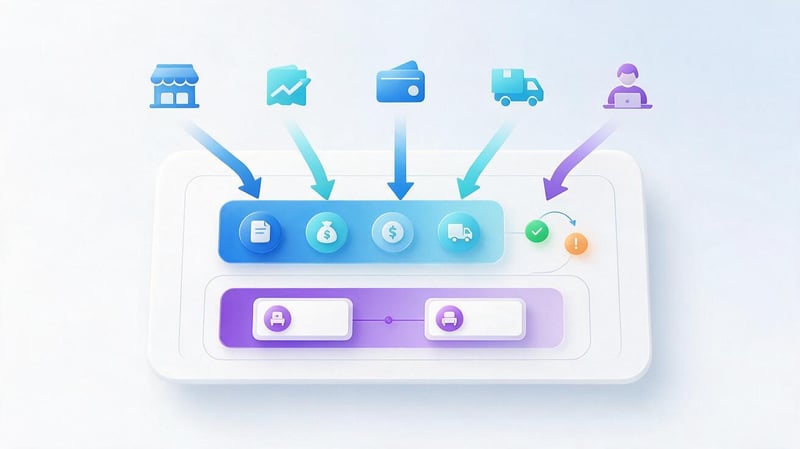
The purchase event contains two levels of parameters. The first describes the entire order: its number, monetary value, currency, shipping, and taxes. The second contains the characteristics of individual products within the items array.
Parameter names must comply with the Google Analytics 4 schema. Custom names such as order_price, product_title, or transaction_Id do not replace the standard value, item_name, and transaction_id fields.
When preparing data, consider the value types. Amounts and quantities are passed as numbers, identifiers and names as strings, and product information as an array of objects.
| Parameter | Type | Example | Purpose |
|---|---|---|---|
| transaction_id | string | ORDER-10452 | Unique transaction number |
| value | number | 1490.00 | Cost of purchased goods |
| currency | string | UAH | Transaction currency |
| tax | number | 0.00 | Tax amount |
| shipping | number | 80.00 | Shipping cost |
| coupon | string | SALE10 | Coupon applied to order |
| items | array | [{...}] | Array of purchased goods |
The transaction_id is required to correctly identify the purchase. For full revenue accounting, the value and the corresponding currency should be passed, and product information should be placed in items.
Transaction parameters
Event-level data applies to the entire order, regardless of the number of items. For example, if a customer purchased five items, the transaction ID, currency, and total price will be transmitted only once.
Errors in these fields are reflected in financial reports. An incorrect identifier can lead to problems with transaction accounting, and an incorrect currency can lead to incorrect processing of monetary indicators.
The method for calculating the order cost must be agreed upon separately. The developer should obtain values from actual purchase data, including applied discounts, rather than calculating the total based on the original catalog prices.
transaction_id – unique purchase identifier
The transaction_id parameter contains the identifier of a specific transaction. Typically, it uses the order number from the CMS, ERP, or other system responsible for processing purchases.
For example, for an order with the number ORDER-10452, the transaction_id value passed to the event is 'ORDER-10452'. When the same order is reopened, the ID remains the same.
You can't use a single number for multiple different purchases. If the system creates separate orders, each requires its own value that doesn't match the IDs of other transactions.
For GA4 web streams, duplicate purchase events with the same transaction_id are subject to deduplication. This mechanism helps prevent the double counting of the same transaction, but does not correct incorrect event sending business logic.
It's best to use an existing ID from the order database. Generating a random number immediately before sending an event creates the risk that the same purchase will receive different IDs when re-run.
value and currency
The value parameter contains the monetary value of the items purchased in the transaction. According to Google's recommendation, it is calculated as the sum of the product of the price of each item and the quantity.
If a customer orders one item for 990 UAH and two items for 250 UAH each, the value will be 1490. Tax and shipping are not included in this calculation, as they are separate parameters.
The currency field uses a three-letter ISO 4217 currency code. UAH is used for the Ukrainian hryvnia, USD for the US dollar, and EUR for the euro.
The correct entry looks like this:
value: 1490.00,
currency: 'UAH'
The number cannot be replaced with the string '1490 UAH', as this format does not match the required data type. Also, do not use a comma instead of a decimal point within a JavaScript numeric literal.
For stores with multiple currencies, you must transmit the currency of the actual transaction and the corresponding amount. You cannot send the amount in hryvnia with the code USD, even if the primary currency of the GA4 property is set to dollars.
tax, shipping and coupon – additional parameters
The tax parameter specifies the transaction tax amount, and shipping contains the shipping cost. Both values are passed separately from the value parameter so that Google Analytics can correctly process the financial components of the order.
If shipping is free, you can pass shipping: 0. When tax is calculated and accounted for separately, its value should also be obtained from the actual order data.
The coupon parameter contains the name or code of the promo code used during the purchase. For example, when applying the discount code SALE10, the online store might pass coupon: 'SALE10'.
In this case, the discount must be factored into the price of the goods according to the selected and consistently applied calculation scheme. Do not simultaneously reduce the final amount and then deduct the same discount from it again.
A transaction-level coupon and a single-item coupon are different parameters. If the promotion applies only to a specific item, its details can be placed directly within the corresponding “items” element.
The items array and product information
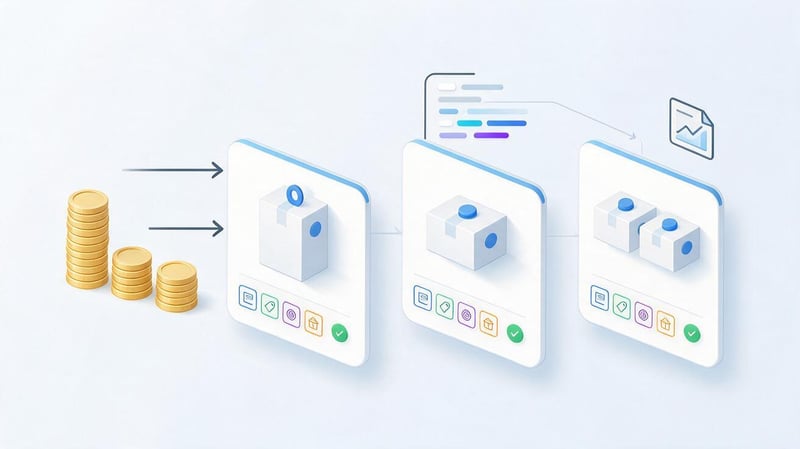
The items array contains a list of products included in the purchase. Each array element describes a single product item with its ID, name, price, and quantity.
For example, if a customer ordered two identical T-shirts, they could be represented as a single object with quantity: 2. If the order contains items with different article numbers, each would receive a separate object.
This structure is used in reports on products, categories, and other product characteristics. Without the correct items, an event might contain the purchase price, but information about the sold items will be missing.
item_id, item_name, price and quantity
item_id represents the product identifier, typically the SKU or part number. It's recommended to use a stable value from the catalog to prevent a single item from appearing under multiple identifiers in analytics.
item_name contains the user-friendly name of the product. If an online store changes its product card or translates it into another language, it's important to establish a consistent approach to reporting naming in advance.
The price parameter specifies the cost of one unit of the product, and quantity specifies the number of units purchased. Quantity uses a numeric type, so the notation quantity: 2 is preferable to the string value '2'.
Example of one array element:
{
  item_id: 'SKU-205',
  item_name: 'Item B',
  price: 250.00,
  quantity: 2
}
For standard product identification, at least the item_id or item_name must be provided. In practice, it's helpful to fill in both fields to maintain a link to the catalog and make reports understandable to specialists.
When a discount is applied, ensure that the price, quantity, and order total are consistent. If the price of an item has already been reduced, the discount cannot be subtracted again when calculating the value.
Additional product characteristics
GA4 supports additional item parameters, including brand, category, variant, and discount size. These are used when an online store requires more detailed product analytics.
For example, item_brand might contain the manufacturer, item_category might contain the catalog category, and item_variant might contain a specific color or size of the product.
For a discounted product, you can pass a discount value, specifying the discount amount per unit. The price and discount values must match the actual purchase price.
Additional characteristics allow for comparison of sales across different product groups. However, they should only be submitted if reliable data is available, and not filled with random values for the sake of adding more parameters.
If your store uses custom product parameters, you'll need to check GA4 limitations and the need to register custom definitions. It's best to use standard fields without renaming them.
How do I set up gtag purchases on my website?
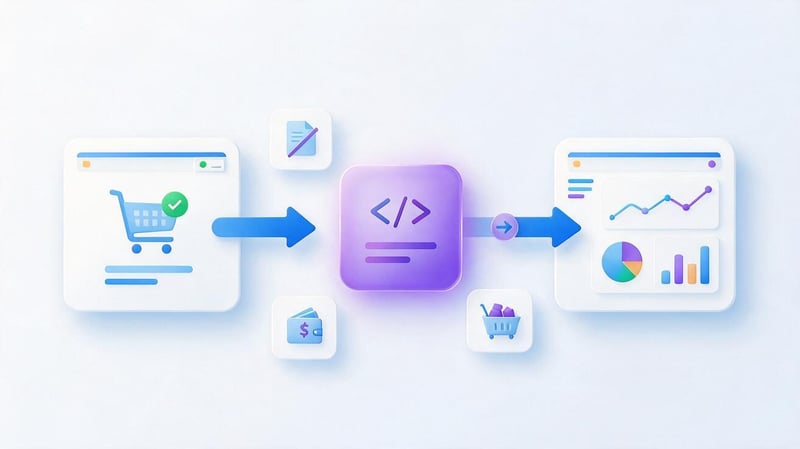
Direct configuration of gtag purchase is suitable for online stores where the Google tag is installed via gtag.js, and the developer can control the sending of events in JavaScript.
The website must receive confirmed order information and transmit it to Google Analytics 4 at the right time. The sending code itself is relatively small, but the correct implementation depends on the data source and the conditions under which it is executed.
Before implementation, it's important to check how analytics is already enabled. If e-commerce is running through GTM or a pre-built CMS module, an additional call to gtag('event', 'purchase') may result in duplicate events.
Preparing the Google tag and GA4 ID
To get started, you'll need a Google Analytics 4 property and a web data stream linked to your online store. The stream settings contain the measurement ID, which typically has the format G-XXXXXXXXXX.
If the Google tag isn't already installed, follow the GA4 instructions to enable it. Example of standard loading:
<script async src="https://www.googletagmanager.com/gtag/js?id=G-XXXXXXXXXX"></script>
<script>
  window.dataLayer = window.dataLayer || [];

  function gtag() {
    dataLayer.push(arguments);
  }

  gtag('js', new Date());
  gtag('config', 'G-XXXXXXXXXX');
</script>
Here, G-XXXXXXXXXX must be replaced with the actual web stream identifier. This code configures the Google tag, but does not itself send purchase information.
If the tag is already connected via your website or GTM, you don't need to install a second copy as per this example. First, check your existing configuration and select a single method for transmitting ecommerce events.
User consent settings for analytics cookies and data processing require special attention. These settings affect Google Tag behavior and must be consistent with the consent management system used.
Example code gtag('event', 'purchase')
After installing the Google tag, you can send a purchase event using the gtag('event', 'purchase', {...}) command. The second argument contains the standard event name, and the third is an object with the transaction parameters.
Let's consider an order in which a customer purchased one item for UAH 990 and two items for UAH 250 each. The total cost of the items is UAH 1,490, and shipping is charged separately.
gtag('event', 'purchase', {
  transaction_id: 'ORDER-10452',
  value: 1490.00,
  currency: 'UAH',
  shipping: 80.00,
  items: [
    {
      item_id: 'SKU-101',
      item_name: 'Item A',
      price: 990.00,
      quantity: 1
    },
    {
      item_id: 'SKU-205',
      item_name: 'Item B',
      price: 250.00,
      quantity: 2
    }
  ]
});
In this example, transaction_id contains the purchase number, value is the cost of the goods, and currency is the transaction currency. The items array contains two product items, one of which was purchased in a quantity of two units.
The delivery cost of 80 UAH is listed separately and not added to value. This ensures that the financial parameters correspond to the standard purchase event structure.
The values provided are suitable for a test example. On a live site, they should be replaced with the current data for each order, and the event should be sent only when the selected purchase state is reached.
How to insert real order data?
Fixed order numbers and amounts from the demo code cannot be used in a live online store. The app must generate the purchase object based on information received from the order processing system.
It's best to retrieve the price, items, and quantity from the server data of the confirmed transaction. Values read directly from HTML elements may become outdated after applying a discount or changing the cart.
For example, the server might prepare JSON with the order number, currency, and a list of purchased items. The client receives this information and passes it to gtag() after checking the required status.
Before sending, you must ensure that the transaction ID exists, the price is a number, and the product array contains valid elements. If required data for your schema is missing, it's better to log a technical error than to knowingly send an incorrect purchase.
Don't pass customer name, email, phone number, or shipping address into regular GA4 parameters. Order information should be limited to valid analytics data.
How to send a purchase after payment?
When paying through an external payment service, the buyer typically leaves the site and then returns to the confirmation page. Therefore, the frontend shouldn't consider the user's simple return as proof of successful payment.
It's more reliable to receive confirmation from the payment system on the server and update the order status in the database. After that, the store page can request the current transaction status.
An example of logic for client-side event dispatch looks like this:
- The buyer completes the order and proceeds to payment.
- The payment system confirms the result to the store's backend.
- The server updates the order status and saves the transaction details.
- The client part receives the verified status and purchase data.
- The application sends the purchase if the selected conditions are met.
After sending, the event must be verified in GA4 on a test order. If the buyer closes the browser before confirming, the client-side send may fail, so a server-side add-on is sometimes used for such scenarios.
Don't trigger purchase every time a component's state changes or a handler is re-executed. Dispatch conditions should be tied to a specific transaction and take into account the possibility of reopening an order.
Setting up a purchase event via Google Tag Manager
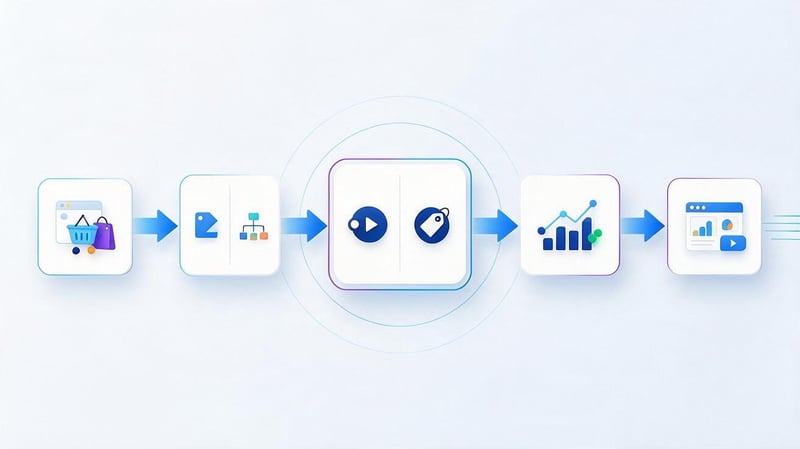
Google Tag Manager allows you to manage event transmission without placing a separate gtag.js call for each analytics operation in the page code. The site transmits data to the dataLayer, and GTM uses it to fire the GA4 tag.
This option is convenient if the online store already has Google Analytics and advertising system tags installed via the GTM container. The developer is responsible for ensuring the order data is accurate, while the analytics specialist configures its sending in the tag manager interface.
| Criterion | gtag.js | Google Tag Manager |
|---|---|---|
| Event transfer | Direct call to gtag() | GA4 Event Tag |
| Source of parameters | JavaScript object | Data Layer |
| Launch control | Application logic | GTM trigger |
| Changing the setting | Usually through the website code | Via GTM container |
| Debugging | Tag Assistant and DebugView | GTM Preview, Tag Assistant and DebugView |
Both options can pass the same purchase parameters. The choice depends on the store architecture, existing integrations, and who is responsible for analytics support.
Passing purchase data via dataLayer.push()
The dataLayer is the data layer through which a website transmits information to Google Tag Manager. For GA4 eCommerce, it's common to use the eCommerce object, which contains transaction and product information.
Before a new ecommerce event, it is recommended to clear the previous object so that parameters of previous actions are not mixed with the current purchase.
window.dataLayer = window.dataLayer || [];

dataLayer.push({ ecommerce: null });

dataLayer.push({
  event: 'purchase',
  ecommerce: {
    transaction_id: 'ORDER-10452',
    value: 1490.00,
    currency: 'UAH',
    shipping: 80.00,
    items: [
      {
        item_id: 'SKU-101',
        item_name: 'Item A',
        price: 990.00,
        quantity: 1
      },
      {
        item_id: 'SKU-205',
        item_name: 'Item B',
        price: 250.00,
        quantity: 2
      }
    ]
  }
});
The first call resets previous e-commerce data. The second adds a purchase event with order parameters, which are then read by the Google Analytics tag.
In this scheme, event defines the GTM event name, and ecommerce contains the purchase data. This nesting differs from a direct call to gtag(), where parameters are passed directly in the event object.
You cannot use variables named “eсommerce” or “transaction_Id” by mistakenly replacing characters or changing the case. For JavaScript and GTM, such names may appear to be completely different fields.
Creating a Custom Event Trigger in GTM
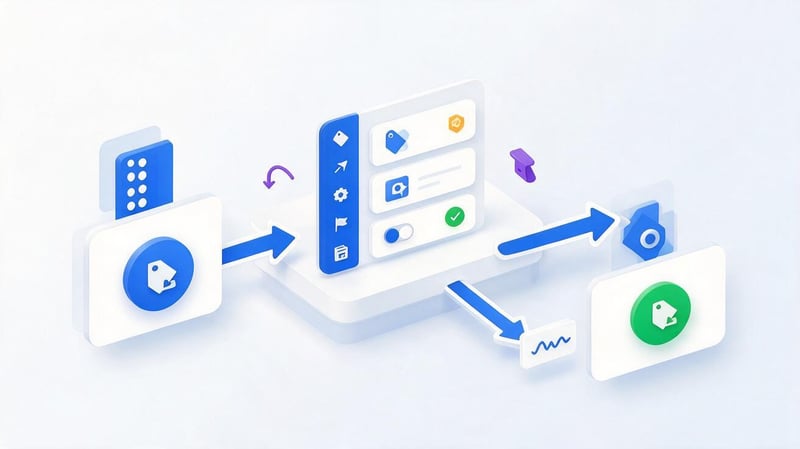
After transferring the data to the Data Layer, you need to configure a trigger that will respond to the purchase event. In Google Tag Manager, the Custom Event type is used for this.
Open the “Triggers” section, create a new trigger, and select the appropriate type. In the event name field, enter “purchase” exactly as it appears in dataLayer.push().
For a basic scenario, it's enough to fire a trigger when an event with a specified name is received. Additional conditions can be used if you need to limit sending to specific pages or order states.
After saving the trigger, test it in preview mode. When a test purchase is made, the purchase event should appear in the GTM event list, and the corresponding transaction data should appear within the Data Layer object.
If the event is missing, you should check JavaScript execution and the moment dataLayer.push() is called. Creating a trigger does not generate purchase information or add it to the site.
Setting up a GA4 Event Tag
To send an event to Google Analytics 4, create a new tag of the Google Analytics: GA4 Event type. Specify the Google tag you're using and specify the exact name of the “purchase” event.
Then, link the created Custom Event trigger. When GTM receives a purchase event from the data layer, it will execute the tag and send parameters to the selected GA4 property.
When setting it up, make sure the tag is sending information to the correct web stream. If your site uses multiple Google Analytics properties, an incorrect identifier may result in the purchase not being reported in the right reports.
Before publishing the container, test the tag in Preview mode. The preview results should show that it triggered on the desired event and received the appropriate transaction parameters.
After successful testing, the changes can be published. It's then advisable to repeat the testing on the live version of the site to eliminate any differences between the test environment and the production configuration.
Send Ecommerce data and Data Layer variables
In the GA4 Event tag settings, you can enable the “Send Ecommerce data” option and select “Data Layer” as the source. In this case, GTM uses ecommerce data from the standard ecommerce object.
Another option is to create your own data-layer variables and map them to GA4 parameters. For example, the ecommerce.transaction_id variable passes the order number, and ecommerce.items passes an array of products.
For manual matching, the corresponding event parameter names are used:
| Data Layer Variable | GA4 parameter |
|---|---|
| ecommerce.transaction_id | transaction_id |
| ecommerce.value | value |
| ecommerce.currency | currency |
| ecommerce.items | items |
| ecommerce.tax | tax |
| ecommerce.shipping | shipping |
| ecommerce.coupon | coupon |
These methods should be considered alternative configuration options. Avoid using automatic reading of the same e-commerce parameters and manual re-matching unless technically necessary.
After setting up, check the actual request sent. Even if the GTM interface shows populated variables, GA4 debugging will help you definitively confirm that the data was received.
How to check the purchase event in GA4?
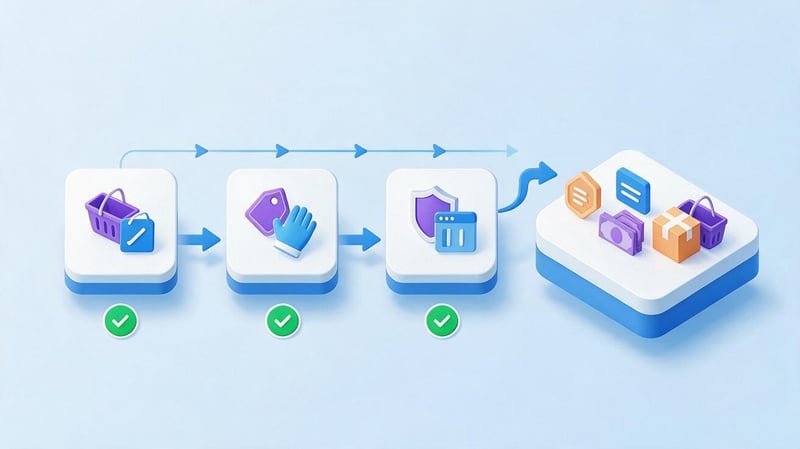
Proper e-commerce setup requires verifying several stages of data transfer. First, ensure that the online store generates an event, then verify that it is being sent and received by Google Analytics.
For diagnostics, it's convenient to use a test order with pre-determined parameters. For example, you can place a purchase for 1,490 UAH, remember its ID, and check the resulting values.
If an event appears in GA4 but doesn't contain any products or amounts, the setup isn't complete. Debugging should include transaction and product line item parameters.
Checking an event via Tag Assistant
Google Tag Assistant helps you verify Google Tag connection and event transmission. If your site uses GTM, the preview also shows how triggers and tags are working.
Open Tag Assistant, connect to your online store, and make a test purchase. In the debug interface, find the “purchase” event and check what actions were performed after it was triggered.
Please pay special attention to the following data:
- The GA4 tag is sent to the desired property, and its ID corresponds to the store's web stream.
- The purchase trigger fires after a purchase is confirmed, not during a normal page view.
- The transaction_id value matches the number of the test order created in the CMS.
- The value, currency, and items parameters contain the expected values and the correct data types.
- One order does not trigger multiple independent tags with the same purchase event.
If the tag didn't fire, check the trigger conditions and the presence of the event in the Data Layer. If the tag fired but product information is missing, check the variable source and the object structure.
Tag Assistant also helps detect Consent Mode errors. Incorrect consent status can impact tag loading and analytics data collection.
Checking a purchase in GA4 DebugView
DebugView displays events received by Google Analytics in debug mode. To check, open the GA4 property settings, go to DebugView, and select the device running the test.
Make sure debug mode is indeed enabled for the device you're using. Then make a purchase and find the “purchase” event in the logged actions sequence.
When opening an event, check the transaction ID, currency, amount, and available parameters. If the data is missing, you should re-check the tag and the original purchase object.
Some e-commerce data, especially product array parameters, is more conveniently checked in Tag Assistant and browser network requests. The DebugView interface doesn't always display the items structure as a familiar JavaScript array.
When troubleshooting, it's helpful to compare three sources: the order object on the website, the submitted request, and the data displayed by analytics. This approach helps determine at what stage the error occurred.
Checking an array of goods and financial parameters
First, compare the value with the total cost of all items in the order. If an item costing UAH 250 is purchased in a quantity of two, its contribution to the total is UAH 500.
Then check the number of objects within items. If the order contains multiple different products, each must be present in the array with the correct ID and quantity.
Pay special attention to data types and nesting structures. Instead of an array of objects, a JSON string or an array containing another array is sometimes passed.
Even if the browser doesn't show JavaScript errors, Google Analytics may receive incomplete parameters. Therefore, it's important to check the structure of the actual data sent, not just whether the tag was executed.
If a discrepancy is detected, correct the data source in the application or the GTM variable settings. After making the change, repeat the test with a new unique order number to eliminate the impact of a previously submitted transaction.
Where can I see purchases and revenue in GA4 reports?
After successfully sending an event, sales data can be analyzed in Google Analytics 4 reports. This is typically done in the monetization section, where metrics on purchases, revenue, and purchased items are available.
The eCommerce Purchases report allows you to explore individual product items, their quantities, and associated revenue metrics. The dimensions displayed depend on the selected report and property settings.
It's important to consider data processing latency. The absence of a new transaction in the standard report immediately after placing an order doesn't necessarily mean the event wasn't received.
For quick verification, it's best to use Tag Assistant, DebugView, and available real-time reports. With regular GA4 data processing, some metrics may take up to 24 hours or longer to update.
When reconciling with the CMS, it's important to select the same dates, time zones, and order accounting rules. If analytics records a purchase after completion, while the CRM only counts paid orders, the values may differ even if the event transmission is correct.
Lead SEO specialist — Gennady
I don't consider a purchase setup complete just because an event appears in GA4. I always check that the order ID, currency, amount, and product listings have been passed. Then I compare the test purchase data with the order in the online store. If the event exists but the amount is zero or the products are missing, the sales analytics are configured incorrectly. This error is especially dangerous when evaluating advertising effectiveness: you might see the number of purchases but make decisions based on incorrect revenue.
Why isn't purchase working or is it sending incorrect data?
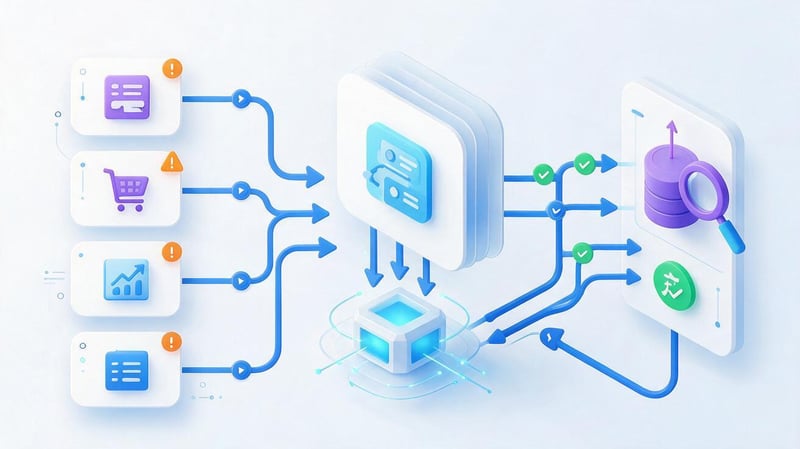
Purchase event errors are often discovered after comparing GA4 reports with actual orders. The number of transactions may differ, the revenue amount may be zero, and products may sometimes appear without names.
The reasons vary depending on the implementation method. When configuring gtag.js directly, errors are more often related to JavaScript and submission conditions. When using GTM, additional checks are required for triggers, variables, and e-commerce submission settings.
It's best to start troubleshooting with a single specific order. Knowing its ID, contents, amount, and processing time makes it much easier to pinpoint the source of the error.
There is a purchase event, but there is no amount or products
This situation occurs when the tag itself sends the purchase event, but doesn't pass the required parameters. For example, a GA4 Event with the correct name may be created in GTM, but the ecommerce object isn't read.
To check, open Tag Assistant and find the transaction data. Make sure “value” is a numeric value, “currency” matches the transaction currency, and “items” is passed as an array of objects.
If parameters are missing from the original Data Layer, the issue needs to be addressed on the online store's end. If the values are present in the Data Layer but not included in the GA4 request, check the tag configuration.
When manually mapping variables, it's important to use exact field names. A case or path structure error can cause the ecommerce.value variable to return an undefined value.
After correcting the error, make a new test purchase. Do not use the old order ID, as transaction deduplication can make it difficult to verify the result.
The reports show (not set)
The (not set) value in GA4 typically means that the corresponding data could not be determined for the selected dimension. In e-commerce, this situation can occur if an event is transmitted without a product name or with an incorrect parameter structure.
For example, item_name may be missing from the items element, even though the product name is stored in another site field. For GA4, a custom name for this field does not replace the standard parameter.
Make sure the array contains product objects and that the item_id, item_name, price, and quantity parameters are placed inside the corresponding objects.
The dimension level must also be considered. General transaction dimensions and product dimensions are used in different reporting contexts, so some dimension combinations may not work as expected.
If the source object is formed correctly, check the request received by Analytics. Sometimes data changes during processing in GTM due to incorrect variables or additional custom scripts.
Double nesting error in items array
One common error occurs when passing a double array instead of a regular list of products. Visually, this structure appears correct, so the problem is easy to miss during a quick check.
Incorrect option:
items: [
  [
    {
      item_id: 'SKU-101',
      item_name: 'Item A',
      price: 990.00,
      quantity: 1
    }
  ]
]
The correct option is:
items: [
  {
    item_id: 'SKU-101',
    item_name: 'Item A',
    price: 990.00,
    quantity: 1
  }
]
In the first case, another array becomes an array element. GA4 expects an array of product objects, so this nesting may disrupt the processing of purchase information.
A similar error occurs when assembling an array using multiple JavaScript functions. For example, one function already returns a list of products, while another additionally wraps the result in square brackets.
To check, simply open the source object in the browser console and examine its structure. Each “items” element should be an object representing a specific product item.
Purchases are duplicated in Google Analytics 4
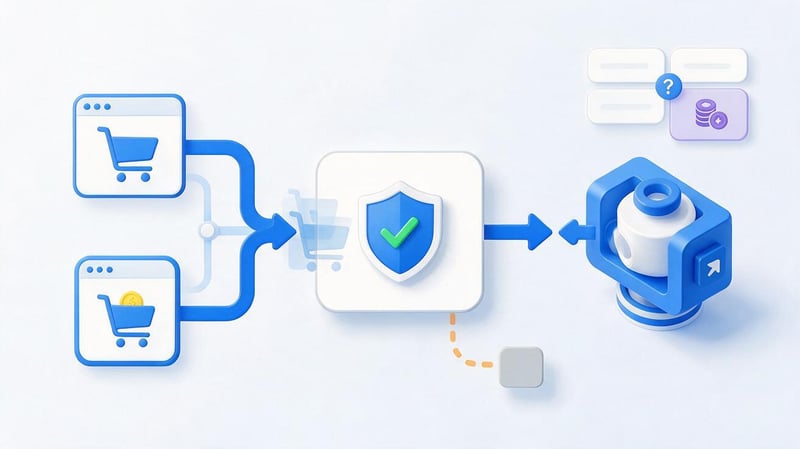
Purchase re-counting can occur when events are sent simultaneously via gtag.js, GTM, and a ready-made online store integration. As a result, a single transaction triggers multiple independent transmission mechanisms.
Another reason is re-executing the handler after a page refresh, a change in the application state, or a customer returning from the payment service.
In web streams, Google Analytics 4 uses transaction_id to deduplicate purchases with the same ID. However, if the same order is assigned a different ID each time, the system may perceive the events as different transactions.
During testing, it's important to determine how many times the send request is triggered and what identifiers are used. If multiple integrations send a single purchase, it's best to use a single, consistent mechanism.
To do this, check your website code, published GTM tags, connected CMS modules, and server integrations one by one. After eliminating duplicates, run a test with the new order number.
purchase does not appear in DebugView
If the event is missing from DebugView, first ensure that debug mode is enabled for the test device. Without it, a normal event dispatch may not be displayed in the corresponding interface.
Next, check that the Google tag is connected to the correct web stream. An error in the Measurement ID will result in data being sent to the wrong property or the expected result not being returned.
You should also check JavaScript execution, console errors, and the functionality of analytics blockers. Some browser extensions prevent tags from loading or requests from being sent.
If you're using GTM, open Preview and verify that the trigger has executed. The absence of an event in the Preview list indicates an issue before the GA4 submission stage.
You should also check your consent settings for analytics data processing. Depending on the Consent Mode configuration and the selected tag mode, a user's refusal may limit data collection.
GA4 revenue does not match the online store data
Discrepancies between GA4 and CRM arise for various reasons. Some are due to data transfer errors, while others are due to differences in metric calculation rules.
For example, an online store might display the order total including shipping, while the value field displays the product price without shipping. Comparing these values without adjusting the value will result in a discrepancy.
Another example is canceled orders. GA4 may receive a purchase event before the subsequent cancellation, so returns and the chosen business logic must be taken into account separately.
Discrepancies are also influenced by:
- Different time zones for GA4 reports and order management systems.
- Applying discounts after preliminary calculation of the basket cost.
- Transfer of incorrect currency or amount calculated before order change.
- Browser analytics blocking or consent-related restrictions.
- Lack of proper processing of returns and cancelled purchases.
- Delay in data processing in standard Google Analytics reports.
Not every discrepancy indicates a technical issue. First, you need to match the indicator definitions, reporting period, and data source, and then look for transmission errors.
For regular verification, it's helpful to reconcile transactions using transaction IDs. This approach helps identify which orders are missing from analytics or are being recorded with incorrect amounts.
| Problem | Probable cause | What to check |
|---|---|---|
| purchase is not being sent | JavaScript or trigger error | Browser Console, GTM Preview |
| There is a purchase, but the revenue is zero. | No value or currency | Event parameters |
| Products are not displayed | Incorrect items | Array structure |
| Product name (not set) | Item_name not passed | Item parameters |
| Repeat purchases | Multiple event dispatches | Tags and transaction_id |
| Incorrect amount | Cost calculation error | Prices, quantities, discounts |
| Incorrect currency | Currency error | Transaction currency code |
| Purchase missing in DebugView | No debugging or tag blocked | Debug mode, Consent mode |
| GA4 and CRM show different sales figures | The accounting rules differ | Period, statuses and returns |
After resolving the error, you must repeat the entire test purchase process. Testing just one corrected parameter does not guarantee that the remaining data will continue to be transmitted correctly.
How do I account for returns and order cancellations?
The purchase event records the purchase, but the order's fate may change. The buyer can refuse the item, receive a partial refund, or cancel the order after confirmation.
If a store only records initial purchases, its reported revenue may differ from its actual financial results. Therefore, for a fully functional e-commerce solution, it's essential to consider reporting returns information.
However, canceling an unpaid order and refunding money are different transactions. Their processing depends on whether the order in question was previously registered as a purchase.
Refund event in GA4
For refunds, Google Analytics 4 uses the recommended “refund” event. It's linked to the original purchase via the transaction_id, which helps account for changes in financial results.
Example of a full refund of the cost of goods:
gtag('event', 'refund', {
  transaction_id: 'ORDER-10452',
  currency: 'UAH',
  value: 1490.00
});
If a customer returns only some of the items, you can add an “items” array containing the returned items to the event. Google recommends passing this information to accurately analyze returns at the product level.
Example of a partial refund:
gtag('event', 'refund', {
  transaction_id: 'ORDER-10452',
  currency: 'UAH',
  value: 250.00,
  items: [
    {
      item_id: 'SKU-205',
      item_name: 'Item B',
      price: 250.00,
      quantity: 1
    }
  ]
});
In this case, the buyer receives a refund for the cost of one item. The refund amount corresponds to the item listed in the “items” section.
There's no need to resubmit purchases with a negative value. Returns are handled through a separate event, which should be generated based on confirmed store transactions.
When is a server-side purchase transfer required?
Sending a request through a browser is suitable for many online stores, but its results depend on JavaScript execution and page availability. If a customer closes the tab before the transfer completes, the event may not be captured in analytics.
Server-side push is useful when a store receives payment confirmation regardless of user action. For example, the payment system sends a notification to the server, but the buyer's browser is already closed.
However, such integration requires a separate architecture, proper user identification, and control over repeated events. Simply sending an HTTP request with the order amount does not ensure a proper connection between a purchase and a website visit.
Measurement Protocol and GA4 Server Events
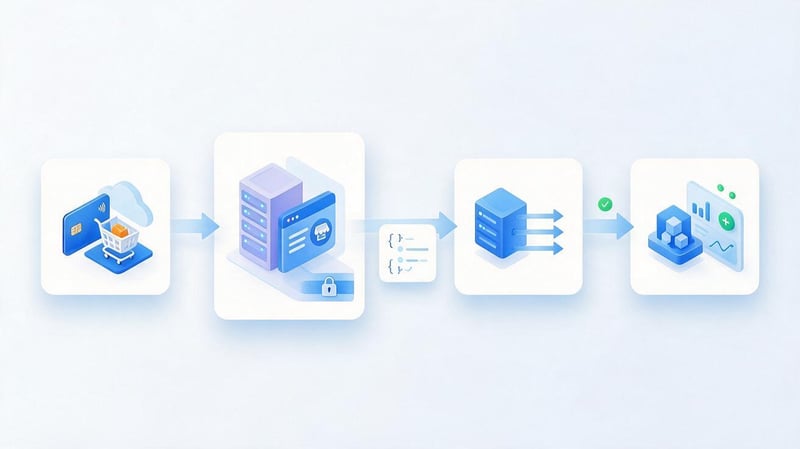
The Google Analytics Measurement Protocol allows you to send events to analytics servers via HTTP requests. The web stream uses the /mp/collect endpoint, and the request specifies the measurement ID and API secret.
The request body contains the client ID and an array of events. For a purchase, you need to build a purchase event with standard transaction parameters.
A simplified example of a JSON structure:
{
  "client_id": "1234567890.1234567890",
  "events": [
    {
      "name": "purchase",
      "params": {
        "transaction_id": "ORDER-10452",
        "value": 1490.00,
        "currency": "UAH",
        "items": [
          {
            "item_id": "SKU-101",
            "item_name": "Product A",
            "price": 990.00,
            "quantity": 1
          },
          {
            "item_id": "SKU-205",
            "item_name": "Product B",
            "price": 250.00,
            "quantity": 2
          }
        ]
      }
    }
  ]
}
Only the request body is shown here, without the full server-side code. A real implementation requires correct identifiers, Measurement Protocol settings, and verification of Google compliance.
The api_secret should not be placed in publicly accessible JavaScript. It should be stored in a secure server configuration to prevent third parties from using the secret to send arbitrary data.
To associate a server-side purchase with a browser visit, the client_id must be correctly retrieved and stored. Session information, including the session_id, is used if necessary, taking into account the requirements of the Measurement Protocol.
Server-side tracking complements browser analytics and helps account for certain events that occur outside the open page. However, it doesn't guarantee complete alignment between GA4 data and the store's accounting system.
How to avoid duplicate browser and server purchases?
When transmitting a single purchase simultaneously through the browser and the server, a consistent transaction identification scheme must be used. The same initial transaction_id must be used in both channels.
For web streams, GA4 deduplicates purchases with the same transaction ID. However, separate verification is required if events come from different integrations or have different passed parameters.
It's best to determine in advance which channel is responsible for registering a purchase, and which is used for a backup or additional scenario. For example, the server can handle payment confirmations that don't require a page to be open.
You can't rely on a random event_id to automatically eliminate all duplicate purchases. For the standard purchase event, the primary deduplication identifier in the web stream remains the transaction_id.
After implementation, it's necessary to compare the number of confirmed orders with registered purchases and verify specific identifiers. Particular attention should be paid to follow-up notifications from the payment system and order status updates.
Checklist for proper purchase setup
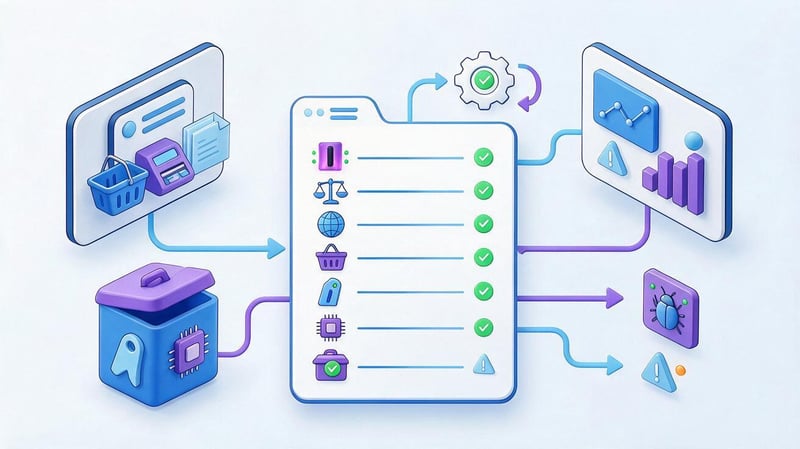
Before publishing a new analytics configuration, it's a good idea to perform a test run. Even a small error in a parameter name can result in the purchase quantity being displayed, but product or revenue data being incomplete.
It's best to test the settings using a separate test transaction with pre-determined values. If real payment transactions are used, it's necessary to agree on the procedure for their subsequent processing and ensure that test data is not included in regular reporting.
To check, use the following list:
- Google tag is connected to the required property. The web stream ID matches the online store, and there are no extra configurations.
- The event is sent at the correct moment. The order status complies with the accepted purchase registration rule.
- transaction_id contains a unique number. The value is not empty and is saved when the order is reopened.
- value is calculated correctly. The amount takes into account the actual prices and quantities of goods without adding tax and shipping.
- currency corresponds to the transaction. A valid three-letter currency code is used.
- The items array contains the purchased items. For products, identifiers, names, prices and quantities are transmitted.
- Numeric parameters are of the correct type. Price and quantity are not transmitted as text with currency symbols.
- There are no extra sends. A single purchase does not trigger multiple independent integrations without coordinated deduplication.
- Tag Assistant confirms that tags are working. The correct trigger fires and the parameters come from the correct source.
- The event was checked in DebugView. The test transaction is sent to the desired GA4 property.
- Refunds are processed separately. If necessary, the refund event is used with the original transaction ID.
- Privacy settings have been verified. Data collection is subject to user consent and Google Analytics limitations.
After completing the checklist, you must verify the data against the actual test order. This verification should include the amount, currency, product composition, transaction number, and the absence of duplicate registrations.
If you subsequently change the order form, payment module, or CMS integration, it's worth repeating the check. Even if the event name remains the same, changing the data structure may disrupt the parameter transfer.
A properly configured purchase event helps you see actual sales results in Google Analytics 4 and compare them with your online store data. This requires coordinating the sending time, transmitting the correct parameters, and regularly checking for events after website changes.
If GA4 is showing no revenue, missing items, or duplicate transactions, Seo-Gen specialists can help you check your e-commerce setup, find errors in gtag.js or GTM, and streamline the transfer of purchase data.


