Google Analytics ID in GA4


Google Analytics 4 uses multiple identifiers, each specific to its own system level. Because of this, queries for “Google Analytics ID”, “Google Analytics Tracking ID”, and “Google Analytics Account ID” often lead users to different settings. For a typical website connection, the web stream Measurement ID (G-XXXXXXXXXX) is most often needed.
To avoid confusing values, it's helpful to look at the GA4 structure from top to bottom: an account contains properties, data streams are created within a property, and a web stream receives its own Measurement ID. Stream ID, Property ID, and Account ID are also used, but they serve different purposes. Let's look at where to find each ID and which one is needed in a given situation.
What is Measurement ID in Google Analytics 4?
Measurement ID is the GA4 web data stream identifier that links a website to a specific stream within the selected property. It is most often searched for using queries like “Google Analytics ID”, “Google Analytics identifier”, or “Google Analytics Tracking ID”. If you're installing GA4 on your website via Google Tag, GTM, or CMS integration, you should first check this parameter.
The Measurement ID refers to a specific Web Data Stream. Therefore, a single GA4 property can contain multiple streams with different settings. Mobile apps use different types of streams, while here we are talking about the website and its connection to Google Analytics 4.
What does a Google Analytics ID look like?
In GA4, the web stream ID looks something like this: G-XXXXXXXXXX. The letter G helps quickly distinguish it from the old Universal Analytics Tracking ID, which began with UA-. If the interface displays a long numeric ID, it could be a Stream ID, Property ID, or Account ID.
In a production setup, you need to use the Measurement ID of the specific web stream where the site data should be sent. The G-XXXXXXXXXX value only indicates the format and is not suitable for a real installation. Always open your property, select the desired data stream, and copy the ID from its parameters.
What is Measurement ID used for?
The Measurement ID is required when connecting Google Analytics 4 to a website, configuring Google tags, working with Google Tag Manager, integrating CMS, and for certain server-side scenarios. Using this ID, the system determines which web stream to send events, pageviews, and other data to.
Website owners most often encounter it during the initial analytics setup. A developer can add gtag.js to the code, a marketer can specify the ID in GTM, and an administrator can paste the value into a special CMS field. In all cases, you must use the ID of the stream that belongs to the working GA4 property.
Are Measurement ID and Tracking ID the same thing?
These terms are often confused in user queries. The phrase “Google Analytics Tracking ID” typically refers to the code a site uses to send data to Analytics. In Universal Analytics, this code was the Tracking ID in the UA-... format, while in GA4, the web stream uses the Measurement ID in the G-... format.
The old UA-ID instruction can't be automatically applied to GA4. If the CMS asks for a tracking code or “Tracking ID”, you need to check whether the field supports the new version of Analytics and whether it expects the G-... value. For modern integrations, the Measurement ID usually matches what the user is looking for as a tracking ID.
Answers to your questions
Where can I find my Google Analytics tracking ID in GA4?
In GA4, the Measurement ID format G-XXXXXXXXXX is used for websites instead of the old Tracking ID. Open the desired property, go to Data Streams, select Web, and open your website's stream. The connection value will be displayed there.
If your CMS still refers to the field as a “tracking ID”, check its documentation. A modern integration should support GA4 and accept Measurement ID, but the old UA-... format is no longer applicable to the new analytics system.
Are Measurement ID and Stream ID the same thing?
No. The Measurement ID is specific to web data collection and looks like G-XXXXXXXXXX, while the Stream ID is a separate numeric stream identifier. Both values refer to the same Data Stream, but are used in different scenarios.
Installing GA4 on a website typically requires a Measurement ID. Stream ID is used where the system works directly with a stream as an object, such as in specific technical integrations or reports.
What does a Google Analytics 4 ID look like?
For a web stream, the primary identifier looks like G-XXXXXXXXXX. It is used when configuring Google Tag, Google Tag Manager, and many CMS integrations that support the current version of Analytics.
If the value begins with UA-, it's in the old Universal Analytics format. Fully numeric identifiers can refer to a property, account, or Stream ID, so you should check the parameter name before using it.
What is a Google Analytics Property ID?
The property identifier, or Property ID, refers to the entire GA4 property. A single Property can contain multiple data streams, so this ID appears above the Web Data Stream in the system structure.
The Property ID is used in APIs, integrations, and administrative scenarios. A standard Google Analytics installation on a website typically requires a Measurement ID, which belongs to a specific web stream.
Where can I find my Google Analytics account ID?
The account ID is located in the account-level administrative settings. This numeric value refers to the top-level container that can contain one or more Google Analytics 4 properties.
The Account ID is used for account management and in some integrations. It is not used in place of the Measurement ID when installing analytics on a website, as it does not identify a specific data source.
Is it possible to find the Measurement ID in the website code?
Yes. If the Google tag is installed directly in the template, the Measurement ID can often be found in the page's source code or browser network requests. When using GTM, it can also be viewed through debugging tools.
For more reliable configuration, it's best to double-check the value against the Web Data Stream card in GA4. The code shows the current implementation on the site, and the Analytics interface helps you verify which property and stream this ID should belong to.
Can I use one Measurement ID on multiple websites?
Technically, multiple sites can send data to a single web stream. However, this structure is only suitable for projects where the data truly needs to be analyzed together and where separation can be properly implemented in reports.
For independent websites, traffic mixing typically complicates analytics. Before implementation, it's important to define the structure of accounts, properties, and streams to avoid transferring events and advertising integrations between different configurations later.
Why is there no data in GA4 after installing Measurement ID?
First, check that the ID belongs to the correct Web Data Stream and matches the value actually loaded on the site. Then, ensure that the Google tag fires and events appear in Tag Assistant or DebugView.
If the tag is working, check Consent Mode, browser extensions, GTM triggers, and possible configuration duplication. For individual events, their names, parameters, and sending conditions are additionally analyzed.
What is a data stream in GA4?

A data stream is the source from which information is received by a Google Analytics 4 property. A web stream is created for a website, and separate Android or iOS streams are created for mobile apps. The stream is used to set the website address, data collection parameters, advanced measurement, and other source-specific settings.
Understanding this structure helps you correctly locate the data stream ID and avoid confusing it with the property ID. If a single Property contains a website and applications, each source will have a separate Data Stream, and the web stream will also receive a Measurement ID for connecting the website.
What data streams exist?
GA4 uses three main stream types: Web for websites, Android for Android apps, and iOS for Apple apps. A Web stream is created for a specific website and can collect page views, scrolls, outbound clicks, searches, and other events if Enhanced Measurement is enabled.
To connect a regular website, you need a Web Data Stream. Android and iOS operate differently and don't use the G-XXXXXXXXXX web code in the same scenario. Before copying the identifier, check the open stream type and the URL specified in its settings.
What is the relationship between a property, a data stream, and a Measurement ID?
The structure of GA4 can be conveniently represented as a sequential diagram:
Account → GA4 Property → Data Stream → Measurement ID
An account contains one or more properties; a property collects project information, and a stream defines the data source. The Measurement ID is linked to the Web Data Stream and is used when connecting the site to the analytics system.
This scheme explains why the Google Analytics account ID doesn't replace the Measurement ID, and the Google Analytics property ID isn't suitable for standard tagging. These values exist at different levels and are used for administration, API work, enabling integrations, and performing technical tasks.
What identifiers are there in Google Analytics 4?

The GA4 interface uses several IDs, each with its own purpose. Errors often arise when a user finds a numerical value and mistakes it for code to be pasted into the website. Before copying, it's important to determine the level of the parameter: account, property, or data stream.
A comparison of the main identifiers looks like this:
| Identifier | Example format | What it means | Where it is used |
|---|---|---|---|
| Measurement ID | G-XXXXXXXXXX | web stream | installation of GA4 on the site, Google tag, GTM |
| Stream ID | numeric ID | specific data stream | stream identification, reports, technical tasks |
| Property ID | numeric ID | GA4 property | API, integrations, property management |
| Account ID | numeric ID | Analytics account | account administration |
When connecting an external service, you must use the exact name of the requested field. You cannot substitute a neighboring ID just because it belongs to the same project.
Measurement ID
The Measurement ID is required when a site needs to send data to a specific web stream. It is used in Google Tag Manager, when manually installing gtag.js, and in CMS settings that include a field for Google Analytics 4.
If the task is something like “connect analytics to a website”, “add GA4 code”, or “specify a Google Analytics ID”, the Measurement ID is checked first. It must match the property's web stream where events and reports should appear.
Stream ID
Stream ID is a separate numeric identifier for a data stream. It is used for service identification of a specific Data Stream and can be used in reports, APIs, or internal settings. It does not look like G-XXXXXXXXXX and does not replace the Measurement ID in standard site connections.
If the data stream identifier is mentioned in the instructions, it's important to consider the context. Some materials mistakenly use this name for the Measurement ID, although Stream ID exists separately in the GA4 interface. It's best to check the field name and value format before implementation.
Property ID – Google Analytics property identifier
The Property ID applies to the entire GA4 property. A single property can include a website, an app, or multiple data streams, so the ID is located at a level above a specific Data Stream. It is required when working through the API, in some integrations, and in administrative operations.
When searching for “Google Analytics property ID”, users are typically looking for the Property ID. It's not used for standard Google Tag installations on websites. If an external service requests a Property ID, passing a Measurement ID in the G-... format instead is also not allowed.
Account ID – Google Analytics account identifier
The Account ID identifies the Google Analytics account within which the properties reside. It is the top level of the structure. The Google Analytics account ID is used for administration, access management, and specific integrations, but does not function as the code for sending events from the site.
If a single account contains multiple projects, each may have separate properties and streams. Therefore, the numeric Account ID alone does not tell the system which Web Data Stream should receive data from a specific site.
Lead SEO specialist — Gennady
I first check what level the required identifier is at: account, property, or data stream. The most common mistake is copying the numeric Property ID or Stream ID instead of the Measurement ID (format G-XXXXXXXXXX) and trying to use it to install analytics on the site. For a regular web connection, I open the required Web Stream and check the Measurement ID.
What ID is needed to install Google Analytics on a website?
For a standard website, the web stream's Measurement ID is most often needed. It is specified in the Google tag, GTM settings, or CMS integration, if the integration supports GA4. This connection links the site to a specific Web Data Stream and routes events to the selected property.
The Property ID, Stream ID, and Account ID may be needed later when working with APIs, integrations, administration, or technical reports. If the service requests a specific ID type, use the parameter name rather than the similarity of the numerical values.
Where can I find my Google Analytics ID in GA4?

To find the required ID, first open the correct account and property. Then, go to the admin panel, find the data streams section, and select the Web Data Stream for the desired site. The card displays the main settings, including the Measurement ID and stream details.
If your account has multiple projects, check the domain before copying. An error at this stage causes data to flow to a different stream or property. Sometimes the problem is only discovered after the ad launch, when the statistics in the reports don't match actual user activity.
How to find Measurement ID?
Open Google Analytics 4, select the desired property, and go to administrative settings. Find the “Data Streams” section, select Web, and open the website stream. The card will display a Measurement ID in the format G-XXXXXXXXXX.
Copy the value without additional characters and use it in the desired integration. After installation, verify that the same ID is loaded on the site via Google Tag or GTM. If you use multiple containers or installation methods, eliminate duplication.
Where can I find the Stream ID?
The Stream ID is displayed in the information about a specific stream. It appears as a numeric value and refers to the Data Stream object itself. In the web stream card, it may be located next to other technical parameters, making it easy to confuse with the required code.
The Stream ID is used in scenarios where it's necessary to identify the stream itself as a system object. For a typical Google Analytics installation on a website, this numerical parameter is typically not required, since the web connection operates via Measurement ID.
Where can I find a Property ID?
The Property ID refers to a Google Analytics 4 property. It should be found in the settings of the selected Property, not within the card of a specific web stream. This identifier is used when the API or integration needs to access the entire property.
If a service requests a “property identifier”, the Property ID is transmitted. You cannot use the Measurement ID instead, even if both parameters refer to the same site and are within the same account structure.
Where can I find my Account ID?
The Account ID is located at the Google Analytics account level. It is used for operations related to account management, users, permissions, and some external integrations. In the GA4 hierarchy, an account is located above properties and streams.
The query “Google Analytics account ID” often comes up when connecting to a third-party service. If the service's settings explicitly specify an Account ID, you should pass the numeric account ID, not the web stream's Measurement ID.
How to create a data stream and get a Measurement ID?

If the web stream hasn't been created yet, the Measurement ID will appear after you add it. To do this, open the data streams section in the desired GA4 property and create a new source of the Web type. Specify the website address and a descriptive name to avoid confusion with other domains or test projects.
Before creating, it's worth double-checking the selected property. Correcting the architecture after launch is more difficult, especially if it already has events, conversions, ads, and external integrations tied to it. Duplicate streams also complicate subsequent data analysis.
Creating a Web Data Stream
When creating a web stream, specify the full website URL and a name that makes it easy to find in the interface. After saving, GA4 will create a Data Stream and display technical parameters, including the Measurement ID for connecting the website.
If your project operates across multiple languages or subdomains, there's no need to automatically create a separate stream for each version. First, determine how the data should be combined and separated. The analytics structure depends on the project's structure and reporting objectives.
What is Enhanced Measurement?
Enhanced Measurement automatically collects a portion of user actions without manually setting up a separate trigger for each event. Depending on the configuration, GA4 can record page views, scrolling, outbound clicks, internal searches, and other interactions.
Enhanced Measurement doesn't replace business event configuration. Form submissions, purchases, inquiries, and other target actions should be reviewed separately. If similar events are already configured through GTM, you should prevent them from being re-submitted after enabling this feature.
When does Measurement ID appear?
The Measurement ID is created along with the web stream and is immediately available in its settings. The value can then be used in Google Tag, Google Tag Manager, CMS, or any other system that supports GA4 integration.
If the required stream already exists, there's no need to create a new one just to obtain a different identifier. First, open the current Web Data Stream and check its parameters. A new stream is created only when required by the data collection framework.
How to install Google Analytics ID on a website?
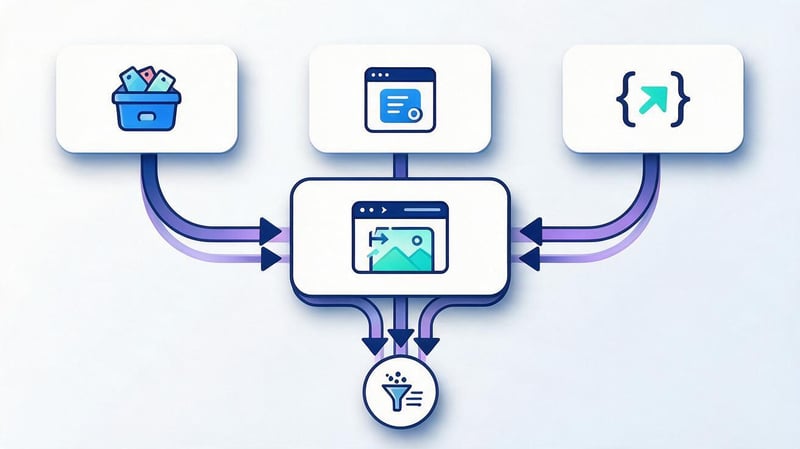
There are several ways to connect to GA4: via Google Tag Manager, built-in CMS integration, or manual Google tag installation. The choice depends on your site's architecture and the tools you're already using. If you're using GTM for marketing tags, it's often more convenient to continue working with the existing container.
Before implementation, verify the Measurement ID and determine a single, controlled installation method. Mixing multiple options often results in duplicate data transfers. For example, the same code may reside in the CMS, website template, and GTM container simultaneously.
Installation via Google Tag Manager
In GTM, create or configure a Google tag and specify the Measurement ID of the desired web stream. Then, set the trigger conditions, open Preview mode, and test the tag loading on the desired pages. After successful testing, you can publish the container.
This method is convenient when events, ad pixels, and other analytics systems are already running in GTM. Control is handled within a single container, but changes should be reviewed before publishing, especially if the site uses separate triggers for different groups of pages.
What ID should I specify in GTM?
For standard GA4 connection via GTM, you need a web stream Measurement ID in the format G-XXXXXXXXXX. This value is copied from the corresponding Web Data Stream card, not from the account or property settings.
If the instructions suggest using a UA-ID, they apply to Universal Analytics. GA4 requires a valid web stream ID. After adding the tag, check it using Preview, Tag Assistant, and DebugView to rule out any errors in the ID or launch conditions.
Installation via CMS or website builder
Many CMSs and builders have a separate field for Google Analytics. In these cases, you can add the Measurement ID there if the built-in integration explicitly supports GA4. The parameter name may vary: “Google Analytics ID”, “Tracking ID”, “Measurement ID”, or “Google tag ID”.
Before saving, check your system documentation. Some older plugins and modules are designed only for Universal Analytics. If the CMS automatically adds the Google tag to the page code, manually installing the same ID again will result in duplicate tags.
Manual installation of Google tags
With manual integration, the developer adds the Google tag code to the website template and specifies the Measurement ID of the desired stream. This option is suitable for projects without GTM or ready-made CMS integration, where tag management is performed directly through the code.
After implementation, it's necessary to check the source code, network requests, and data in GA4. The presence of the G-XXXXXXXXXX string alone does not confirm correct data transfer. You need to ensure that requests are being sent and are related to the correct property.
Why can't I install multiple identical tags?
Duplicating the same tag can lead to duplicate events, inflated page views, and incorrect statistics. This often occurs after migration, when the old code remains in the template and the new code is added via Google Tag Manager.
After changing the connection method, the old implementation should be removed. The site should then be tested using Tag Assistant and DebugView. If basic events are sent once, you can move on to testing additional actions and conversions.
How do I check if Measurement ID is working properly?

After setting the ID, simply seeing it in the source code isn't enough. You need to ensure that the events are actually reaching GA4 and are assigned to the correct stream. Realtime, Tag Assistant, and DebugView are used for quick verification. Each of these tools shows a different part of the data flow chain.
If no information appears, first check the Measurement ID, then check if the tag is running, and only then move on to more complex issues. This order helps you find the problem faster and avoid changing multiple settings that were working correctly.
Checking via Realtime
Open the Realtime report, visit the website in a separate tab, and perform a few actions. If the basic connection is working, the report will show the active user and events associated with the current visit.
Realtime is suitable for quickly verifying data transfer. For detailed analysis of event names, parameters, and sending sequences, DebugView is more convenient, especially when testing forms, purchases, or other target actions.
Checking via Tag Assistant
Tag Assistant shows whether a Google tag is loading on a page and which identifiers are used during the visit. The tool is useful for checking the presence of a tag, the operation of the GTM container, and detecting possible duplicates.
If Tag Assistant shows multiple identical GA4 configurations, check all connection sources. It's best to remove the extra tag before setting up conversions, as resending events will skew subsequent reports.
Checking via DebugView
DebugView displays events in debug mode and helps you understand their names, event parameters, and sequence. This is especially useful when configuring forms, orders, clicks, and other actions for which simply checking the Google tag loads isn't enough.
In e-commerce, DebugView allows you to monitor the purchase event, the items array, and related parameters. If an event arrives but the required data is missing, the issue is related to the sending structure, not the Measurement ID.
Why might data not be transferred?
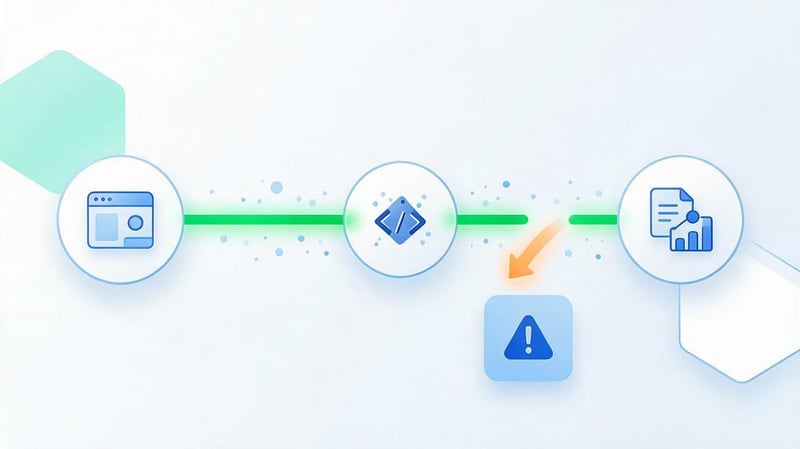
There could be several possible causes: a different stream ID is specified, the tag isn't firing, the GTM trigger isn't working correctly, the browser is blocking requests, or data collection is restricted by consent settings. Sometimes the issue occurs after connecting GA4 via multiple methods simultaneously.
It's best to check the system sequentially: first the identifier, then the tag loading, then the requests and events themselves. This order helps identify the point where data transfer is interrupted without making unnecessary changes to the running configuration.
Measurement ID of another property specified
If a website has a Measurement ID from a different web stream, the information will be sent to a different location than you expect. However, the Google tag may technically work correctly, so the problem isn't always immediately noticeable.
Compare the ID in the code or GTM with the settings of the desired Web Data Stream. Additionally, check the stream URL and property name, especially if the account contains production, test, and archived projects.
The tag is installed twice or does not fire
With a double installation, events may be sent repeatedly, and if the trigger is incorrect, the tag may not load at all. Both issues occur after switching between CMS, manual installation, and Google Tag Manager.
Run Preview in GTM or open Tag Assistant and see how many times the GA4 configuration is triggered. After fixing it, check the events again using Realtime and DebugView on several pages of the site.
Incorrect data stream selected
If multiple streams are created in a property, you can accidentally copy the Measurement ID of a neighboring site. Events will start flowing into a different Data Stream, and the desired stream will appear empty.
Before installation, verify the URL, stream name, and the ID itself. This verification takes a little time, but it eliminates any confusion that could later affect events, reports, and ad conversions.
Consent Mode or a blocker is interfering with data transfer
Ad blockers, browser restrictions, and Consent Mode settings can affect the behavior of tags. If a user has not consented to certain categories of data storage, some information may be processed differently than with full consent.
During the audit, it's helpful to test several consent scenarios and temporarily disable browser extensions that block analytics. This will make it easier to determine whether the issue is related to the Google tag implementation or its operating conditions.
Measurement ID and Measurement Protocol

The Measurement Protocol is used when events need to be transmitted to GA4 from a server or external system. Typical scenarios include CRM, offline sales, server-side order confirmations, and other processes where browser-based data collection doesn't contain all the necessary information.
For web streams, the measurement_id is used in requests, and the API Secret is required for authorization. Client IDs and event parameters are also passed. Server events require separate testing, as an incorrect request structure can result in incomplete or duplicate data.
What identifier is used in Measurement Protocol?
A Measurement ID is used for web stream events. It specifies which Web Data Stream the request should be sent to. This is the same type of ID displayed in the stream settings and used during a typical GA4 connection to the site.
A Measurement ID alone is not enough for the Measurement Protocol. The request must contain additional data and properly formed events. Server-side transmission cannot be configured as a simple replacement for browser code without taking into account the structure of sessions and user identifiers.
What additional data is needed?
A server request typically uses the api_secret, client_id, event name, and its parameters. In some scenarios, user_id, timestamps, session information, and e-commerce parameters may be passed. The set of parameters depends on the data needed for reporting.
For a purchase, the purchase, transaction_id, value, currency, and items are checked separately. If the same event is already sent from the browser, it is necessary to eliminate duplication and ensure correct identification of a single transaction.
Measurement ID and Stream ID are not the same thing
Measurement ID and Stream ID are associated with the same stream but serve different functions. Measurement ID in the G-... format is used for web data collection and the Measurement Protocol, while Stream ID is a separate numeric identifier for a Data Stream object.
Therefore, you cannot take any value from the stream settings and pass it in the measurement_id parameter. If the system expects a Measurement ID, you must use a value in the G-XXXXXXXXXX format.
How do you know which Google Analytics ID you need?
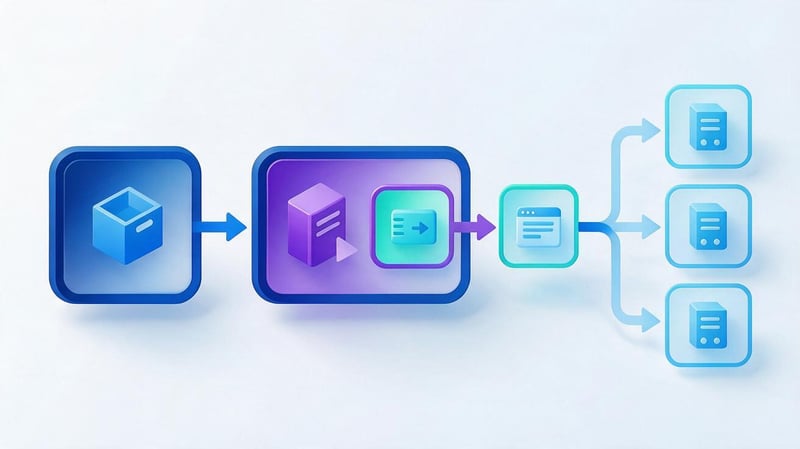
The ID should be selected based on the task. Connecting GA4 to a website requires a Measurement ID. When a third-party integration requests a property identifier, pass the Property ID. A Stream ID is required to access a specific stream, and an Account ID is used for account-level operations.
This logic also helps us understand older instructions that use the term “Tracking ID”. First, you need to identify the object the service works with, and only then copy the corresponding identifier from the Google Analytics settings.
| Task | What ID is needed? |
|---|---|
| Connect GA4 to the website | Measurement ID |
| Specify GA4 in CMS | most often Measurement ID |
| Set up Google tag or GTM | Measurement ID |
| Identify a specific Data Stream | Stream ID |
| Connect the API to the property | Property ID |
| Identify an Analytics account | Account ID |
| Send server events to Web Stream | Measurement ID + API Secret |
A short selection diagram looks like this:
site → Measurement ID → web stream → Stream ID → property → Property ID → account → Account ID
If an external service uses its own field name, you should double-check its documentation. This is especially true for older modules, where the modern Measurement ID may still be called the Tracking ID or tracking code.
To connect a website to Google Analytics 4, you need a web stream Measurement ID in the format G-XXXXXXXXXX. This ID refers to a specific Web Data Stream and is used in Google Tag, GTM, CMS, and some server-side data transfer scenarios. Stream ID, Property ID, and Account ID refer to other levels of the GA4 structure.
Before deployment, verify the property, stream domain, and ID itself. After installation, verify the work using Realtime, Tag Assistant, and DebugView. This process helps detect incorrect IDs, duplicate tags, or submission errors before incorrect data is reported.
If GA4 is already installed on your site, but data is inconsistent, events are duplicated, or it's unclear which ID is being used, start by reviewing the current configuration. Seo-Gen will check your data streams, Measurement ID, GTM, and key events, and then prepare a specific list of site-specific fixes.


