Analytics for an online store: how to set up GA4?


Online store analytics are needed to link site visits to specific customer actions and actual orders. Data on the number of users or page views is insufficient for this purpose. The store owner needs to see where the user came from, what product they opened, what they added to their cart, whether they started checking out, and whether the session ended with a purchase.
Google Analytics 4, along with Google Tag Manager and eCommerce events, is most often used for this type of analysis. When configured correctly, reports include product details, quantity, order value, currency, traffic source, and other parameters. This data helps evaluate advertising, SEO, product selection, conversion, and individual checkout steps.
What is online store analytics and why is it needed?
Online store analytics collects data on visitors, products, actions, and sales into a single sequence. It allows you to see the path from the first click to the completed order, and then compare results across channels, product categories, devices, and advertising campaigns.
Such analysis is necessary regularly, because the same number of visitors can produce completely different financial results. One channel brings in buyers who quickly place an order, another generates many views without sales, and a third works well only for a specific product category.
What data does an online store need to collect?
The minimum data set should show traffic, interaction with the catalog, and commercial results. If you only collect purchases, it's impossible to determine the stage at which the user abandoned the checkout process.
For a proper analysis of an online store, it is advisable to track:
- traffic sources and channels, advertising campaigns and UTM tags for each attracted user;
- views of categories, product lists and individual cards;
- adding items to the cart, deleting items and viewing the cart;
- checkout start, delivery and payment method selection;
- purchases, quantity of goods, revenue, discounts and returns;
- devices, regions, new and returning users;
- the main commercial activities that a business considers key.
Once the data has been collected, you can compare transitions between stages of the sales funnel. For example, a high add_to_cart rate with a low purchase volume often indicates a problem after product selection, rather than weak demand.
What tools are needed for online store analytics?
Google Analytics 4 is responsible for collecting and analyzing user behavior. Google Tag Manager helps manage tags and events without constantly changing site templates, and the dataLayer transfers structured product and order data between the site and the GTM container.
Additionally, they use Google Search Console to analyze organic search, Google Ads for advertising campaigns, and internal CMS and CRM analytics to reconcile orders. Shopify, WooCommerce, and other platforms may have their own integrations that reduce the amount of manual configuration.
Answers to your questions
How to set up Google Analytics 4 for an online store?
First, create a GA4 property and a web stream, then install a Google tag directly or via Google Tag Manager. After verifying the basic installation, implement eCommerce events on the website and transfer product data via the dataLayer.
Next, view_item, add_to_cart, begin_checkout, purchase, and other necessary events are tested. The final stage involves checking DebugView and verifying the test purchase against CMS data.
Should I use Google Tag Manager for Ecommerce in GA4?
Google Tag Manager is not a requirement for eCommerce. Some stores use direct integration via a CMS or another method of sending events to Google Analytics 4.
For complex analytics, GTM simplifies the management of tags, triggers, and data layers. It's especially convenient when GA4, Google Ads, and other measurement systems are running simultaneously on a site.
What is a dataLayer in Ecommerce?
The dataLayer stores structured data that the page transmits to Google Tag Manager. For e-commerce, this may include the product name, ID, price, quantity, category, and order details.
GTM reads these values and sends them along with the corresponding event to GA4. A correct dataLayer structure is especially important for dynamic products and orders.
Which Ecommerce events are required to be configured in GA4?
The basic set depends on the site's functionality, but typically includes view_item, add_to_cart, begin_checkout, and purchase. A full-fledged funnel also includes view_item_list, select_item, view_cart, delivery, payment, and return events.
Don't create an event for a stage that doesn't actually exist on the site. Analytics should replicate the actual user journey.
How to set up purchases in Google Analytics 4?
The purchase event requires passing order data after a successful purchase. Key parameters include transaction_id, value, currency, and an items array containing the items.
After configuration, the event is tested using GTM Preview and DebugView. The test transaction is then verified against the order in the CMS or CRM.
What is Enhanced Ecommerce in GA4?
Enhanced Ecommerce refers to the older Universal Analytics system. Google Analytics 4 uses a new Ecommerce model built on recommended events and parameters.
Therefore, when searching for GA4 enhanced ecommerce instructions, it's best to use the current GA4 documentation. Older Enhanced Ecommerce schemes cannot be migrated without reworking.
What happened to goals in Google Analytics 4?
Classic Goals from Universal Analytics are no longer used in their original form. In GA4, important actions are marked as key events, and events can be used for ad conversions if needed.
For an online store, the primary event is usually a purchase. Additional actions may include inquiries, registrations, or other commercially significant events.
Why isn't Google Analytics showing purchases?
First, you need to check whether the purchase is being sent on the website. Then, check the event name, Measurement ID, dataLayer structure, GTM trigger, and transaction parameters.
It's also worth making sure the purchase isn't being transferred to another GA4 property. After making this correction, we recommend placing a new test order.
Where can I view sales statistics in GA4?
Standard Ecommerce reports and explorations are used to analyze e-commerce. They allow you to view products, purchases, revenue, and other metrics, provided the relevant events are reported correctly.
Data is also compared across channels, devices, and audiences. For a detailed funnel, the GA4 Explore section is convenient.
How to check if GA4 is configured correctly?
First, the tag is verified using Tag Assistant and GTM Preview. Then, events are monitored in Realtime and DebugView, where their sequence and parameters can be seen.
After this, a test transaction is performed and verified against the store's internal system. This verification provides much more information than simply the presence of a purchase event.
What is Google Analytics 4 and how is GA4 different from Universal Analytics?

Google Analytics 4, or GA4, operates on an event-driven model. The system receives separate events along with parameters, so viewing a product, adding it to cart, initiating a checkout, and making a purchase are all recorded as separate user actions.
The old version of Universal Analytics was built around sessions, views, and other e-commerce structures. Therefore, instructions with IDs UA-, views and previous goals cannot be transferred to the current Google Analytics 4 setup without adaptation.
GA4 Event Model
Each significant user action can be transmitted as a separate event. For e-commerce, Google supports recommended E-commerce events, the names and parameters of which are already defined in the documentation.
For example, a card view is sent via view_item, adding a product via add_to_cart, starting checkout via begin_checkout, and completing a purchase via purchase. The product, price, currency, and transaction parameters are sent along with the event.
What happened to Enhanced Ecommerce?
Enhanced Ecommerce, or Google Analytics' enhanced ecommerce model, primarily refers to the Universal Analytics model. GA4 uses a different ecommerce model with recommended events and an items array.
Therefore, the terms “enhanced ecommerce GA4” or “GA4 enhanced ecommerce GTM” may appear in search results, but when setting up, you should focus on current Ecommerce events. The old Enhanced Ecommerce instructions are only useful for understanding the migration logic of an existing project.
What happened to Google Analytics goals?
Universal Analytics used Goals, which were often referred to as objectives. In GA4, important events can be marked as key events and then used to analyze key actions and ad conversions.
Therefore, queries like “how to set up Google Analytics goals”, “add a goal in Google Analytics”, or “goals in Google Analytics 4” should now be considered using the event model. For a store, the primary commercial event is usually a confirmed purchase.
What should I prepare before setting up Google Analytics 4?

Before installation, you need to determine where the account and property will be created, who will have access, and how the site will transfer data. It's advisable to obtain administrator access to the CMS, Google Analytics, Google Tag Manager, and advertising accounts in advance.
It's also worth checking whether your site has an existing Google tag, GTM container, or third-party e-commerce integration. Installing multiple solutions simultaneously can sometimes result in double event sending and skewed statistics.
GA4 account, property, and data stream
An account is created in Google Analytics, within which a GA4 property is created, followed by a data stream for the website. For a web project, a Web Data Stream is used, which is assigned a Measurement ID in the format G-XXXXXXXXXX.
This ID specifies which stream events should be sent to. It should not be confused with the old Google Analytics account tracking ID (UA-) used in Universal Analytics.
Google Tag or Google Tag Manager – which one to choose?
Google tags can be embedded directly into your website's code using gtag.js. This option is suitable for projects with a simple tracking scheme that requires a basic set of events and doesn't require a complex e-commerce implementation.
Google Tag Manager is more convenient when managing multiple events, ad tags, and data layers. For online stores, GTM often simplifies analytics support because the developer transmits data to the website, while the event dispatch logic is controlled within the container.
How to install Google Analytics 4 on an online store?
It's best to start with basic data transfer and then move on to eCommerce after testing. This will make it easier to isolate issues with the overall Google Analytics installation from errors with specific eCommerce events.
Once connected, you need to ensure that GA4 sees page visits and events. Only then should you add product actions, cart, checkout, and purchase.
How to create Google Analytics 4?
In Google Analytics, you need to create a property, select a web stream, and enter the website address. After creating the Web Data Stream, the system will generate a Measurement ID, which will be needed for the Google tag or GTM configuration.
Next, you need to determine the installation method. If you're using a ready-made CMS, it's worth checking its official integration first, as Shopify, WooCommerce, and other platforms may transfer some data without the need for separate, manual implementation.
How to install Google Analytics directly via Google tag?
With direct installation, the Google tag code is added to the website template so that it loads on the desired pages. Typically, the code is placed in the <head>, after which data begins flowing into the created GA4 stream.
The Google Analytics meta tag expression is technically inaccurate because Google Analytics isn't installed via a regular meta tag. After installation, you should open your website and check the Google tag loading using diagnostic tools.
How to connect GA4 via Google Tag Manager?
First, create a Google Tag Manager container and install its code on your website. Then, inside the container, add a Google tag with the desired Measurement ID and set the trigger condition on the project pages.
Once configured, the container needs to be tested and published. If the basic configuration works, the next step is to pass the Ecommerce data layer and create events for product actions.
How to check the basic installation of GA4?
You can test this using GTM Preview, Tag Assistant, Realtime, and DebugView. In debug mode, you need to ensure that the event occurs once, is received by the correct property, and contains the expected parameters.
If statistics are missing, first check the Measurement ID, tag launch, and container publication. Then check for consent mechanism restrictions, blockers, and other factors that may interfere with data transmission.
How to set up Ecommerce in Google Analytics 4?

A Google Analytics counter installed on its own doesn't transmit complete information about products and orders. For e-commerce analytics, a website must send relevant events along with commercial parameters or use a CMS integration that implements this.
The current GA4 framework uses a set of recommended events for product views, carts, checkouts, purchases, and returns. Google defines standardized parameters for these events, including items, transaction_id, value, and currency.
How does Ecommerce work in GA4?
The website records the user's action and prepares the necessary data. It is then transmitted via the dataLayer and Google Tag Manager or sent directly to Google Analytics 4 using another supported method.
As a result, GA4 receives a sequence of events that can be used to build an e-commerce funnel. This approach shows how many users viewed a product, added it to their cart, initiated checkout, and completed the purchase.
What is a dataLayer and why is it needed in Ecommerce?
The dataLayer is a structured data layer on a page. It allows the developer to convey product or order information, and Google Tag Manager receives these values and uses them when sending events.
For example, the Ecommerce dataLayer passes item_id, item_name, price, quantity, item_brand, item_category, coupon, and other parameters. For a purchase, transaction data and the total order value are also required.
What does the Ecommerce dataLayer structure look like?
For a purchase event, the structure might look like this:
dataLayer.push({ ecommerce: null });

dataLayer.push({
  event: "purchase",
  ecommerce: {
    transaction_id: "ORDER-10521",
    value: 2490,
    currency: "UAH",
    items: [
      {
        item_id: "SKU-125",
        item_name: "Product",
        price: 2490,
        quantity: 1
      }
    ]
  }
});
Before sending a new Ecommerce event, the previous object is often cleared using dataLayer.push({ ecommerce: null }). This pattern is also used in official Google Tag Manager examples to prevent data from the previous event from being mixed with the new object.
What Ecommerce events should I set up?
The set of events depends on the store's structure, but it's advisable to track the entire user journey. Then, online sales analytics will show interim losses, not just the number of completed orders.
| GA4 event | What does it record? | Where is it used? |
|---|---|---|
| view_item_list | View product list | Categories, search, recommendations |
| select_item | Selecting a product from the list | Card clickability analysis |
| view_item | View card | Interest in a specific product |
| add_to_cart | Add to cart | Demand and Funnel Analysis |
| remove_from_cart | Removing from the cart | Finding problems with product range |
| view_cart | View Cart | Checkout Transition Analysis |
| begin_checkout | Checkout start | Pre-order loss control |
| add_shipping_info | Delivery selection | Delivery Stage Analysis |
| add_payment_info | Payment options | Payment stage analysis |
| purchase | Completed purchase | Revenue and transactions |
| refund | Return | Correction of commercial data |
After implementation, the event table should be correlated with actual actions on the site. If there is no separate delivery or payment step, there is no need to create artificial events just for the sake of quantity.
What Ecommerce parameters need to be passed?
For products, item_id or item_name are typically used, along with price, quantity, category, brand, and additional parameters. Google allows standard fields and additional item-scoped parameters to be passed in the items array.
At the purchase level, the transaction_id, value, currency, and items are transmitted. Additionally, shipping cost, tax, and coupon can be sent if this information is present in the order.
How to set up a purchase event in GA4 via GTM?
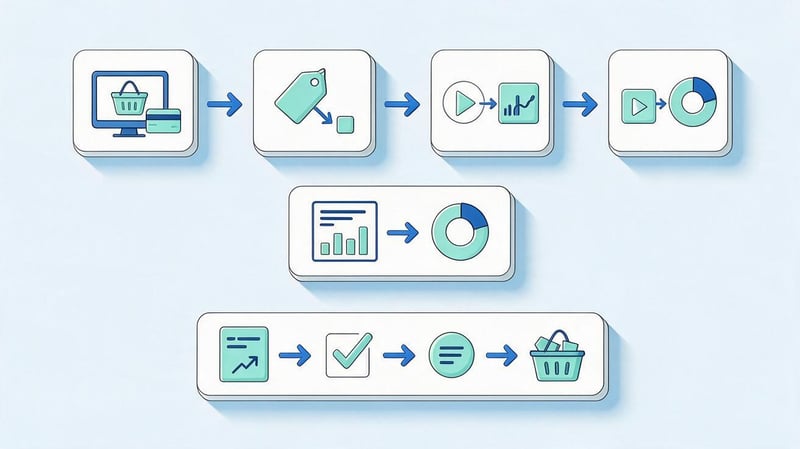
The purchase event links order data to the online store's sales analytics. An error in this event directly impacts reports on revenue, channel performance, products, and advertising campaigns.
Therefore, the GA4 purchase configuration should be checked separately. It's not enough to simply see the event name in DebugView; you need to ensure that all commercial parameters match the actual order.
What data should purchase transmit?
For a purchase, pass a unique transaction_id, amount (value), currency code, and an items array. For each item, specify the ID or name, price, and quantity.
The transaction_id helps differentiate transactions and control resending of purchases. In the official purchase schema, Google uses a unique transaction ID along with the price and product data.
How to pass a purchase via dataLayer?
The developer should send the Ecommerce data layer after confirming a successful order. The source of the values should be real CMS data, not values manually written into the page code.
If the currency, amount, or items are dynamically retrieved from the order, the same scheme works for different carts. After changing the catalog or prices, you don't have to edit GTM for each product.
How to create a purchase tag and trigger in GTM?
In Google Tag Manager, create a Custom Event trigger named “purchase”. For the GA4 event, specify the required eCommerce parameters or use the eCommerce data transfer settings from the Data Layer if the selected GTM configuration supports this.
Then, a test order is executed in GTM Preview mode. The tag should only fire when a real purchase event occurs, and the values within the event should match the order data.
How to avoid sending a purchase twice?
First, you need to determine how many integrations are already sending data to Google Analytics. A common problem occurs when the CMS automatically sends purchase data, but the same order is also sent through GTM.
Order confirmation pages that the user can refresh should also be checked. A unique order ID and correct sending logic reduce the risk of duplicate transactions.
What key events and additional events should be set up for an online store?

A purchase is typically considered a store's primary commercial action, but businesses can also track other significant events. For example, for high-value items, submitting an inquiry, requesting a consultation, or calling may be important.
Such actions can be used as key events if they are truly related to business goals. There's no need to turn every page click into a conversion, otherwise, the reports quickly lose their practical meaning.
Additionally, you can track registrations, subscriptions, wishlist additions, form submissions, and interactions with specific catalog features. Before creating an event, it's important to determine what decisions will be made based on this data.
What GA4 reports does an online store need?
After setting up Google Analytics Ecommerce, the real work begins in the reports. Store owners rarely need to view the entire GA4 interface daily, so it's more convenient to select a few business reports and regularly compare their metrics.
The basic package includes e-commerce purchases, traffic sources, user acquisition, products, and funnel analysis. You can also create audiences and segments for specific advertising or behavior analysis purposes.
| Indicator | What does it show? | Why track it? |
|---|---|---|
| Revenue | Sales amount | Comparison of periods and channels |
| Purchases | Number of transactions | Control of order volumes |
| Average order value | Average order amount | Sales structure analysis |
| Ecommerce conversion rate | Share of sessions or users with a purchase | Conversion rate assessment |
| Add to cart | Adding products | Search for products with high interest |
| Begin checkout | Checkout start | Checkout analysis |
| Refund | Returns | Sales quality control |
Channel reports should compare more than just visitor numbers. A traffic source with a smaller user volume may generate more purchases and revenue, so the assessment should take into account the commercial outcome.
How to analyze online store sales in GA4?
When analyzing online store sales, it's best to start with the funnel. First, compare the number of product views, then the number of times a customer adds to cart, the number of checkouts, and the number of purchases. Then, look for the most significant gap between successive stages.
If users actively browse product cards but rarely add items, the issue may lie with the offer, price, or product card itself. If carts are frequently filled but orders aren't completed, check delivery, payment, required fields, and the mobile checkout experience.
Products and categories are analyzed separately. A high number of view_items combined with a low purchase rate indicates increased interest without corresponding sales volume, so these items should be reviewed separately.
Marketing evaluation is based on comparing traffic channels, costs, purchases, and revenue. The Google Analytics attribution model helps distribute the contribution between user interactions, while cost importing allows for complementary analysis with data from advertising systems.
Additional Google Analytics 4 features for online stores

GA4 audiences can be used to group users by behavior. For example, a separate audience could be created for visitors who added a product to their cart but didn't complete an order, or for customers of a specific category.
Segments help you break down accumulated data during analysis. You can compare mobile and desktop traffic, new and returning users, different sources, or shoppers with different behaviors.
Integration with Google Search Console is necessary for analyzing search queries and organic visibility. Google Analytics query statistics themselves do not replace Search Console, so for SEO, it's best to use both systems together.
Connecting with Google Ads helps analyze advertising campaigns and conversions. When working with other advertising sources, use UTM tags, cost import, and additional data sources.
How to check if Ecommerce is set up correctly?
A test should be performed after every major change to the online store's analytics. The first step is performed using GTM Preview and Tag Assistant, which show the order of events, triggers, and variable values.
After that, check the events in DebugView and Realtime. During the test transaction, record the order number, amount, currency, and products, and then compare them with the purchase parameters.
Reconciling GA4 with online store orders
A single test event isn't enough to assess data quality. After launch, it's worth comparing GA4 statistics with your CMS or CRM's internal analytics for the same period and addressing any noticeable discrepancies.
Complete data matching is not expected due to consent settings, ad blockers, browser restrictions, and different processing principles. However, major systematic discrepancies require implementation verification.
Lead SEO specialist — Gennady
I don't consider my online store analytics setup complete just because events have appeared in GA4. The most annoying error occurs when the report appears normal, but purchase passes the wrong amount, currency, or items. So, I check the chain using GTM Preview and DebugView, place a test order, and verify the transaction_id, value, currency, and items with the CMS. Only after this verification can the data be used for SEO and advertising evaluation.
Why isn't Google Analytics showing statistics or purchases?
The problem often lies not in the reporting interface itself, but in the data collection stage. If Google Analytics isn't showing statistics, you should first check the underlying Google tag and Measurement ID, and then look for the error in Ecommerce.
In practice, problems are most often associated with the following situations:
- Google tag sends data to another property or uses an incorrect Measurement ID;
- Google Tag Manager container has been changed, but the new version has not been published;
- Ecommerce events are not implemented at all on the website or CMS side;
- the dataLayer structure contains an invalid event name or invalid parameters;
- the purchase event is sent multiple times after a page refresh;
- built-in CMS integration conflicts with separate settings via GTM;
- consent settings or a blocker restricts the sending of some events.
After fixing the issue, you should repeat the test purchase and check the full set of parameters. Fixing a single tag without re-checking does not confirm that the data quality has been restored.
Common mistakes when setting up online store analytics
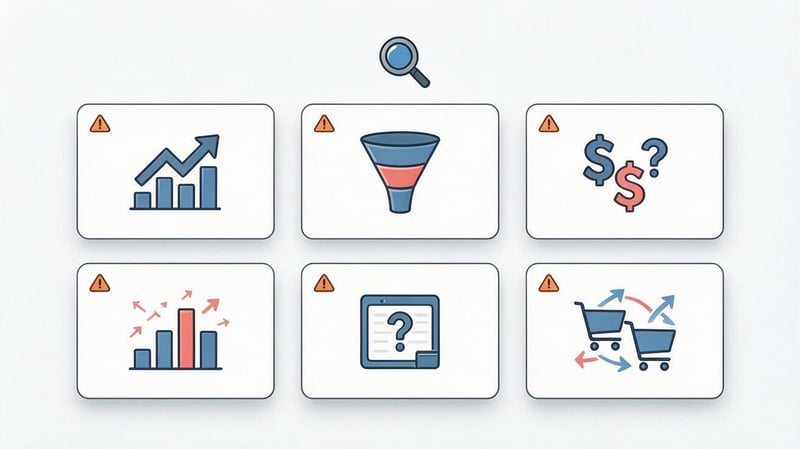
The first common mistake is related to using outdated Universal Analytics guidelines. These guidelines contain views, UA goals, and Enhanced Ecommerce that don't align with the current Google Analytics 4 interface.
The second error occurs when the store only transmits purchases. In this case, purchases are visible, but it's impossible to determine how many users were lost on the card, in the cart, or during checkout.
Incorrect currency, incorrect value amounts, missing unique transaction_id, and incomplete product lists are also common. These errors distort revenue and complicate the analysis of individual categories.
Another issue arises when changing the site. After updating the checkout, CMS, or template, the dataLayer may stop transmitting some parameters, so it's recommended to recheck Ecommerce GA4 periodically.
Online store analytics checklist before launch
Before a production launch, it's helpful to conduct a short test of the entire data collection chain. This takes less time than rebuilding weeks of incorrect statistics.
Please check the following points:
- Google Analytics 4 and Web Data Stream property created for the correct domain;
- Measurement ID corresponds to the stream used in reports;
- Google tag or GTM container loads correctly on store pages;
- view_item, add_to_cart, begin_checkout and purchase are passed at the right moments;
- dataLayer contains current values of goods, cost and currency;
- purchase receives a unique transaction_id, correct value, currency and items;
- GTM Preview, Tag Assistant, Realtime and DebugView do not show obvious errors;
- the test transaction matches the order within the CMS or CRM;
- Google Search Console and advertising systems are connected where they are needed;
- After launch, periodic data quality checks are provided.
After this check, you can move on to regular sales analysis. Going forward, pay special attention to changes to checkout, integrations, and site structure, as these are the most likely to disrupt existing analytics.
Well-configured online store analytics should show the entire user journey from the traffic source to the purchase. This requires a correct base setup in GA4, Ecommerce events, a dataLayer, product parameters, and a verified purchase event.
After implementation, data must be regularly verified with the CMS or CRM, especially after website updates. If events are missing, duplicated, or report incorrect order amounts, SEO and advertising reports will present an inaccurate picture.
If you need to set up Google Analytics 4, Ecommerce, and Google Tag Manager for your online store, start with a technical audit of your current analytics. This will reveal what data is already being collected, where errors are occurring, and what needs to be addressed before further sales analysis.


