Website indexing in Google: Search Console checks and errors


After publishing a new page, it doesn't automatically appear in search results. Google must first locate the URL, crawl it, process the content, and decide whether to index the document. The time between publishing and the page's appearance in search results can vary, so the mere fact that the URL isn't in the search results doesn't necessarily indicate a technical error.
Indexing a website in Google requires analyzing the specific page status. One URL might be closed via noindex, another might return a 5xx, a third might be a duplicate, and a fourth might already be indexed but not ranked for the desired query. Google Search Console helps differentiate these situations and understand at what stage the problem arose.
What is website indexing in Google and how does it work?
The Google index can be thought of as a database of documents that the search engine has processed and is considering for display in search results. Before a URL reaches the index, it goes through several stages. Therefore, the phrases “Google knows the page”, “Google has crawled the page”, and “the page is being indexed” describe different states.
A typical sequence looks like this:
URL discovery → crawl → HTML retrieval → page rendering → content analysis → canonical selection → indexing → possible participation in search.
A page can stop at virtually any point in this chain. For example, Google might know the URL from the sitemap.xml but not yet crawl the site. Alternatively, Googlebot may have already retrieved the page, but the search engine has decided not to index it yet.
How does Google find new pages?
Googlebot learns about URLs from internal and external links, XML sitemaps, existing site pages, and other available sources. Good internal linking helps the search engine find new documents and understand their place in the site's structure.
If a new article exists only at a direct URL and no indexed page links to it, discovery and recrawling may be slower. Such URLs are often called orphan pages. For important pages, it's better to create a normal path from a section, category, or other topically related page.
A sitemap also provides Google with a list of URLs, but the presence of a page in the file does not guarantee indexing. The sitemap tells the search engine which URLs the owner considers important to crawl. For a regularly updated site, a correct <lastmod> is useful if the date actually reflects a significant change to the document.
What happens after a URL is discovered?
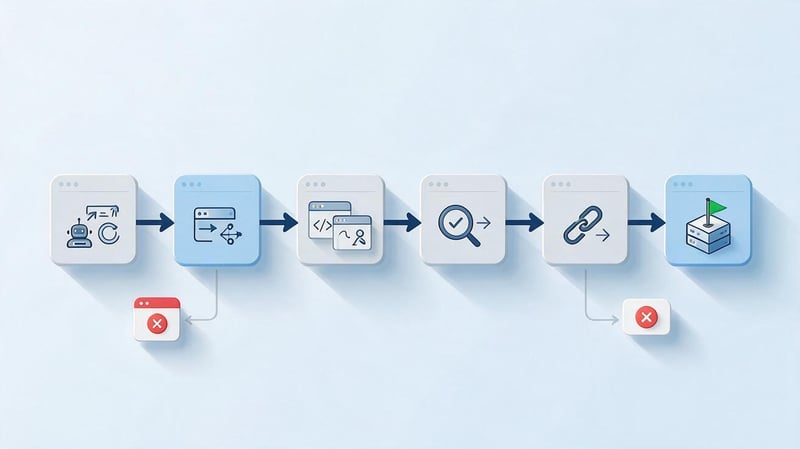
Once discovered, the address is entered into the crawl planning system. Google determines when the URL should be requested, receives the server response, and analyzes the HTTP code. If access is granted, the search robot downloads the necessary resources and processes the page content.
For pages where a significant portion of the content is generated via JavaScript, rendering is also important. If the initial HTML is nearly empty, and after executing the scripts, the main text doesn't appear or loads with an error, Google may see the page differently than the user in the browser.
After processing, Google compares the document with other known versions. At this stage, duplicate pages, redirects, and canonical signals are taken into account. The search engine then selects the canonical URL and makes an indexing decision.
How is crawling different from indexing?
Crawling means that Googlebot requested a URL and received a specific response from the server. Indexing occurs later and means that Google has added the crawled document to its search index. There is no automatic connection between these actions.
Therefore, the “Crawled, but not yet indexed” status does not contradict the search engine's operation. Google has already received the URL, but has not yet included it in the index. This could be due to the page's condition, duplicate content, content quality, or a system decision, the exact internal cause of which Search Console does not reveal.
How is indexing different from ranking?
Just because a URL is indexed by Google doesn't mean a user will see it for a specific commercial or informational query. After indexing, a separate task begins: determining the document's relevance and its position among other results.
Therefore, a missing position shouldn't be automatically interpreted as an indexing error. First, you need to check the URL using URL Inspection to ensure that the page is indeed indexed. If the status is OK, the analysis continues at the level of semantics, content, and internal and external signals.
Answers to your questions
How to check if a website is indexed in Google?
For a specific page, use URL Inspection in Google Search Console. This tool shows whether the URL is indexed by Google, when it was crawled, and which canonical URL the search engine chose.
The site: operator is suitable for a quick, rough check of a domain, but it doesn't provide an exact number of indexed pages. For a large site, it's better to look at overall performance using Page Indexing.
How to submit a website for Google indexing?
You can submit a single new or updated page via URL Inspection and the Request Indexing button. Before submitting, check the live version and ensure Googlebot can access the content.
For large numbers of URLs, use a sitemap and internal linking. Google recommends a sitemap over manually submitting multiple pages.
How long does it take for a page to be indexed by Google?
There's no fixed timeframe because Google schedules URL crawling and processing independently. One page might be processed quickly, while another will take longer.
Request Indexing doesn't guarantee a timeframe or page indexation. If the wait is prolonged, you should check the technical status and URL content.
Why doesn't Google index the page after a request?
The cause could be noindex, robots.txt, 5xx, redirect error, duplicate content, canonical, or the state of the page itself. Google may also crawl a technically accessible URL and not yet include it in the index.
Therefore, resubmitting a request without troubleshooting rarely resolves the issue. First, determine the current status through Search Console and check the published version.
What does “Crawled – currently not indexed” mean?
Googlebot has already retrieved the page, but Google hasn't yet added the document to its index. Search Console doesn't provide a single, precise reason for this decision.
For important URLs, check for duplicates, canonicals, standalone value of the content, internal links, and rendering. Resubmitting an unchanged page is usually not a solution.
What does “Discovered but not yet indexed” mean?
Google knows the address, but hasn't yet fully crawled it. This condition can temporarily occur on new pages and doesn't necessarily indicate an error.
If the status is widespread and persistent, check the link structure, sitemap, server, large number of parameters, and other sources of extra URLs. For important pages, ensure Google can reach them normally.
How to fix a redirect error in Google Search Console?
First, you need to get the entire redirect chain from the source URL to the destination. Then, remove loops, invalid URLs, and unnecessary intermediate transitions.
After fixing the issue, update internal links and the sitemap, check the final page, and run the Test Live URL. If the issue was widespread, after checking several examples, you can use Validate Fix.
Do I need to re-submit my page for indexing every day?
No, resubmitting an unchanged URL is not a way to speed up Google. First, you need to figure out why the page isn't indexed.
If the URL is technically valid, the request has already been sent, and Google has processed it, further actions depend on the current status. For Crawled – currently not indexed, daily requests do not resolve the issue.
Do I need to fix all pages from the “Not indexed” section?
No, because some URLs are intentionally and correctly excluded from the index. This group includes correct redirects, alternative canonical pages, deleted URLs, and pages that are intentionally noindexed.
Cases where the actual status contradicts the page's purpose need to be corrected. Therefore, the role of the URL is determined first, and only then is a technical solution made.
How to bulk submit a fixed error for review?
After fixing the entire group, open the specific Page Indexing issue and click Validate Fix. Before running, test several URLs using live inspection to ensure the change works across the entire template.
Google will first check a selection, then queue known affected URLs for re-checking. The entire site is not automatically re-crawled.
How long does Validate Fix take?
Google indicates that validation typically takes up to about two weeks, although individual reviews can take significantly longer. Restarting the process before the current cycle is complete is not recommended.
The duration depends on the number of pages and the actual re-crawl. For large sections, you need to allow time for Googlebot to revisit known URLs.
What to do if Validate Fix gets Failed?
Open See details, find Failed and Pending URLs, and recheck the typical pages. Then, identify the common source of the problem and fix any remaining instances.
After an unsuccessful cycle ends, click Start new validation. Google will re-validate Pending, Failed, and new instances, but will not re-queue Passed and Other instances.
How to check website indexing in Google?

You can use regular search for a quick assessment, but for diagnostics on a specific page, it's best to go straight to Google Search Console. The Page Indexing report provides an overall picture of the site, while the URL inspection tool displays data for a single URL.
It's advisable to check your site's indexing in Google on two scales. First, you need to determine if there's a widespread issue with an entire template or section. Then, manually check important URLs, as a general graph doesn't explain the status of each individual landing page.
Checking via the site: operator
For a rough check, you can enter into Google:
site:example.com
This query shows the domain pages that a search engine can retrieve using this operator. For a specific address, you can try a query in this format:
site:example.com/category/page/
This method is convenient for a quick manual check, but the number of results should not be used as an exact index size. The results for the site: operator may be incomplete, and the numbers may change without actually removing that many pages.
If you need to get a more detailed understanding of a specific page, go to Search Console. For larger sites, you can also use the Page Indexing report, which shows the dynamics of indexed and non-indexed URLs.
How to check a URL using Google Search Console?
Open the desired property in Google Search Console and paste the full page address into the inspection bar at the top. The URL Inspection tool will display data about the version Google knows from its last crawl. To diagnose the current status, additionally run a check of the published page.
The verification procedure looks like this:
- Select the desired Search Console property and paste the full URL.
- Wait for data on the page's status in Google's index.
- View the last crawl date and Googlebot type.
- Check the crawling and indexing permissions.
- Compare User-declared canonical and Google-selected canonical.
- If necessary, run Test live URL.
After the list is reviewed, the data needs to be evaluated together. For example, an old saved version might show “noindex”, which the developer has already removed. In this case, checking the published page will show the current status, and the report will be updated later, after Google crawls it again. URL Inspection is designed specifically for diagnosing individual pages and requesting re-indexing.
What data should I check in the URL inspection tool?
The first thing they look at is the indexing status, the time of the last crawl, and the page's availability. This data helps determine whether the Search Console information applies to the current version of the site or whether Google hasn't yet seen the latest changes.
Next, check the source of the URL discovery, referring page, and sitemap. The sitemap field displays known Search Console sitemaps that point to this address. The absence of a referring sitemap does not in itself indicate an error if Google discovered the page through another means.
Canonicals require special attention. If the owner has specified one canonical URL and Google chooses another, it's necessary to compare internal links, sitemaps, redirects, duplicate content, and other signals. Google considers canonicals as a signal, but the search engine makes the final choice of the primary version independently.
How to submit a website for Google indexing?
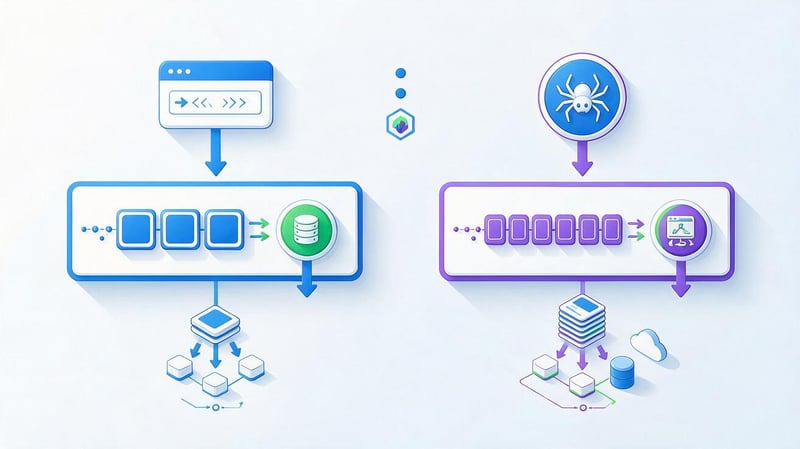
The method depends on the number of pages. For a single new or significantly updated page, an indexing request in Google Search Console will suffice. For a large site, manually submitting each URL isn't necessary – Google recommends using a sitemap and a properly accessible link structure.
Before submitting, make sure the page is ready for indexing. If the URL returns a 5xx, contains noindex, is blocked by robots.txt, or redirects to another address, resubmitting the request won't fix the underlying issue.
How do I submit a single page for indexing via Search Console?
If you need to understand how to submit a site for indexing based on a single URL, the steps are quite short. Open URL Inspection, paste the address, check the published version, and make sure Google can access the page.
After successful verification, you can click “Request Indexing”. Google will queue the URL for re-indexing. This is suitable for a new page, a recently corrected technical URL, or a document with a significant content update.
The request to “submit a site to Google for indexing” is often taken too literally. There's no single button that will instantly index all pages for an entire project. Google discovers and re-crawls a site through its link structure, sitemaps, and its own crawl scheduling system.
What happens after I click “Request Indexing”?
After a request, Google may recrawl the page, but submitting it does not guarantee that the document will be added to the index. If the URL is unavailable, the tool will report the issue. If the manual request limit is exceeded, resubmitting it also does not provide a way to circumvent the restrictions.
Clicking the button repeatedly doesn't improve the page's quality or correct canonical values, server responses, or duplicates. Therefore, indexing requests are used after technical verification, not instead of it.
If a page already has the “Crawled but not yet indexed” status, there's no point in submitting the same URL every day without changes. In this situation, it's more useful to check the content, interlinking, duplicates, and the page's overall role in the site's structure.
How to submit multiple pages for indexing?
For tens, hundreds, or thousands of URLs, use an XML Sitemap. Google directly recommends using a sitemap when requesting a crawl of multiple pages, rather than manually submitting each one via URL Inspection.
The sitemap should include canonical URLs that are actually intended to be indexed. Avoid adding a large number of 404s, noindex pages, 301 redirects, and technical duplicates. Such conflicting signals complicate diagnostics.
In addition to the sitemap, new pages should have internal links. If a category, service, or article is present in the sitemap but remains isolated from the main site structure, Google may technically detect it, but the project's architecture is still weak.
Do I need to resubmit my Sitemap every time?
If the file is available and already known to Google, there's no need to delete and re-add it after each change. Google periodically accesses the map and sees an updated list of URLs.
It makes sense to resubmit your sitemap after making a significant configuration change or if Search Console reports that the file could not be retrieved. Generally, it's sufficient to keep the sitemap up-to-date and avoid including URLs you know shouldn't be indexed.
For monitoring, it's convenient to filter Page Indexing by a specific Sitemap. This allows you to see the status of only those pages that the site owner considers indexable.
Why aren't my pages indexed in Google Search Console?

The “Why Pages Aren't Indexed” section shouldn't be taken as a list of broken pages. Some statuses describe normal behavior: a page with a correct redirect shouldn't be indexed under the old URL, and an alternative duplicate with the correct canonical may be intentionally excluded.
Before correcting any status, you need to answer one question: should this page appear in search as a standalone URL? If the answer is no, then not being indexed is often appropriate for the site's purpose. Google specifically notes in its documentation that non-indexed pages don't always indicate an error.
Server error (5xx)
A Server Error (5xx) status means that the server responded to Google's request with a 500-level error or was unable to process the request properly. This includes 500 Internal Server Error, 502 Bad Gateway, 503 Service Unavailable, 504 Gateway Timeout, and other server errors.
The cause could be an overloaded server, an application error, a reverse proxy issue, a CDN issue, a database issue, a page that takes too long to generate, or Googlebot being blocked by a security system. If 5xx errors appear for important categories, products, services, or articles, the issue needs to be fixed.
Long-lasting server errors prevent Google from fetching content and reprocessing URLs. If 5xx errors spike, it's worth opening Crawl Stats, checking host responses, and correlating the onset of errors with releases or infrastructure changes.
A one-time 503 error during short maintenance doesn't require a complete overhaul of the entire SEO structure if the site is already functioning reliably. However, such an issue should still be double-checked: a temporary error and a regular failure look the same in a single request.
Redirect error
A Google Search Console redirect error means that Google initiated a redirect but was unable to correctly reach the expected final URL. Officially listed causes include an overly long redirect chain, a redirect loop, an excessively long URL within the redirect chain, and an invalid or empty URL.
In practice, additional checks are made for combinations of HTTP and HTTPS, www and non-www, variations with and without slashes, language rules, CDNs, and server redirects. After migration, multiple independent rules may trigger sequentially on a single URL, creating an unnecessary chain.
This error needs to be corrected if the URL is involved in internal linking, is in a sitemap, receives external links, or is supposed to lead the user to a new page. Ideally, the old URL should immediately redirect to the final relevant address.
A regular working 301 isn't a redirect error. If the old address correctly redirects to the new one, the old URL itself shouldn't be indexed. In this case, only check that internal links and the sitemap already use the final address.
The URL is blocked by robots.txt

The “blocked by robots.txt” URL status appears when Googlebot is unable to crawl a page due to a Disallow rule. The cause is typically found in the general robots.txt file, a specific rule for a specific user agent, or an overly broad path pattern.
If a commercial category, service, product, article, or other page that should be indexed is blocked, the rule must be corrected. Otherwise, the search robot will not be able to properly retrieve the document's content and track its changes.
If these are technical filters, internal service URLs, or other addresses that truly shouldn't be crawled, no fix is required. Blocking is consistent with the site's architecture if it's intentional.
However, robots.txt cannot be considered a reliable command for removing an already known URL from the index. Google notes that a blocked page may, in rare cases, be known by other signals. To noindex, the robot must first be allowed to load the page and read the corresponding directive. For the page to be crawled and receive the noindex tag, the URL must not be present in the robots.txt file.
The URL is marked as noindex
A URL marked “noindex” means that Google detected a noindex directive in the meta robots or X-Robots-Tag HTTP header. In this situation, the search engine should not add the document to the index.
The noindex status needs to be corrected if the “noindex” directive is accidentally left on a public page after development, migration, or template changes. This is especially dangerous in widespread cases where the directive appears on all products, categories, or language versions.
If a shopping cart, internal search, service page, or other document that is intentionally excluded from search results is closed, noindex works correctly. Google explicitly states that this status is expected when intentionally excluded.
After removing the directive, it's a good idea to run a Test Live URL to ensure that the current version actually allows indexing, and only then use Request Indexing if necessary. Checking old data without a live test can lead to erroneous results.
Soft 404
A soft 404 occurs when the server technically returns a successful response, often 200 OK, but the content appears to be a missing page. A typical example is when a product has been removed, but the template reports “nothing found” while still returning a 200 status code.
This issue occurs with empty categories, deleted object pages, filter results, and templates with insufficient content. Google may conclude that such a URL does not actually represent a standalone document.
If the page actually exists and should be indexed, you need to check the content and how Google sees it after rendering. If the object no longer exists and there is no replacement, it's better for the server to return a true 404 or 410 rather than mask the page's absence with a success code.
Google recommends checking Soft 404s using live inspection and viewing the rendered page. Attempting to redirect all deleted URLs to the homepage often makes the situation worse, as such a redirect doesn't match the content of the original page.
Page blocked by authorization request (401)

A 401 Unauthorized response means the server requires authorization to retrieve the page. Googlebot doesn't log into your account as a regular user, so a closed URL can't be processed as a standard public landing page.
If a 401 error appears on a category, article, product, or service intended for organic search, you should check your server, CMS, middleware, or security settings. A public document requires access without user authorization.
For your personal account, CRM, private partner section, and other private data, this status may be normal. There's no need to open such a page to Google just to have a line disappear from the report.
The criterion is quite simple: if a user should access a page from a regular search without logging in, a 401 response is inconsistent with the goal. If access is required after authorization, search indexing is usually unnecessary.
Page not found (404)
A Not Found (404) status means the server is telling Google that the resource doesn't exist. Such URLs appear after product and article deletions, structure changes, internal link errors, old external links, or incorrect URL generation.
A 404 should be corrected when the page should exist, is in the sitemap, or is linked to internally. If the content has moved to a relevant new URL, a 301 redirect is typically used and internal links are updated simultaneously.
When a page is permanently removed and there's no suitable replacement, a proper 404 isn't considered an SEO issue. Google explicitly states that regular 404s for truly missing URLs don't harm a site in and of themselves.
Don't redirect every deleted URL to the homepage. This route doesn't explain to the user and search engine where the equivalent of the deleted content is located and can lead to additional Soft 404s.
Access Denied (403)
A 403 Forbidden response means the server understood the request but denied access. This could be due to a firewall, CDN, anti-DDoS, security rules, user-agent filtering, IP restrictions, or access rights within the application.
If regular public pages receive a 403 response, you should check your server logs and security rules. Sometimes the site owner can access it normally from a browser, but the Googlebot request is blocked by a separate security rule.
For truly closed resources, fixing them may not be necessary. For example, an internal administrative section isn't required to be accessible to a crawler just because Google once learned its URL.
For mass 403 errors, it's helpful to compare the time the issue appeared with changes to your CDN and firewall. If thousands of important URLs are blocked, manually submitting them for indexing won't help until Googlebot can access the pages.
The URL is blocked due to another 4xx error
This group includes client errors that are not assigned a separate status by Search Console. These include 400, 405, 408, 410, 429, and other 4xx responses.
For each such URL, you must first determine what code is returned and whether it matches the page's purpose. For example, 410 Gone may be perfectly normal for a permanently deleted document, while 429 Too Many Requests on important pages may indicate excessively strict server restrictions.
A fix is required when an indexed page unexpectedly returns a 4xx response. Google then doesn't receive a normal document and can't process it as an accessible URL.
If the code was chosen intentionally and corresponds to the actual state of the resource, there's no need to change it for the sake of reporting. The goal of the check is to align the technical response with the actual role of the page.
Crawled – currently not indexed

The Crawled – currently not indexed status means that Google has already visited the URL but has not yet added it to the index. Google does not recommend resubmitting the page just to change this status, as the cause is usually not a lack of crawling request.
For important pages, they check the standalone value of the content, its consistency with other URLs, canonicals, internal links, templates, and the actual HTML after rendering. Thin content can also be a useful signal for analysis, although Search Console does not report the specific internal factor for the decision.
If a status appears en masse on new city landing pages, tags, filters, or programmatically generated pages, these URLs need to be compared. Hundreds of documents with minimal differences often require a revision of the structure itself, not additional Request Indexing.
The status should be corrected for pages that truly have distinct search intent and value. For secondary duplicates or low-value technical URLs, being absent from the index can be expected.
Discovered – currently not indexed
Discovered – currently not indexed means Google knows the address but hasn't yet fully crawled it. In this case, the last crawl date is usually missing because Googlebot hasn't retrieved the page yet.
This could be due to a large number of URLs, low crawl priority, a weak internal structure, a slow server, parameters, endless filters, or other sources of large URL space. Google may also delay crawling if it believes intensive crawling will create an unwanted load.
For a new URL, a short period of this state doesn't require immediate attention. However, if important categories and services remain in this status for weeks or in large numbers, you should check the sitemap, internal links, server, and the number of URLs generated.
Crawl traps—endless combinations of parameters, calendars, sorting, and filters—are worth looking out for separately. They waste search engine crawlers' attention on technical URLs instead of priority pages.
An alternative page with the correct canonical tag
The “Alternate page with proper canonical tag” status usually describes a normal situation. Google has recognized the current URL as an alternative version and considers the other address canonical.
For example, a site may have a technical URL variant that contains the same content and canonically points to the main page. If Google accepts this logic, the alternative URL should not be indexed separately.
A fix is required when the current page should be indexed independently, and the canonical tag was added accidentally. In this case, you need to check the tag, internal links, sitemap, and the reasons for the duplicate.
If the alternative page is indeed a duplicate and the canonical is specified correctly, no action is required. Google explicitly describes this situation as a case that typically doesn't require correction.
The page is a copy, the canonical version is not selected by the user

Google may find multiple identical or nearly identical URLs, even if the site owner hasn't specified a canonical URL. In this case, the search engine chooses the primary URL itself and excludes other versions.
Common sources of duplicates include GET parameters, sorting, filters, HTTP/HTTPS, www/non-www, case variations, trailing slashes or missing slashes, and technical CMS routes. Sometimes the cause lies in multiple URLs that actually display the same product or category.
If Google has chosen the URL that should be the primary one, no immediate fix is required. However, it's best to align the signals according to the same logic: internal links, sitemaps, and canonical URLs should support the chosen architecture.
If an undesirable version is indexed, the signals must be explicitly consolidated. Otherwise, the search engine will continue to independently decide which version is considered the primary one.
The page is a copy, Google chose a different canonical than the user
This status indicates a conflict: the site specified one canonical tag, but Google decided to treat another page as the primary one. The cause may not lie in the tag itself, but in a combination of signals.
You need to compare the duplicate content, internal links, sitemaps, redirects, hreflang, and external links. If almost the entire site links to URL B, and page A has a canonical link to A, the search engine gets an inconsistent picture.
The situation needs to be corrected if the address Google selected is truly incorrect for search. In that case, all project signals should be aligned around the correct version.
If, after checking, it turns out that the user's canonical is incorrectly configured, there's no point in forcing Google to make the wrong decision. It's better to change your own configuration and align your architecture with the actual primary URL.
Page with redirect
A page with a redirect shouldn't be confused with a redirect error. In the former case, Google has detected the redirect correctly and understands that the original URL points to a different address.
This state is expected after a migration, slug change, merging duplicates, or moving an old article. The redirect URL itself should generally not be indexed as a separate document.
Verification is required if the redirected URL remains in the sitemap or is used in internal links. It's best to link directly to the final page and provide Google with a clean structure without unnecessary transitions.
If the redirect was set accidentally and the original page should exist independently, it should be removed. If there is a standard 301 between the old and new URLs, there is no need to change the status.
What warnings might appear on already indexed pages?

Page Indexing can show issues not only among excluded URLs. Certain statuses apply to pages that Google has already added to the index, but which weren't processed as expected by the site owner.
Such warnings require contextual assessment. If Google indexes a page you intended to exclude or is unable to read the underlying content, the mere presence of the URL in search results is not enough to conclude that everything is working properly.
The page was indexed despite being blocked by robots.txt
This condition occurs when Google knows the URL from links or other signals, but robots.txt prevents it from loading the content. Since the search engine can't open the document, it's unable to read the meta robots tags placed within.
If a page needs to be indexed, it must be allowed to be crawled so Google can access the content properly. If, on the other hand, a page needs to be excluded from the index, blocking it with robots.txt alone isn't enough – Google must be able to see the “noindex” tag. In this case, you need to remove such URLs from the robots.txt file to allow the bot to crawl the site and access the “noindex” tag.
After changing robots.txt rules, you should check the specific URL and wait for it to crawl again. The old status may persist for some time because Page Indexing doesn't update immediately after file changes.
For technical URLs, the solution depends on the task. There's no point in opening thousands of useless parameters just for the sake of a pretty report, but you also shouldn't rely on robots.txt as a reliable deindexing method.
The page was indexed without content
If Google reports that a URL is indexed without content, you should check which page the search engine actually retrieved. The cause could be rendering issues, a non-standard response format, a template error, or a discrepancy between the user's browser and Googlebot.
For a typical SEO landing page, this condition requires diagnostics. You need to examine the HTML, screenshot in URL Inspection, loaded resources, JavaScript, and server response.
If the main text appears after a script that Google couldn't execute, you need to check the client-side logic and access to APIs or resources. For an SSR site, it's worth comparing the actual HTML with what the browser sees after hydration.
After the fix, the page is tested using a live URL test. Only after a successful result should you request reprocessing.
Google Search Console Errors and Status Summary
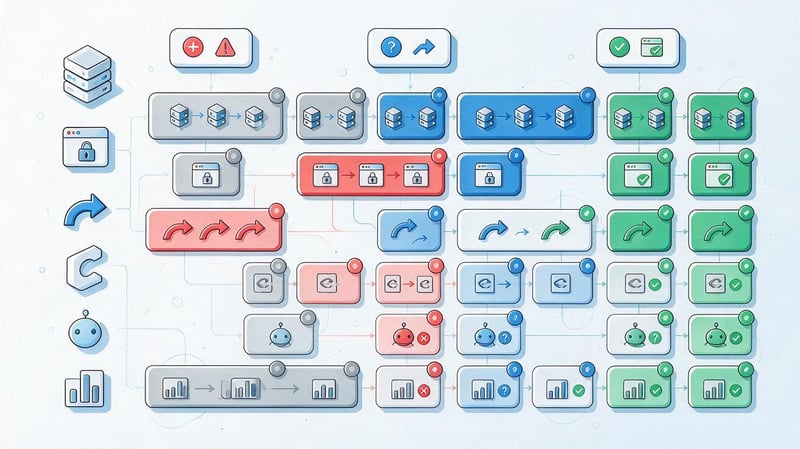
The same status may require different actions depending on the URL's purpose. Therefore, the table below is intended as a quick reference, with the final decision made after a manual review of the page.
| Status | It needs to be corrected | There is no need to correct it |
|---|---|---|
| Server error 5xx | An important URL is persistently unavailable to Google. | The one-time temporary glitch has already been resolved. |
| Redirect error | There is a loop, a broken or too long chain | A regular working 301 does not apply to this status. |
| Blocked by robots.txt | The page has been blocked from organic search. | The technical URL is intentionally hidden. |
| URL marked noindex | noindex is accidentally on the landing page | The page is intentionally excluded |
| Soft 404 | The actual page is incorrectly reported as missing. | The deleted URL gets a real 404/410 |
| 401 | A public page requires authorization by mistake. | Personal account or closed section |
| 404 | Broken internal link, sitemap or missing page | The URL has been removed and there is no suitable replacement. |
| 403 | Googlebot was blocked by mistake. | The resource is indeed closed. |
| Other 4xx | The code is incorrect for the landing page. | The response matches the URL's purpose. |
| Crawled – currently not indexed | An important page should be searchable | The URL does not have an independent search task |
| Discovered – currently not indexed | Important URLs are frozen en masse | New pages recently discovered |
| Alternate with canonical | Canonical was installed incorrectly | The alternative version is indeed a duplicate. |
| Duplicate without user canonical | Google has selected an unwanted URL | The correct primary address has been selected |
| Google chose different canonical | Google indexes the wrong version | The user's canonical itself turned out to be wrong |
| Page with redirect | The redirect is accidental or the URL remains in the Sitemap | Normal 301 after transfer |
After the table, you should look not only at the status title but also at the dynamics. A sharp increase in one group after a release is often more useful for diagnostics than the absolute number of URLs.
If a site contains a million technical duplicates and several thousand relevant pages, the sheer volume of “Not Indexed” results doesn't necessarily indicate a problem. Far more serious is the sudden disappearance of a specific type of commercial or informational page from the index.
Which pages should be checked manually?

Search Console displays URL examples for each cause, but the example table isn't a complete download of the entire site. Therefore, if the issue is widespread, you should select a representative sample and check different page types manually.
Priority is given to URLs that are in the sitemap, generate organic traffic, participate in a commercial structure, or should be indexed according to the SEO plan. For a common error, finding a few typical examples is enough to identify the source, but after correcting it, you need to ensure that the change applies to the entire group.
It is advisable to include in the manual selection:
- The main and primary categories if the problem concerns the entire site.
- Multiple products, services, or articles of each affected template.
- Pages from a specific Sitemap with an unexpected status.
- URLs that were recently indexed and then disappeared.
- Pages from different languages or regions.
- Several addresses from different parts of the Search Console example list.
After selecting the URLs, compare them. If all the problematic pages use the same template, searching for the error in each document separately is usually pointless – the cause may lie in the overall logic of canonical, meta robots, SSR, or server routing.
How to manually check a page from the Page Indexing report?
Open a specific reason in Page Indexing and select a sample URL. Then, go to URL Inspection to see Google's latest crawl information. First, look at the saved status, as it explains the current report status.
After this, launch the Test Live URL. This live check is necessary to determine whether the restriction remains after the fixes. For example, the saved version may contain “noindex”, while the live version shows that indexing is allowed.
The check should include HTTP code, robots.txt, meta robots, X-Robots-Tag, canonical, sitemap, rendering, and the final URL after redirects. For JavaScript pages, a screenshot and the HTML retrieved by Google are reviewed separately.
Search Console doesn't function as a real-time server log. If Google last crawled a page before the change, the report will naturally continue to show the old reason. Therefore, the last crawl date should be checked before making any further changes to the site.
Which pages should be checked manually for each status?

For 5xx errors, check key URLs of different templates and simultaneously monitor Crawl Stats. If errors occur randomly across different sections, it's more likely a server or infrastructure issue than a specific page error.
For robots.txt and noindex, submitted pages from the sitemap are the priority. The site itself tells Google that these URLs are important, so blocking them simultaneously is usually counterintuitive.
When a 404 error occurs, internal links and sitemaps are checked. Random old URLs that are no longer used and have actually been deleted can easily remain 404.
For “Crawled – currently not indexed” and “Discovered – currently not indexed”, you need to take several pages of each type. A single URL doesn't tell you anything about a situation where the issue affects thousands of programmatically generated documents.
For canonical statuses, pages with search potential are checked, as well as URLs where Google has selected a different primary version. For Page with redirect, first look for old URLs in the Sitemap and internal links.
How do I bulk submit fixed issues for review in Google Search Console?
Bulk fix check works through Validate Fix. This refers to a specific cause in Search Console and does not replace Request Indexing for individual URLs. Before launching, you need to fix the entire known group, not just one specific example.
The order of work is as follows:
- Open a specific issue in Page Indexing.
- Study the examples and identify the common source.
- Correct the template, server, or configuration for the entire group.
- Check multiple URLs using URL Inspection.
- Run Test live URL on typical examples.
- Click Validate Fix when the problem is indeed fixed.
After the list, you don't need to click the button again until the previous check is complete. Google recommends waiting for the current validation cycle to complete before starting the next one.
If the report is filtered by a specific sitemap, validation can only be applied to URLs from that selection. This approach is sometimes convenient for a priority section, but before running it, you need to understand which specific set of pages is currently being validated.
What to do before a mass inspection?

The main mistake is running Validate Fix immediately after changing a single URL. If the status affects a thousand pages of a single template, you need to ensure that the new logic is already implemented across the entire template.
First, take several URLs from different parts of the sample and check the current version. For redirect errors, look at the full chain; for noindex, check the HTML and HTTP headers; for 5xx, it's advisable to run several requests and review the server logs.
If the issue is related to canonical URLs, a live URL test alone isn't enough to predict Google's decision. You should also check all site signals: canonical URLs, sitemaps, internal links, and actual page similarities.
Only when the standard URLs appear to be fixed should a bulk check be submitted. This procedure reduces the risk of validation stopping at the first remaining problematic instance.
How does Google start bulk fix validation?
After launch, Google first checks a selection of pages where the issue was previously found. If the error persists on the URLs being checked, validation may fail early.
If the initial instances pass the check, Search Console continues working with the list of known URLs in this group. Specific pages with a specific issue are checked, not the entire site.
Each URL being validated receives its own status. If the error disappears, the instance passes validation. If Google detects the issue again, validation may change to Failed.
Graphically, the process looks like this:
Validate Fix → Check Examples → Started → Looking Good → Check Known URLs → Passed
If the problem persists, the branch changes:
Validate Fix → URL Validation → Problem Found → Failed → Fix → Start New Validation
Does Google check the entire site?
No. Search Console re-queues known URLs that relate to the selected issue type. Google describes this mechanism explicitly: known affected URLs are queued for validation, not all pages on the domain.
If 5xx, redirect error, and noindex occur simultaneously, these are separate groups. Each cause must be analyzed and validated separately, as successfully fixing one does not change the state of the others.
During a routine crawl, Google continues to find new instances of the issue. These may be added to an existing group, so the fix must address the source at the template or configuration level.
This is especially important for large projects. Manually fixing ten URLs won't solve the problem if the CMS continues to generate hundreds of new URLs with the same error every day.
How long does bulk fix validation take?

Validation isn't instantaneous. Google states that verification typically takes up to two weeks, but in some cases it can take significantly longer. The speed depends on the number of URLs and the recrawl schedule.
Don't promise the developer or client results in a specific two or three days. Even after a technical fix, the search engine should revisit the affected pages and update its own data.
On large projects, the time may vary between sections. Google crawls frequently crawled categories faster than deep, obscure pages without internal links.
Clicking Validate Fix again doesn't speed up an existing check. The current cycle must be completed until Passed or Failed, after which the next decision can be made.
What statuses does fix validation have?
The “Not started” status means that a separate fix check hasn't yet been run for the issue. However, Google may still recrawl pages as part of its regular crawl and update the number of affected URLs.
Started appears after validation has begun. Google has begun the process and is checking for known instances of the issue. No further action is typically required at this stage.
“Looking good” means that the instances checked so far are already passing validation. This is an intermediate state and should not be interpreted as a final result.
Passed appears when known verifiable instances of the issue have been resolved or the URLs are no longer accessible in the appropriate manner. N/A may appear when Google independently detects the disappearance of the issue without the user initiating validation.
Failed means that Google found the issue again on some of the pages during the check. In this case, you need to open the details, examine the failing URLs, and fix the remaining source of the error.
What statuses does each URL receive within a bulk check?
The entire validation process has a common status, but individual URLs also have their own statuses. These shouldn't be confused, as some pages may have already passed validation while others are still in the queue.
Pending means the instance is under review, but Google hasn't yet confirmed a fix. The last known state of this URL still contained the issue.
Passed means Google re-crawled the instance and no longer found the specific error. Failed means the opposite: after re-crawling, the issue persisted.
The Other state is used when Google was unable to retrieve the URL or the object in question no longer exists. For the validation process, this state is considered equivalent to a successfully closed instance.
The same URL may be Passed for one issue and Pending or Failed for another. This is normal because Search Console validates each category independently.
When does Google accept a mass fix?
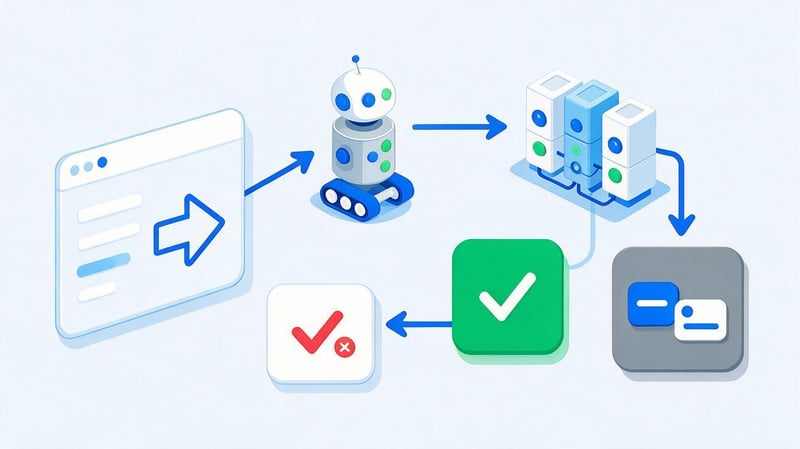
Validation is Passed when known instances of a specific issue no longer contain it. This may occur after a page has been fixed or because the affected URL no longer exists and Google can no longer detect the previous defect.
Passed applies only to the selected issue. For example, a fixed redirect error may disappear, but the resulting page will then be labeled as Crawled (currently not indexed). This is a different status that requires separate analysis.
A successful check doesn't guarantee rankings or even mandatory indexing. It confirms that the specific issue for which Validate Fix was run is no longer found on the checked instances.
Therefore, after Passed, it's worth returning to Page Indexing and reviewing the final status of the relevant pages. The goal of this check isn't to get a green check, but to ensure the URL behaves as expected.
When does Google reject fix validation?
In the interface, it's more accurate to say that the validation status is Failed. This is an automatic result of a re-check, not a manual decision by a Google employee.
The cause is usually simple: the search engine has detected the issue in question again on one or more URLs. For example, the developer may have removed noindex from the HTML, but the X-Robots-Tag: noindex header continues to appear from the server.
A common situation with redirects is that one chain is corrected, but the same rule remains for other language or regional URLs. For 5xx, the issue can manifest periodically under load, so a single successful check in the browser doesn't guarantee a stable server response.
Validation can also detect new instances of the issue during a regular crawl. Therefore, after Failed, you should look for a common pattern rather than fixing just the first URL in the notification.
What should I do if fix validation is rejected?
Open the problematic row and go to See details. Find the URLs with the Failed and Pending statuses, then manually check several instances of each template.
For each URL, you need to check the current HTTP code, robots, canonical, redirect, and live version. If the issue only appears with Googlebot, additionally check server logs, firewall, CDN, and differences in User-Agent responses.
After this, the common source is determined: page template, server rule, middleware, language logic, SSR, CDN, or parameter generation. The source that produces the problematic URLs needs to be corrected.
After completing the current cycle, you can click Start new validation. The new run will include Pending and Failed URLs, as well as any newly discovered issue instances. Instances already marked Passed and Other will not be re-validated.
Is it necessary to run Validate Fix?

No. Google continues to crawl the site as usual, regardless of whether the site owner clicks Validate Fix. If the search engine independently detects that the issue has resolved, the number of affected URLs may be updated without a separate validation.
This button is useful when a controlled re-check of a mass fix is required. Search Console displays the progress of the process, stores the history, and reports whether any problematic instances remain.
For a small, isolated issue, sometimes it's enough to fix the URL and wait for the next crawl. For mass template changes, validation is more convenient because it provides a separate review process.
It makes sense to start validation after the technical work is truly complete. There's no need to send a known faulty group just to start the process.
How to check a website for Google errors?
Checking your website for Google errors doesn't start with just one report. Page Indexing is responsible for indexing, URL Inspection helps analyze specific pages, Crawl Stats shows crawling behavior, and Sitemap provides insight into the URLs submitted to Google.
If you need to check a site for Google errors after a release, it's best to move from mass signals to specific examples. First, look at the graph changes and the causes in Search Console, then select several URLs of each affected type and check them manually.
Page Indexing Report
Page Indexing shows the number of indexed and non-indexed pages known to Google, as well as the reasons why URLs are not indexed. For a large site, this report helps quickly identify major changes after a migration or technical release.
You need to look not only at the absolute number of URLs, but also at their dynamics. If noindex, 404, or 5xx hits increase sharply after an update, it's worth comparing the date of the increase with the site's changes.
The Sitemap filter is especially useful. It helps you focus on the URLs that the site itself declares as a priority for indexing.
For a specific page, the report isn't sufficient. Google recommends using URL Inspection if you need the precise status of a single URL.
URL Inspection tool
URL Inspection is used to diagnose a specific URL. It shows what Google knows about the page since its last crawl and allows you to run a live check of the current version.
It's especially useful to compare the saved and current state after a technical fix. For example, Page Indexing still shows the old “noindex” directive, while Test Live URL confirms the directive's absence.
You can also request re-indexing of a single page through this interface. This scenario isn't suitable for large amounts of URLs, so don't submit hundreds of URLs manually.
A Google error check of a website should always include several typical URLs if the issue is related to a template. A single successful URL doesn't guarantee that the fix has been applied to the entire section.
Crawl statistics

Crawl Stats helps you see how Googlebot accesses your site. It's useful to analyze the distribution of 2xx, 3xx, 4xx, and 5xx responses, host status, and changes in crawl activity.
If Page Indexing shows widespread server errors, crawl statistics can help understand the scale. A rise in 5xx errors, coupled with a drop in successful responses, often indicates a server issue rather than the content of individual pages.
For a large site, server logs are also useful. They show specific Googlebot requests, response times, and recurring technical routes, which are aggregated by Search Console.
If errors occur only intermittently, opening the page in a browser once may reveal nothing. In this case, the request history is much more informative.
Sitemap
A sitemap should contain canonical, indexable URLs. If the sitemap is full of redirects, 404s, noindex, and duplicates, the site simultaneously tells Google that the URL is important and technically signals it not to index it.
After changing the structure, you need to check that old pages have been removed from the sitemap and new final URLs have been added. For a multilingual site, all language versions are also checked.
A sitemap helps Google discover pages, but it doesn't guarantee indexing. Even a correctly submitted URL undergoes normal processing and may be assigned the Crawled – currently not indexed status.
For a large project, it's convenient to create maps by content type. Then, changes in the indexing of products, categories, and articles can be analyzed separately.
Robots.txt and meta robots
Robots.txt controls crawling access, while meta robots and X-Robots-Tag can control indexing of an already accessible document. Mixing these mechanisms often creates inconsistent configurations.
If a URL is blocked in robots.txt, Googlebot won't be able to open the HTML and read the noindex placed there. Therefore, the Disallow + noindex scheme doesn't reliably remove a known page.
For pages to be excluded from search, it's usually necessary to allow the robot to read the relevant directive. For technical areas with a large number of URLs, robots.txt can be used to control crawling.
After any changes, it's important to test specific examples. One overly broad robots.txt rule can shut down an entire section of the site.
Why doesn't an indexing request solve the problem?

Request Indexing tells Google that the page should be re-checked. The button doesn't change the HTTP code, content, canonical, server, or internal links, so the technical issue remains until it's actually fixed.
If a user repeatedly clicks “Request Indexing” and the URL remains unindexed, stop resubmitting and proceed to diagnostics. This is especially true for the Crawled – currently not indexed category, where the page has already been retrieved by Google.
Lead SEO specialist — Gennady
When a page isn't indexed, I don't start by clicking the “Request Indexing” button again. I first check whether Googlebot receives a 200 OK, whether there's no noindex, no blocking, invalid canonicals, duplicates, or redirect chains, and whether the page has any internal links. If the URL is technically clean, I then look at the page's value in its own right. Re-requesting without fixing the issue usually doesn't change anything.
Quality and standalone value of the page
After the technical review, it's important to evaluate why the document exists separately from other URLs. If ten pages differ only in the city name or a few words, the search engine may not consider each version necessary for indexing.
It's helpful to compare the page with other documents from the same template. You need to check whether it has its own content, whether the text matches the intended intent, and whether it's almost completely duplicated from adjacent pages.
Word count alone doesn't solve the problem. A short page might fully address the query, while a long, boilerplate text might remain a weak duplicate.
For pages created in large quantities, the independence criterion is especially important. Automatically generating thousands of URLs without a dedicated user task often results in a large number of crawled but unindexed documents.
Internal linking
A page should have a clear place in the site's structure. An important URL that isn't linked to internally is harder to perceive as part of the main set of documents.
It's best to place links from thematically related pages. A category can link to subcategories, an article to related materials, and a service to relevant subsections or cities.
There's no need to create hundreds of meaningless links just to get crawled. The goal of internal linking is to provide users and search engines with a logical path between related documents.
After changing the structure, it's worth checking to see if any links to old redirect URLs remain. It's best to immediately direct internal traffic to the final canonical pages.
Duplicates and canonicals

Duplicates occur due to parameters, filters, sorting, language routes, technical URLs, and CMS errors. If the same content is available at multiple URLs, Google must determine the primary version.
Canonical helps convey preference, but a single tag is sometimes insufficient. Sitemaps and internal links should also use the selected canonical URL.
If different signals conflict, Google may choose a different canonical. In this case, the architecture needs to be aligned with a unified logic, rather than simply submitting the page for indexing multiple times.
When checking for duplicates, it's helpful to look not only at the page code but also at the actual content. Two different URLs may technically have different canonicals, but in practice they display virtually the same document.
JavaScript and rendering
For a JavaScript-based website, the user's browser may display full content, even though the initial HTML remains nearly empty. Google can render the website, but scripting, API, authorization, or resource errors can alter the final document.
Using the Test Live URL, view a screenshot and the rendered HTML. If the key text, links, or canonical appear incorrectly, the problem lies in the rendering stage.
For SSR projects, it's also worth checking the server response. Sometimes the content is visually corrected after client-side hydration, but Google initially receives erroneous server-side HTML.
It's important to ensure that important SEO data isn't dependent on unstable client requests. The more predictable the base document, the easier it is to diagnose indexing issues.
Googlebot Server and Access
Even good content won't process properly if the server periodically returns errors or blocks the robot. Therefore, diagnostics should include HTTP code, DNS, CDN, firewall, and anti-DDoS.
The problem is especially noticeable on large sites, where manual inspection of one URL shows 200, but server logs contain regular 429, 502, or 503 for Googlebot.
You should check if there's a separate rule for User Agent, country, IP, or request rate. Aggressive protection sometimes identifies search robots as unwanted traffic.
After a server-side fix, it's helpful to compare Crawl Stats before and after the change. This way, you can see whether the site's responses to Google have stabilized.
Common mistakes when working with indexing

The most common mistake is trying to index all URLs that appear in the “Not Indexed” group. A large site may have thousands of valid duplicates, redirects, deleted pages, and technical URLs.
The opposite situation is equally common: landing pages are dropped from the index, but the team continues to send Request Indexing instead of running a technical diagnostic. As a result, the problem persists for weeks.
Most often, the following actions create problems:
- One URL is sent for indexing many times in a row without any changes.
- The site: operator is used as an exact counter of pages in the index.
- URLs with redirect, 404 or noindex continue to be stored in the Sitemap.
- Internal links after migration lead to old addresses.
- Canonical contradicts Sitemap and internal linking.
- Robots.txt is used as the only way to remove a page from the index.
- Validate Fix is run after fixing one URL from a large group.
- The Passed status is taken as a guarantee of indexing and future ranking.
- The last crawl date isn't checked before making changes again.
- Bulk template URLs are evaluated based on one random example.
After the list is complete, it's time to return to priorities. First, check the pages that should generate organic traffic, then any major template issues, and analyze technical exceptions only to the extent they impact crawling and site structure.
Checklist for checking page indexing
Before Request Indexing, it's best to run a short technical checklist on a page. This helps prevent sending Google a URL that's known to contain a block or other conflicting signal.
The check includes the following steps:
- Make sure the URL should be indexed as a standalone page.
- Check for a 200 OK response for the document being indexed.
- Rule out an accidental noindex and X-Robots-Tag.
- Make sure Googlebot is not blocked by robots.txt.
- Check canonical and the selected primary version.
- Make sure there is no redirect loop or extra chain.
- Check if the URL is in the correct Sitemap.
- Find internal links to a page.
- Check content and rendering.
- Open URL Inspection and see the last crawl date.
- Run Test live URL after making the corrections.
- If necessary, send Request Indexing.
- For a mass error, use Validate Fix after a full fix.
After such a check, it's easier to understand where the technical part ends and Google's indexing decision begins. If all conditions are met and the page remains Crawled – currently not indexed, repeating the same steps rarely yields a different result.
Checking indexation begins with determining the page's role. If the URL should be included in search results, you need to check the HTTP response, robots, noindex, canonical, redirects, sitemap, internal links, rendering, and the actual status in Google Search Console.
Not every line in the “Not Indexed” group requires correction. A proper redirect, a deliberate noindex, a removed 404, or an alternative canonical page may be a normal part of the site's technical structure.
For a single page, use URL Inspection and Request Indexing after fixing the issue. For a mass error, first fix the entire template or configuration, manually check several URLs, and then run Validate Fix.
If you've accumulated indexing errors in Search Console and it's unclear which ones are impacting organic traffic, submit the report and list of priority pages to Seo-Gen specialists. We'll separate technical errors from normal exceptions, determine the cause for each URL type, and prepare a specific list of fixes for the developer.


