Google Tag Manager: what is it and how does it work?


A website often runs Google Analytics 4, Google Ads, contact forms, advertising pixels, and other services simultaneously. Each requires data on visitor actions. Manually changing the website code for each new event quickly makes analytics difficult to maintain.
Google Tag Manager helps you manage these settings centrally. Using GTM, you can define what exactly needs to be tracked, what action should trigger the tag, and what data should be transmitted to the connected system.
For standard tasks, many changes are made through the Google Tag Manager interface after installing the container. For complex e-commerce, SPAs, custom forms, or data transfer via the dataLayer, developer involvement will still be required.
What is Google Tag Manager?
Google Tag Manager, or GTM, is Google's tag management system. It's used to connect and configure analytics, advertising, and other service codes without constantly editing website templates.
A GTM container with its own ID is installed on the website. Tags, triggers, and variables are then created within the container to define the rules for collecting and transmitting data.
Google Tag Manager is free. Payment may be required for third-party systems, analytics services, dataLayer development, or tracking setup, but the GTM web interface itself is available without a separate subscription.
GTM doesn't store comprehensive user analytics reports. Its purpose is to manage tags and transmit the necessary data to Google Analytics, Google Ads, and other systems.
What is a tag in Google Tag Manager?
A tag in Google Tag Manager is a setting that runs specific code or sends data to a connected system. This tag shouldn't be confused with HTML tags like <title>, <meta>, or <h1>.
For example, using GTM, you can create a Google tag for Google Analytics 4, a GA4 event tag, Google Ads conversion tracking, or a custom HTML tag. Each of these tags performs its own purpose.
A tag typically works in conjunction with a trigger. If you need to record clicks on the checkout button, the tag sends the event, and the trigger determines which click triggers the event.
A single container can contain dozens of tags. To make this structure easier to maintain, it's best to make the names clear from the start, for example, GA4 – purchase or Google Ads – lead.
What is Google Tag Manager used for?
Google Tag Manager is used when a website requires controlled tracking of visitor actions. It allows you to connect analytics, track conversions, and transmit data to advertising systems.
GTM is suitable for tracking button and link clicks, form submissions, file downloads, video interactions, page views, adding items to carts, and purchases.
Google Tag Manager is also used to set up Google Ads conversion tracking, dynamic remarketing, additional marketing tags, and custom events. For online stores, GTM often works in conjunction with dataLayer.
Installing GTM doesn't mean any further changes can be made without a developer. Simple page actions are usually configured through the interface, while complex events must first be correctly implemented in the site's code or data layer.
Answers to your questions
What is Google Tag Manager in simple terms?
Google Tag Manager is a Google service for managing analytics and advertising tags through a single container. Once installed, many settings can be configured within the GTM interface, eliminating the need to manually insert each script into the website template.
For example, Google Tag Manager can send click, form, or purchase information to GA4. GTM itself doesn't generate regular analytics reports, but is responsible for triggering rules and data transfer.
Tags, triggers, and variables are used within the container. For complex events, data can also be passed from the website via the dataLayer.
What is Google Tag Manager used for?
GTM is needed for centralized configuration of analytics, advertising conversions, and other website tags. It helps determine which actions need to be recorded, when the tag should fire, and which parameters need to be sent.
It's used to track clicks, successful forms, purchases, file downloads, video interactions, and other events. GTM is also used to connect Google Analytics 4 and set up Google Ads conversions.
Some tasks can be accomplished without changing any code, but complex scenarios require developer involvement. This is especially true for eCommerce, SPAs, dataLayer, and custom AJAX forms.
How is Google Tag Manager different from Google Analytics?
Google Tag Manager manages data transfer, while Google Analytics 4 receives this data and generates reports. Therefore, Google Analytics and Google Tag Manager are typically used together rather than chosen interchangeably.
In GTM, you configure tags, triggers, and variables. In GA4, you analyze events, users, traffic sources, pages, and conversions.
If you uninstall Google Analytics, GTM won't automatically generate these reports. If you uninstall GTM, GA4 may continue to work with direct Google tag installation, but the connection logic will be different.
Is Google Tag Manager free?
Yes, standard Google Tag Manager is available without a separate fee for using the web container. You can create an account, container, tags, triggers, and variables through your Google Account.
Costs arise around implementation when a company requires auditing, event configuration, dataLayer development, or support for complex analytics. Separate third-party services connected via GTM may also incur their own costs.
Therefore, the search query “Google Tag Manager price” usually refers to setup or maintenance services. The GTM service itself, in the standard scenario, does not require payment.
Where can I find my Google Tag Manager ID?
The GTM ID is located in the interface of the selected container and starts with GTM-. It can also be seen in the installed page code if the container has already been added to the site.
This identifier should not be confused with the GA4 Measurement ID of the form G-XXXXXXXXXX. They refer to different components and are used in different places in the configuration.
If multiple GTM IDs are found on a site, you should check the purpose of each container. The old container sometimes remains in the template after migrating analytics and continues to send unnecessary events.
Where should I install the GTM code on my website?
For a standard web container, Google provides two fragments. The main JavaScript is placed at the top of the <head> tag, and the noscript is placed immediately after the opening <body> tag.
In a CMS, it's best to add these fragments through a shared template or built-in integration that distributes the code to all required pages. After saving, you should check the published HTML.
If a container is listed only in the control panel but not on the final page, analytics will not work. Therefore, installation always ends with testing using Preview, Tag Assistant, and a browser.
What is googletagmanager.com?
googletagmanager.com is the Google domain used by the Google Tag Manager and Google Tag infrastructure. Requests to it can be seen in Chrome Developer Tools on sites with the relevant integrations.
The mere presence of www.googletagmanager.com doesn't mean the site is infected. To understand the source of the request, you need to check the GTM ID, Google tag, and template code.
If a domain appears unexpectedly, you should audit the included scripts. This will help determine whether the container was added natively through the CMS, directly in the code, or via a third-party extension.
Is it possible to install Google Analytics 4 via GTM?
Yes, Google Analytics 4 can be configured via Google Tag Manager. For basic configuration, you create a Google tag with the desired Tag ID, then select a trigger condition and run a test.
GA4 events are configured using separate GA4 Event tags and linked to appropriate triggers. Google describes this approach in its current Tag Manager documentation.
Before publishing, you should check whether the same Google tag is present directly in the code. Installing it twice may result in duplicate data submission.
Why isn't my tag working in Google Tag Manager?
First, open Preview and check if the desired event is triggered. If the event is triggered but the tag is in “Tags Not Fired”, check the trigger conditions and the actual variable values.
If there's no event at all, the problem may lie in the website, the dataLayer, or the form logic. For SPAs, additionally check transitions without a regular page reload.
You should also rule out unpublished versions, adblock, consent restrictions, and JavaScript errors. Diagnosing in this order is usually faster than changing settings at random.
Is it possible to use GTM without a developer?
Basic tags and simple triggers can be configured without constant developer intervention. For example, an analyst can create a click event on a stable link and test it in Preview.
For complex scenarios, a developer is still needed. They transfer data via the dataLayer, assist with SPA, AJAX, eCommerce, and events that can't be reliably detected from the page's markup.
Good practice divides responsibility. The developer is responsible for the correct data source, while the analyst is responsible for the event schema, triggers, parameters, and transfer validation.
How does Google Tag Manager work?

Google Tag Manager logic is built around several entities: container, tags, triggers, variables, and dataLayer. Each is responsible for its own part of the process and is used in conjunction with the others.
The simplest scenario is as follows: a visitor performs an action, GTM receives information about the event, a trigger checks the condition, and then the appropriate tag sends data to Google Analytics 4 or another system.
Data transfer scheme:
User → website action → event → GTM → trigger → tag → GA4 / Google Ads / other system
When configured correctly, this scheme helps separate site events from the rules for transmitting them. The developer transmits structured data, and the analyst determines which tags should use this data.
GTM container
A GTM container contains settings for a specific site or other resource. It contains tags, triggers, variables, folders, versions, and other elements of the working configuration.
The web container ID begins with GTM-, for example, GTM-XXXXXXX. You can see it in the Google Tag Manager interface after selecting the desired container.
GTM ID should not be confused with Google Analytics 4's Measurement ID. The GA4 web stream uses an ID of the form G-XXXXXXXXXX, while Google Ads uses IDs with the AW- prefix.
This distinction is especially important when verifying the installed code. The presence of a G- tag on a page confirms that the Google tag is working, but does not, by itself, prove that the Google Tag Manager container is installed on the site.
Tags
A tag describes the action the system should perform after a specified event occurs. Typically, this involves sending information to an analytics service or advertising platform.
For example, the main Google tag might load when the website is opened. A separate GA4 Event tag will send a generate_lead after a successful form submission, and a Google Ads tag will record the ad conversion.
Third-party templates and Custom HTML are also available through GTM. Custom HTML is best used only when a suitable standard template isn't available and the developer understands the implications of running custom JavaScript.
A large number of tags requires a clear structure. If names like Tag 1, test, and new tag accumulate over years, auditing such a container takes much longer.
Triggers

A Google Tag Manager trigger determines the conditions under which a tag should fire. A single tag can fire on all pages of a site or only when a specific user action occurs.
Typical options include Page View, Click, Form Submission, Custom Event, and Timer Trigger. History events, element visibility, and other condition types are also used for specific tasks.
For example, tracking clicks on a phone number can be linked to a Click URL that begins with tel:. For a button, Click Text or Click Classes are sometimes suitable, as long as these values are stable.
Conditions need to be chosen carefully. A trigger that's too broad can send a single event for every similar click, while one that's too narrow will stop working after a slight layout change.
Variables
Variables store or retrieve values required by tags and triggers. They allow the same scenario to be used for different pages, buttons, or products.
GTM's built-in variables allow you to retrieve Page URL, Click Text, Click Classes, and other data. Separate variables are created for values from the dataLayer, lookup tables, or custom JavaScript.
Let's say a purchase event needs to pass a transaction ID and order amount. These values can be retrieved from the data layer and then used as parameters for the purchase event.
Variables also help make conditions more flexible. Instead of several nearly identical tags, you can set up a single structure that uses different values depending on the event.
Data Layer
A Data Layer, or dataLayer, is a structured data layer through which a website transmits information to Google Tag Manager. It is especially useful when the required values cannot be reliably obtained from the page text or DOM.
The dataLayer accepts the product ID, name, price, currency, transaction number, and order contents. Events also accept a name, which tells GTM what happened.
For example, after successfully adding an item to the cart, a website might send an add_to_cart event. GTM receives it via a Custom Event trigger and uses the passed parameters in the GA4 Event tag.
For eCommerce, a proper dataLayer is much more reliable than trying to read the price or product ID from HTML. The layout changes, but the agreed-upon data layer structure can remain stable between interface updates.
How do tags, triggers, and variables interact?
Let's imagine a request form on a service page. Upon successful submission, the site notifies GTM of the event, and the form type and selected service are passed to the dataLayer.
A Custom Event trigger responds only to the desired event. Variables capture additional values, after which the GA4 Event tag sends the event name and parameters to Google Analytics.
If an ad conversion is used, a separate Google Ads tag can respond to the same event. This eliminates the need to directly link the site's logic to each advertising system.
When checking, it's important to follow the entire chain. An event may appear correctly in GTM, but the tag will remain in the “Tags Not Fired” list due to an invalid trigger condition or a missing variable.
Google Tag and Google Tag Manager – What's the Difference?

Google Tag and Google Tag Manager are related to the Google tagging platform, but they refer to different components. Because of their similar names, they are often confused when setting up analytics.
The Google tag transmits data to Google products, such as Google Analytics or Google Ads. When installed directly, it can be added to the website's source code via gtag.js.
Google Tag Manager manages tags through a separate container. Within GTM, you can configure Google tags, GA4 events, Google Ads conversions, and other tags, each with its own trigger conditions.
Therefore, having a Google tag does not necessarily mean having GTM. Conversely, an installed GTM container can manage multiple tags and assignments from a single interface.
If analytics is already running through Google Tag Manager, don't add the same Google tag directly to the template without testing. Duplication often leads to duplicate events and distorted reports.
Google Tag Manager vs. Google Analytics – What's the Difference?
Google Analytics and Google Tag Manager perform different tasks. GA4 receives data and generates reports, while GTM manages the rules for firing tags and sending events.
Google Tag Manager can be thought of as an intermediate layer between the website and connected systems. Google Analytics receives the submitted data and uses it to analyze traffic and user behavior.
| Google Tag Manager | Google Analytics 4 |
|---|---|
| Manages tags and launch conditions | Collects and analyzes data |
| Works with triggers and variables | Works with events and parameters |
| Can transmit data to different systems | Creates analytical reports |
| Used to configure the transmission | Used to analyze results |
One service doesn't replace the other. In practice, Google Analytics 4 is often connected via Google Tag Manager, as it makes it easier to manage subsequent events and changes.
However, installing GA4 via GTM doesn't guarantee accurate analytics. You need to separately check events, parameters, duplicate deletions, internal traffic, and conversion logic.
Benefits of Google Tag Manager

The main advantage of Google Tag Manager is its centralized management. Once the container is installed, many analytics changes can be made without re-inserting code into every page of the site.
GTM stores container versions, so you can see the change history after publishing. Preview mode is available before publishing, which helps you check conditions and understand which tags were triggered.
Practical benefits of GTM include:
- the analyst can manage many tags from one interface and not search for individual code fragments in site templates;
- Triggers help separate events by pages, clicks, forms, and other actions while maintaining a single tracking logic;
- Variables reduce the number of identical settings, since one tag can receive different values for different events;
- The container version locks down the published configuration and makes it easier to find the cause after a failed change;
- Preview Mode and Tag Assistant allow you to test your tags before the new version reaches the live site.
These advantages have a downside. If several specialists add tags for years without a common structure, the container quickly becomes a collection of duplicates, outdated triggers, and unclear dependencies.
Therefore, GTM requires the same discipline as regular code. Names, versions, documentation, and pre-publication testing directly impact data quality.
How to install Google Tag Manager on a website?
Installation requires a Google Account, access to Google Tag Manager, and the ability to edit the site template. Popular CMSs sometimes use a built-in field or a separate module for this, but the result still needs to be tested on the published page.
First, a GTM account is created, then a web container. Google then issues a container code and GTM ID, which are used to connect the site.
It's best to implement the code centrally in a master template so that it appears on all relevant pages. Manually inserting it into each page individually increases the risk of omissions and duplicates.
Step 1: Create a GTM account
In Google Tag Manager, you need to create an account and specify the name of your organization or project. Within the account, you'll create a container; for a regular website, select the “Web” type.
It's best to make the container name clear and related to the actual domain. If an agency manages multiple projects, identical names like “Website” can quickly create confusion.
After creating the container, the GTM workspace opens. This includes sections for Tags, Triggers, Variables, Versions, and user access settings.
It's recommended to grant access to teams through separate Google Accounts. Sharing a common login between specialists complicates change control and increases the risk of accidental publishing.
Step 2. Where to find GTM ID?

The Google Tag Manager ID is displayed in the container interface and begins with GTM-. This ID is required when installing the container and is often used to quickly verify the configuration.
The GTM ID format looks something like GTM-XXXXXXX. It cannot be replaced with the Measurement ID from Google Analytics 4 or the Google Ads ID.
If you need to find the ID of an already installed container, you can find it in the page's source code or the browser's network requests. However, you need to check the published version of the site, not just the CMS settings.
When multiple different GTM IDs are found on a single domain, it's important to determine the purpose of each container. Sometimes this is justified by the architecture, but often it's a consequence of an outdated integration.
Step 3: Where to paste the Google Tag Manager code?
The standard GTM web container uses two installation fragments. The main JavaScript fragment is placed as close to the beginning of the <head> as possible, and the noscript block is placed immediately after the opening <body>, as per Google's guidelines.
This placement is done in the site's general template so that the container loads on the required pages. If the CMS already has an official field for GTM, you should first check which fragments it adds automatically.
The noscript block contains an iframe and is intended for a limited scenario without JavaScript. It shouldn't be moved to a random part of the page just to pass a formal check.
After installation, you need to open the published site and check the code in a browser. The presence of an ID in the CMS panel does not confirm that the container has actually been included in the final HTML.
Step 4: How to check Google Tag Manager installation?
The primary way to check is through Preview in the GTM interface. After connecting the site, Tag Assistant opens, showing the sequence of events and the status of configured tags.
You can also use Chrome Developer Tools. The Network tool is useful for searching for requests to googletagmanager.com, and the Console tool is useful for finding JavaScript errors that may be interfering with the page's functionality.
You need to check not only the presence of the container. You should also ensure that the required tags are actually being passed to Tags Fired, and that unrelated tags aren't being executed on inappropriate pages.
After successful testing, the changes are published via Submit. The new container version receives its own entry in the history, so it's best to provide a descriptive version name and description.
What is googletagmanager.com?

googletagmanager.com is the Google infrastructure domain used when loading Google Tag Manager and Google tag components. Its appearance in the Network tab or source code is usually associated with installed Google tags.
Requests may go to, for example, www.googletagmanager.com. The mere fact that this domain is accessed does not mean that a virus or malicious script has been detected on the site.
However, a single domain doesn't indicate which specific product is configured on the page. GTM, Google tag, and related tagging platform mechanisms can operate through Google's infrastructure.
If a googletagmanager.com request unexpectedly appears on your site, you should check the source code, GTM ID, container list, and CMS settings. This way, you can determine the source of the integration without relying on a single network request.
How to connect Google Analytics 4 via GTM?
To connect GA4 via Google Tag Manager, you first need a Google Analytics web stream and its Tag ID. Then, in GTM, you create a Google tag and select a trigger.
In the current interface, Google recommends using the Google Tag type and configuring GA4 events using separate GA4 Event tags. The old Universal Analytics instructions should not be used for the new setup.
Before publishing, you need to check that the main tag is loaded only once and that the data is sent to the correct GA4 property. If the same Google tag is already installed directly in the code, you should first eliminate any duplication.
Creating a Google tag
In the GTM workspace, open Tags, create a new tag, and select Google Tag. In the Tag ID field, enter the ID associated with the desired Google Analytics configuration.
The tag name should indicate which property it refers to. For projects with multiple domains or environments, this helps distinguish between production, staging, and other containers.
Once saved, the Google tag is used as the basis for transferring data to GA4. Individual custom and recommended events are created using separate event tags.
If your site uses multiple Google products, the entire configuration should be checked. An extra Google tag can lead to additional requests and unwanted event sending.
Setting up a trigger
The primary Google tag should typically fire when the relevant site pages load. Current Google documentation for configuring it via GTM uses the Initialization trigger for all or selected initialization events.
The specific condition depends on the project architecture. For example, individual domains, sections, or development environments may require additional restrictions.
A separate trigger is created for each purchase, form, or click event. The main Google tag should not be used for each individual event.
After setup, it's helpful to check the variables, consent, and launch order. Issues sometimes arise when a tag exists but its condition is never met.
Checking data transfer
The first check is performed using GTM Preview and Tag Assistant. The interface shows whether the Google tag was loaded and which GA4 Event tags were triggered by the user's actions.
Next, you need to check the data in Google Analytics. DebugView is suitable for debugging events, and real-time reports can be used for general operational verification.
If you see an event in Tag Assistant but it doesn't appear in GA4, you should check the Measurement ID, parameters, blockers, consent, and network requests.
If an event occurs twice, the problem is often a duplicate Google tag, a duplicate event call, or multiple triggers that respond to the same action.
How to set up events in Google Tag Manager?
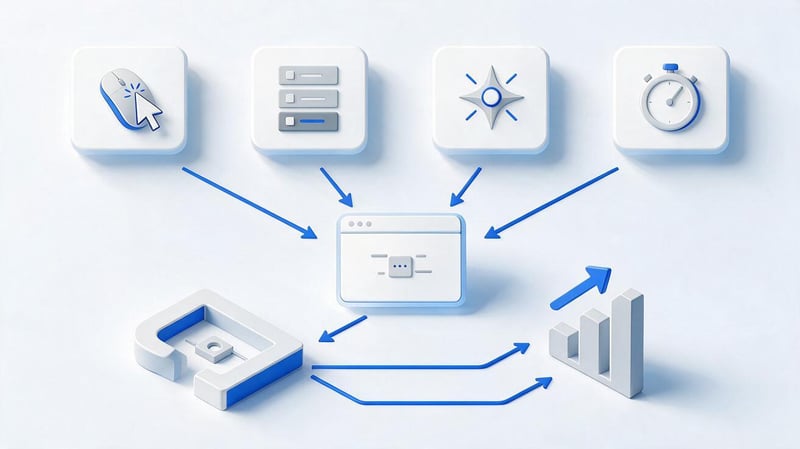
Events allow you to record actions that are important for your business or user behavior analysis. In GA4, these include clicks, leads, purchases, product additions, and other actions.
Through GTM, an event typically links a trigger to a GA4 Event tag. The event name and parameters are selected based on the task and the adopted analytics framework.
Before setting up, it's important to define what exactly constitutes a successful action. Tracking every click without a clear purpose will quickly fill your reports with data that no one uses.
Click tracking
To track clicks, first enable the necessary built-in variables. Then create a Click Trigger and set the condition that separates the desired element from the others.
For a phone, it's convenient to check the Click URL with tel:, and for email, the value with mailto:. Click Text, Click ID, or Click Classes are sometimes used for buttons.
CSS classes are only suitable when developers don't change them with every interface update. A stable data-* attribute is often more reliable than a decorative class.
After creating a trigger, it's linked to a GA4 event and tested using Preview. You'll need to perform several similar clicks to ensure the tag fires only when intended.
Submitting the form
Submitting a form seems like a simple task, but the standard Form Submission isn't suitable for every implementation. Many modern forms are submitted via AJAX and don't trigger a regular page reload.
If the form sends a separate event to the dataLayer after a successful server response, this setup is usually more stable than tracking a button click. A click doesn't necessarily mean a successful lead.
It's useful to pass a type or ID for each form. This way, a single generate_lead event can be analyzed by an additional parameter, avoiding the need to create dozens of nearly identical names.
When testing, you need to test both successful and failed submissions. If the event is triggered when the form is unfilled, this setting will inflate the lead count.
Custom events
A Custom Event is used when a site independently notifies GTM of a significant action. The developer can call dataLayer.push() after a successful operation and pass the required parameters along with the event.
For example, after selecting a plan, the site transmits the plan name and price. GTM receives these values via a Data Layer Variable and adds them to the corresponding GA4 event.
This approach is especially convenient for SPAs, modal forms, and complex interfaces. Analytics are less dependent on specific HTML markup and visual classes.
It's best to agree on custom event names in advance. If the developer passes form_success and the analyst expects lead_sent, the trigger simply won't fire.
Timer Trigger
GTM Timer Trigger runs an event after a specified interval. It can be used, for example, to determine whether a user has stayed on a specific page for at least a specified amount of time.
This GTM timer is configured using an interval, launch limit, and page conditions. Before using it, you need to understand why this signal will be analyzed.
Dwell time alone doesn't equate to engagement. Users could open a tab and then leave, so Timer Triggers are best combined with other actions.
If a timer creates an event every few seconds on all pages, the data volume grows rapidly. The interval and number of repetitions should be limited to the specific task.
Google Tag Manager for online stores

In online stores, GTM is often used to transmit e-commerce events. GA4 typically tracks product views, cart additions, checkout initiation, and completed purchases.
The main challenge isn't creating the tags themselves. The website must accurately convey product, currency, price, and transaction data, otherwise the e-commerce report will be distorted.
The old term “Enhanced Ecommerce” still appears in instructions and search queries. For GA4, you should focus on the current ecommerce event model, rather than migrating the old Universal Analytics model.
What eCommerce events can be sent?
For the product card, view_item is used, for adding a product, add_to_cart is used, and begin_checkout is used to proceed to checkout. After a purchase is confirmed, purchase is sent.
In addition to the event name, GA4 receives product and order parameters. Their structure must match the actual website data, otherwise analytics may show incorrect revenue or product quantities.
Purchases are checked especially carefully. Resending a transaction after refreshing the page can create a duplicate transaction if the site doesn't control its identifier and the time of transfer.
After setup, you need to place a test order and go through the entire sequence of events. Testing just the “Thank You” page isn't enough to complete the entire eCommerce process.
How is dataLayer used in eCommerce?
DataLayer transfers data known to the online store to GTM. This could include the product ID, name, category, price, quantity, currency, and transaction ID.
This structure separates analytical information from visual layout. GTM doesn't have to look up the price in HTML and hope that the element class will remain the same after a redesign.
Data should be transmitted at the moment the action actually occurs. For example, a purchase should be associated with a confirmed transaction, not with simply opening an order form.
Before launching, the analyst checks the data types and currency. The price value must be passed as a number, and the currency code must be passed separately in the corresponding parameter.
How to use GTM with Google Ads?

Google Tag Manager can be used to set up Google Ads conversions and specific remarketing scenarios. This approach is convenient when advertising events need to be triggered by specific actions on the website.
For example, a conversion can be triggered after a confirmed lead request, a call to a clickable number, or a completed purchase. The trigger should respond specifically to a successful action, not just any button click.
When setting up Google Ads GTM, you need to verify conversion IDs and trigger conditions. An error in one parameter can send data to the wrong action or prevent the tag from firing at all.
Dynamic remarketing via GTM requires additional parameters about viewed products or other entities. These values are typically received via a dataLayer, so their structure is agreed upon with the developer.
Before publishing, Google Ads tags are tested using Preview and available diagnostic tools. After launch, actual leads should also be compared with what is displayed in the advertising system.
How to debug Google Tag Manager?
GTM debugging is necessary after every significant configuration. Even a simple click trigger may behave differently on a mobile version, after an AJAX page refresh, or with a different DOM structure.
The first check is performed in Preview Mode. The result is then compared with the Network, Console, and the system that should receive the event.
Publishing a container immediately after creating a tag is risky. A few minutes of testing often allows you to detect duplicates, incorrect conditions, and missing parameters before errors appear in the actual data.
Preview and Tag Assistant
Preview connects the page to Tag Assistant and displays events that occur during the test session. For each event, you can check Tags Fired and Tags Not Fired.
If a tag fails to fire, the interface helps you see the trigger conditions and variable values. This is much more accurate than checking performance solely in the GA4 final report.
A real user flow should be followed from start to finish. For a form, you need to check validation and successful submission, and for eCommerce, you need to check product viewing, cart, checkout, and purchase.
After the fixes are made, the test is repeated. Only then are the changes submitted via Submit, creating a new published version of the container.
Chrome Developer Tools
Chrome Developer Tools helps you inspect what's happening directly in the browser. The Network tab lets you see script loading and analytics requests, while the Console shows JavaScript errors.
Searching googletagmanager.com helps you see related network requests. However, the presence of a request doesn't necessarily confirm that all events are being transmitted correctly.
For complex debugging, you can compare the parameters of the sent request with the GTM and GA4 settings. This is useful for identifying incorrect event names, parameters, and identifiers.
It's recommended to run the test without extensions that block analytics. Adblock can alter the results and create the false impression that the installed tag is not working.
Why doesn't the tag work?
One common cause is that the trigger condition doesn't match the actual variable value. For example, the Click Text has changed, the button class has changed, or the dataLayer event has a different name.
The second set of issues relates to publishing. A tag may work perfectly in the current Workspace, but site users still see the previously published version.
Adblock, consent, JavaScript errors, and SPA features also play a role. When transitions occur without a full page reload, the standard Page View logic sometimes requires special adjustments.
It's best to start diagnostics with the Preview event sequence. After that, check the trigger, variables, network request, and data receipt by the end system.
Common Mistakes When Working with GTM
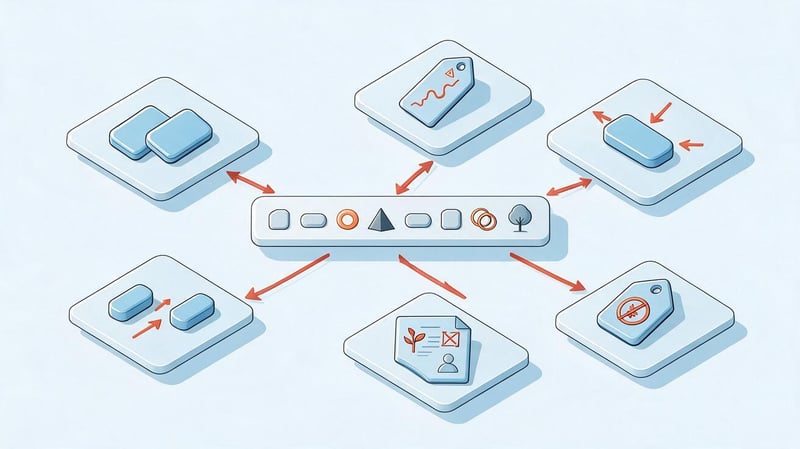
Google Tag Manager errors are rarely visible to website users, so they can distort analytics for months. The form appears to work, even though the event is sent twice or doesn't reach GA4 at all.
Most often, the problem arises after several parallel implementations. One tag was added through the CMS, a second through GTM, and the third was retained in the old template.
Typical errors include:
- The same Google tag is installed directly and loaded again via GTM.
- Multiple triggers dispatch a single event after a single user action.
- The form event is recorded when a button is clicked, although the request could have ended with an error.
- The trigger depends on a CSS class that changes after each interface update.
- The new version is published without a Preview and without testing a real user scenario.
- The container contains old tags without clear names or a responsible specialist.
- An invalid price, currency, or transaction ID is being passed in eCommerce.
- Custom HTML is used where a standard and supported tag type is sufficient.
- Data is sent to analytical systems without checking consent and privacy requirements.
After listing errors, it's helpful to inspect the entire container rather than fixing just one problematic tag. Duplicate and outdated dependencies are often found near the original issue.
Lead SEO specialist — Gennady
I don't see Google Tag Manager as a replacement for developers or Google Analytics. Its purpose is to centrally manage what data a site transmits to analytics and advertising systems, and under what conditions.
In practice, I see most problems with duplicate tags, overly broad triggers, and incorrect dataLayers. Therefore, after setup, I first check the events in Preview and Tag Assistant, then verify the data in the target system, and only then publish the container version.
Do you need Google Tag Manager for SEO?
Google Tag Manager doesn't directly affect website rankings. Installing GTM alone doesn't improve page visibility and doesn't replace technical SEO optimization.
For SEO specialists, GTM is useful as part of their analytics. It can be used to track form submissions, CTA clicks, calls, document downloads, and other user actions from organic traffic.
This data helps compare landing pages not only by visits. You can see which pages actually generate leads and where organic users abandon their engagement.
Google Tag Manager should not be used as the primary method for implementing canonical tags, hreflang, meta robots, or other critical SEO elements. For a server-side website, these elements should be generated in the final HTML and consistently present when crawled by search engines.
GTM also doesn't replace correct microdata in the page code. For Schema.org, it's better to use a server-side implementation or a website template if the data is available on the application side.
Who needs Google Tag Manager?

Google Tag Manager is most often used by analysts, marketers, PPC specialists, and developers. Each role works with different parts of the container, so it's best to assign access and responsibilities upfront.
GTM helps marketers verify advertising conversions and simple events. The analyst designs event names, parameters, and data flow, while the developer implements the dataLayer and complex interactions.
For a small website owner, GTM is useful if multiple analytics systems and clear lead tracking are required. For a simple project without events, adding a large container for a single counter may be overkill.
Google Tag Manager is especially useful for eCommerce tracking for online stores. This requires pre-agreed events, product parameters, currency, transaction ID, and repeat purchase verification.
The team also needs documentation. Knowing who created a tag, what it does, and what event it sends makes subsequent audits less time-consuming and less likely to disrupt existing data.
Google Tag Manager helps you manage tags, events, and trigger conditions in a single container. For simple scenarios, this is sufficient for faster analytics setup, while for eCommerce, SPAs, and complex forms, GTM works in conjunction with a valid dataLayer and website code.
Before publishing any new setting, run the Preview, check Tags Fired and Tags Not Fired, verify network requests, and ensure the event appears in the target system. This process reduces the risk of duplicates and lost data.
If you already have GTM installed on your website, but GA4 events are not reflecting actual requests or purchases, start by auditing the container, triggers, and dataLayer. Seo-Gen will review your current tracking structure, identify duplicates, and create a correct analytics structure for your website.


