How to create and delete a Google Analytics account?


Google Analytics is used to collect and analyze data about website or app visitors. It allows you to see traffic sources, user actions, events, conversions, and other metrics that help evaluate promotion results and website performance.
If you need to figure out how to create a Google Analytics account, you should first understand its structure. A Google account and a Google Analytics account refer to different entities. After registering for Analytics, you'll need to create a GA4 property, add a data stream, and enable website data collection. When deleting an account, you should also consider the structure level to avoid accidentally deleting more data than you intended.
What is a Google Analytics account?
A Google Analytics account is the top-level structure of the analytics system. It contains GA4 properties, user access settings, and general management parameters. One person can have access to multiple accounts, for example, for different companies or client projects.
The Google Analytics account itself doesn't collect website statistics directly. Data is received via a web stream or mobile app stream. Therefore, when setting up your account, it's helpful to immediately understand which entity needs to be created, modified, or deleted.
| Level | What is it used for? | Example |
|---|---|---|
| Google Account | Signing in to Google services | Employee work account |
| Analytics account | Managing company analytics | Seo-Gen Company |
| GA4 property | Storage and processing of project data | Main corporate website |
| Data stream | Obtaining data from a specific source | Website, Android or iOS |
This hierarchy helps avoid mixing analytics from different projects and properly distribute access rights between employees, contractors, and business owners.
How is a Google Analytics account different from a Google account?
A Google Account is used to sign in to Gmail, Google Drive, Google Ads, Analytics, and other services. Users log in with their account, then gain access to the Analytics accounts and properties they've been granted permission to access.
An Analytics account is created within the analytics service. It allows you to host one or more properties, invite other users, and manage settings. Therefore, creating a new Google email account is usually not necessary if a suitable work account already exists.
The diagram can be represented as follows:
Google Account → Google Analytics account → GA4 property → data stream → website or app.
If an employee leaves the company, the owner doesn't need to delete all analytics. Typically, it's enough to remove access for a specific user while preserving the account, property, and accumulated statistics.
How does a Google Analytics account work?

GA4's structure is designed for separate management of companies, projects, and data sources. The current version of Google Analytics doesn't have the familiar views of the old Universal Analytics, so the instructions on the pages offering to create and configure views no longer align with the current GA4 logic.
For a small business, a typical structure might consist of one account, one property, and one web stream. If the company is developing several independent projects, the structure may be more complex. The decision depends on the data owner, audience, access, and analytics objectives.
Account
An account is conveniently linked to a company or other organization that owns the data. This level contains account information, data transfer settings, and user access control for the entire structure within.
It's best to choose a clear and long-lasting name. If you write “New Account” or “Analytics 2”, in a few months employees will have to figure out which business owns this entity. A brand name or legally clear designation is usually more convenient.
GA4 property
A GA4 property stores and processes data for a specific project or logically related audience. Within a property, events, key events, audiences, data storage settings, integrations, and core reports are located.
When creating a property, you specify the name, time zone, and currency. These parameters should be verified before starting data collection, especially for online stores and international projects, where time or currency errors can complicate reporting analysis.
Data stream
A data stream defines the source from which information is received by a GA4 property. A web stream is created for a website, while Android and iOS versions are available for mobile apps. A single property can include multiple streams if this structure is appropriate for the project.
For a web stream, the website address and name are specified, after which the service provides a measurement ID and instructions for installing a Google tag. Once connected, the stream begins transmitting visit and event information to the corresponding property.
Answers to your questions
How to create a Google Analytics account from scratch?
First, sign in to Google Analytics using your Google account and create an account. Specify its name and data transfer settings, then create a GA4 property with the desired time zone and currency.
Next, add a web or app stream and enable data collection. Your website will require a Google tag, CMS integration, or setup via Google Tag Manager. After installation, be sure to check the real-time report.
So, here's how to create a Google Analytics account from scratch: create an account, add a property, set up a stream, install a tag, and test data receipt.
Can I create multiple Google Analytics accounts?
Yes, a single Google account can access multiple Analytics accounts. However, technical feasibility doesn't necessarily mean a separate structure is required for each new website.
If the projects belong to the same company, first check if you can add the new property to an existing account. For different legal owners or completely independent organizations, separate accounts usually provide clearer access management.
Before re-creating a Google Analytics account, it's helpful to review the list of existing accounts and properties. This helps avoid duplicates.
How to delete a Google Analytics account completely?
Open the admin section, select the desired account, and go to its details. After verifying the structure, use the “Send to Trash” command. This operation requires the appropriate access rights.
The account isn't permanently deleted when you click the button. It remains in the trash for a while, giving you the opportunity to correct the mistake.
If you're looking to delete a Google Analytics account, first make sure you don't just need to delete a single property. These operations affect different levels of the system.
Is it possible to recover a deleted Google Analytics account?
Yes, as long as the account remains in the Recycle Bin. Open the appropriate admin section, find the deleted item, and restore it.
When you restore an account, the associated settings and configuration that were moved along with it are restored. Afterward, it's a good idea to review your properties, users, and collect fresh data.
If the 35-day period has already expired, the standard Recycle Bin restore function is unavailable. Therefore, the Recycle Bin cannot be used as a permanent archive.
How does deleting an account differ from deleting a property?
The account is located above the property in the Google Analytics hierarchy. Deleting the entire account will affect the structure within it.
Deleting an individual property is appropriate when a single website or app is being discontinued, but other projects within the account continue to be used. Always check the current account and property switcher before confirming.
When in doubt, start with the structure map. It quickly shows which objects belong to the desired project and what will remain after deletion.
Is it possible to remove just one site from Google Analytics?
Yes, if a website is represented by a separate property, you can delete that property without deleting the entire account. If multiple sources are organized differently, you must first determine which stream and property belong to a specific website.
Sometimes deletion isn't necessary at all. For example, if you temporarily disable analytics, changing the technical settings for data collection may be sufficient.
Before taking action, review your integrations and project history. This is especially important for sites whose data is used in Google Ads, reports, or other work systems.
Is it possible to delete a GA4 data stream and then restore it?
An individual data stream isn't moved to the Recycle Bin as an account or property. Google specifies that the stream is deleted directly, so there's no standard way to restore such an object from the Recycle Bin.
This is why deleting a stream should only be done after testing. If the goal is to temporarily stop data collection, consider other configuration options first.
Before deleting, also check the associated site tags. This will help avoid a situation where the site retains an old configuration that no longer complies with the GA4 structure.
What do you need before creating a Google Analytics account?

Before creating a Google Analytics account, prepare a working Google account and basic project information. It's best to use a corporate email address that the company will retain access to even if a specialist or contractor changes.
Also, determine in advance who owns the data and which websites will be connected. This reduces the risk of creating multiple random accounts that will later need to be consolidated or deleted.
Before starting the setup, it is advisable to check:
- which Google account will be the primary access owner;
- what name the Analytics account will get and whether other employees will understand it;
- which website or application should be connected first;
- which time zone is used in the business's core reporting;
- in which currency revenue and commercial metrics are analyzed;
- who will need access to analytics after setup.
The time zone affects the day boundaries in reports. If it's selected incorrectly, late evening events may be included in the next day's statistics or, conversely, counted for the previous date.
Currency is especially important in projects involving e-commerce and revenue transfers. It's best to specify the currency used in the company's primary analytical reporting to make it easier to compare the data with advertising and financial metrics.
How to create a Google Analytics account?
If you're using the service for the first time, the process begins with creating an Analytics account. If your company already uses GA4, you should first check your existing structure: sometimes, adding a new site as a separate property is sufficient, and creating a new Google Analytics account isn't necessary.
Google divides the creation of an account, property, and data stream into sequential steps. First, account settings are configured, then the first property is created, and finally, the website or app data source is connected.
Step 1: Log in to Google Analytics
Open Google Analytics and sign in with your Google account. When you first launch it, you'll be prompted to set up analytics, after which you can create an account.
If you already have access to Analytics, create a new account through the admin section. Before doing so, check the current account switcher to avoid accidentally adding a property to another company or client project.
For corporate websites, it's advisable to use an account managed by the company itself. Registering all analytics data to a temporary contractor's personal email poses the risk of losing access after the contract ends.
Step 2: Enter your account name
An account name should help quickly identify its owner. For a single-brand company, the business name is appropriate, while an agency or group of companies may find it more convenient to use a consistent naming convention for all client accounts.
For example, instead of “GA4 new”, it's better to include the name of the company or project. If there are several similar brands, you can add the region or another consistent designation that is understandable to all employees.
At this stage, there's no need to list domains, advertising accounts, and internal departments in a single title. It's easier to break things down at the property, stream, and internal naming system level.
Step 3: Configure data transfer settings

When you create an account, Google presents options related to the transfer of certain data to the company. These options should be chosen wisely, taking into account your internal business policies, privacy requirements, and applicable data processing agreements.
Don't automatically enable every available option just to complete registration. First, read the setting description and determine whether it meets your company's requirements and data policies.
Once saved, the parameters can be controlled in the account settings. For projects with specific requirements from the legal department or data protection officer, it's best to agree on these settings before fully launching analytics.
Step 4: Create a Google Analytics 4 property
After creating an account, the service prompts you to create your first GA4 property. If an account already exists, you can add an additional property through the admin section by selecting the desired account and clicking the property creation command.
When setting up, you need to specify a name, time zone, and currency for the report. Google also requests your industry category, business size, and Analytics usage goals to generate a suitable set of standard reports.
Before saving, double-check the selected account. Correcting the property name is easy, but it's best not to carry over any errors in the overall structure to the production system, where events, integrations, and users will later appear.
Property name
The name should clearly indicate what data is contained within the property. If a company uses a single main website, a brand name or domain with GA4 designation is usually sufficient.
When there are multiple properties, a unified format is useful. For example, you can add the country, industry, or website type to the project name if these attributes truly help differentiate the properties from each other.
Avoid names like “Test”, “New Site”, and “Main”. These designations quickly become meaningless, especially after a redesign, launching new versions of the site, or transferring analytics to another team.
Time zone
The time zone determines when one reporting day ends and the next begins. Google takes the selected time zone into account when assigning events to dates, so it's a good idea to tie this setting to your core business reporting.
For a Ukrainian project, the time zone typically chosen corresponds to the company's primary operations. International businesses may choose to use the head office or corporate standard if that's what's used to compare data from different systems.
If you later change the time zone of an existing property, the new setting will affect subsequent data. Therefore, frequent changes create unnecessary complications when comparing periods.
Currency
The property currency is used when displaying monetary metrics. This setting is especially important for online stores, paid subscriptions, and other projects where GA4 receives data on product prices, transactions, or revenue.
It's best to select the primary currency for management or marketing reporting. If the store accepts payments in multiple currencies, the rules for transferring monetary values should be agreed upon separately during e-commerce setup.
Don't choose a currency solely based on the geographic location of the server or developer. The project's reporting and the team's revenue analysis should be your guide.
Step 5: Provide company information

When creating a property, Google asks about your industry category, business size, and analytics usage goals. This information helps configure the initial set of reports that users will see in the interface after launching GA4.
Choose the options that most closely match the actual project. If the company works in several areas simultaneously, it's sufficient to define a primary category for a specific property.
Answers at this stage do not replace subsequent event or conversion setup. After connecting the site, the reporting structure and data collection will still need to be adapted to the actual business needs.
Step 6: Accept the Google Analytics Terms of Service
When creating a new account, the system will prompt you to review the Google Analytics Terms of Service and documents related to data processing. The available documents and individual parameters may vary depending on your country and organization's settings.
Before confirming, it's a good idea to ensure the account is being created for the correct company and under the correct account. After that, you can complete property creation and proceed to connecting the data source.
For corporate projects, internal requirements for analytics services sometimes require approval from the responsible employee. In such cases, it's best to complete this step before deploying the tracking code on the production website.
Step 7: Create a data stream
After creating a property, you need to specify the source from which GA4 will retrieve information. Google offers three main options: website, Android app, and iOS app.
For most regular websites, a web stream is selected. It includes the project's address, a descriptive name, and checks the parameters for automatically collecting available interactions.
Just creating a stream doesn't mean statistics are coming in. After that, you need to connect the Google tag via your CMS, website code, Google Tag Manager, or another supported integration.
Data stream for a website
For a web stream, enter the website address and a descriptive name, such as a brand or domain name. Once created, you'll receive a measurement ID that you can use when setting up data collection.
The web flow settings also include advanced measurement options. These can automatically collect certain types of interactions, but the resulting event pattern is best verified based on the specific site and its goals.
After enabling the tag, open the site yourself and check the data flow. This will identify errors faster than waiting for the full report the next day.
Data stream for an app
For a mobile app, a stream is created separately for Android or iOS. This setup uses app data, and mobile analytics is handled through the corresponding Firebase integration.
If a project consists of a website and an app with a common user base, it's worth considering the property structure in advance. Combining streams into a single property can be useful for analyzing the user journey across platforms, if this model fits the business.
For an article about setting up a regular website, it's enough to understand the main thing: the application stream and the web stream refer to different data sources, although they can be located within the same property.
Step 8: Connect Google Analytics to your website

After creating a web stream, you need to install a Google tag. The connection method depends on the CMS and the site's technical architecture: some systems have a predefined field for the GA4 identifier, while others require code installation or configuration via GTM.
Don't deploy the same tag multiple times without testing. Simultaneous deployment via the CMS, source code, and Google Tag Manager can result in duplicate events and skew statistics.
After implementation, it's a good idea to check not only the code but also the actual event transmission. A correct installation means the right property is receiving data from the domain and in the structure the team intended.
Via Google tag
Direct installation uses a Google tag associated with the generated web stream. The code is typically placed according to the CMS's technical instructions or directly in the website template.
For popular platforms, specifying a G- identifier in the dedicated integration field is sometimes sufficient. Google recommends using the platform-supported option when the CMS has native integration with GA4.
After publishing changes, you should test the live version of your website. Just because the code is present in the editor or test environment doesn't necessarily mean that users on the live domain are submitting data to GA4.
Via Google Tag Manager
Google Tag Manager is convenient when a site already uses a GTM container or plans to configure events separately. In this case, Analytics is connected via the appropriate tag within the container, after which the changes are published.
The advantage of this approach is centralized tag management. A specialist can add and modify some analytical settings without constantly editing website templates, although access to the container must still be kept under company control.
After setup, use preview mode and test sending data. Separate setup of GA4 events via GTM is best described in dedicated instructions to avoid mixing up different tasks.
Step 9: Check if the data is coming in
After installation, open the site in a separate tab and perform a few normal actions. Then check the real-time report to ensure GA4 is receiving traffic from your device.
If data is missing, first check the measurement ID and the selected property. Then, check whether the GTM container or site code is published, whether the cookie consent system is blocking tag loading, and whether the tag is installed twice.
Tag Assistant can be used for technical diagnostics. Post-installation testing is essential, as the existence of a created account, property, and stream alone does not confirm correct data collection.
How to properly organize multiple sites in Google Analytics?
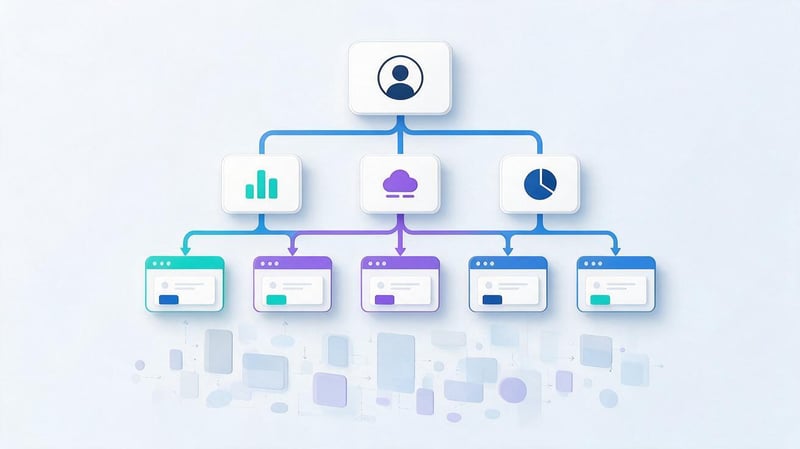
When working with multiple domains, don't automatically create a new account for each site. Google recommends aligning the structure of accounts and properties with data owners and business logic. For an existing organization, in many cases, a new site can be hosted within an existing Analytics account.
First, determine whether the sites belong to the same company, whether they share a common audience, and who should have access to them. After that, you can choose between a separate account, separate properties, or multiple streams within a single property.
Lead SEO specialist — Gennady
I recommend checking the existing structure before creating a new Google Analytics account. In practice, I often encounter situations where a separate account is created for each website, even though the project could be correctly placed within the existing structure. Before deleting, I check the reverse side: which level is selected—account, property, or data stream. This verification reduces the risk of affecting analytics on other websites and the team's access.
When to create a new account?
A separate account makes sense when the website belongs to another company or the data must be organizationally owned by a separate entity. This approach simplifies the delineation of ownership and reduces dependencies between different organizations.
For example, an agency typically shouldn't place all independent client analytics within a single, shared agency-owned account. It's safer for the client to maintain its own structure and grant the contractor the necessary level of access.
If you're a single company, creating multiple accounts can only complicate management. Before registering, check whether the project you need can be added to an existing structure.
When is it enough to create a new property?
The new property is suitable when project data needs to be separated within a single organizational structure. For example, a company may have several independent sites with different tasks, reports, and teams, but a single data owner.
Properties allow you to separate settings and analytics without creating a separate top-level layer for each project. Users can also be assigned access based on the required level of control.
There's no one-size-fits-all solution for all websites. When choosing a structure, consider the legal owner, users, advertising integrations, audience model, and statistics sharing requirements.
How do I grant access to my Google Analytics account?
SEO specialists, marketers, or analysts don't need to share their primary Google account password. GA4 provides user and permissions management, so each employee can work under their own corporate email address.
This approach simplifies access control. When collaboration ends, the owner simply changes the permissions of a specific user without changing the password for email and other company services.
Before granting access, determine what actions the person should perform. Viewing reports doesn't require the same level of permissions as a specialist who changes settings, adds integrations, or manages users.
Regularly review the user list after changing contractors and employees. It's best to promptly remove old access permissions, especially if they allow you to change account or property settings.
How to delete a Google Analytics account?
If you're no longer using Analytics, first ensure you want to delete the Google Analytics account itself, not just an individual property. Deleting a top-level account affects all properties within it, so check the structure and the account you've selected before proceeding.
Google provides separate operations for accounts, properties, and data streams. Modifying and deleting these entities requires the appropriate permissions, and the account or property is first moved to the Recycle Bin.
What should I check before deleting my account?
Before deleting, open the list of properties and ensure there are no active websites or applications within the account. Be especially careful when checking old structures used by multiple employees or contractors.
Also, determine whether the company needs the accumulated data and existing integrations. If analytics may be needed for historical comparison, reporting, or advertising period verification, hasty deletion will create unnecessary restrictions.
Before sending your account to the trash, please check:
- whether the correct account has been selected and whether it is really no longer in use;
- what properties, data streams and integrations are associated with it;
- whether projects from other departments or sites remained inside;
- whether the necessary reports and data have been saved for further work;
- whether other users understand that access to this structure will be lost.
After verification, you can proceed with deletion. If the task concerns only a closed website, it's usually worth considering deleting the specific property first, rather than the entire Analytics account.
Step-by-step instructions for deleting a Google Analytics account
To complete the “how to delete a Google Analytics account” query, first open the admin section and select the desired account. In the account details, you'll find an action to move it to the trash bin.
Before confirming, check the name of the selected entity again. If there are multiple properties within it, the action will affect the entire structure, so the final check takes less time than the subsequent restore.
The order of actions looks like this:
- Log in to Google Analytics using an account with the required permissions and select the desired account.
- Go to the admin section and open the details of the selected account.
- Please check the linked properties and ensure that the correct structure is being removed.
- Select the action to send the account to the trash and confirm the operation.
- After deleting, check your recycle bin to ensure your account is still recoverable.
Don't delete your account just because one website is no longer in use. If other properties remain functional, you should delete or reconfigure that specific property.
What happens after I delete my account?

Once deleted, an account doesn't disappear immediately. Google places it in the Recycle Bin, where it remains for a limited period and can be restored by the owner with the necessary permissions.
While an account is in the trash, its data is not processed. When you restore an account, associated settings and configuration are restored, including user rights and links to other products.
Once the retention period expires, restoring via the standard Recycle Bin will no longer be possible. Therefore, if an accidental deletion occurs, it's best to correct the error immediately rather than delaying verification.
Is it possible to recover a deleted Google Analytics account?
Yes, as long as the account is still in the Recycle Bin. Google stores deleted accounts and properties in the Recycle Bin for 35 days, after which they are permanently deleted.
Restoring an account is useful if an employee made a mistake when selecting an account or if the decision to delete it has changed. Don't rely on the Recycle Bin as a long-term archive of analytics.
After restoration, check to see if the necessary properties and access have been restored. Google preserves the settings of the restored account, but after working analytics is back, it's still a good idea to check for fresh data.
How to recover an account from the trash?
Open the admin section and go to your account's Recycle Bin. Find the deleted item, check its name and deletion date, and then restore it.
If an entire account was deleted, recovery will restore the properties it contained that were moved to the Recycle Bin along with it. However, an object that was previously deleted separately may require its own recovery.
After returning your account, don't just check its presence in the interface. Open the relevant properties, check users, integrations, and obtain up-to-date data.
Why is a deleted account still showing up in the list?
After moving an account to the trash, the user may temporarily see it in the interface or see a deleted account symbol. This display does not mean the account continues to function normally.
First, check the trash bin and the item's status. If the account has truly been deleted, you should check its status in the settings, not just the name in the general toggle.
Don't create a new account with the same purpose just to hide an old one. First, review the status of the existing structure and ensure the new account is truly needed.
How do I delete just a Google Analytics property?

Property deletion is appropriate if a single website or application is no longer in use, but the account itself and other projects within it should continue to function. This scenario is safer than deleting the entire structure if the issue affects only one property.
Before deleting, check the property name, its data streams, integrations, and users. If the data is still needed, first resolve reporting and access issues.
In the admin section, select the correct account and property, open its details, and use the Send to Trash action. Google handles property deletion separately from account deletion.
A deleted property can also be restored from the Recycle Bin within a specified timeframe. If you're unsure whether to delete a property or disable a specific data source, first determine which parts of your analytics should be preserved.
How to delete a data stream in GA4?
Deleting a stream is used when you want to remove a specific data source within a property. This action is different from deleting the entire property, so it shouldn't be used interchangeably.
Before deleting, check which tags, events, and integrations are associated with the stream. An error at this level may stop data from flowing from the website or application, although the property itself will remain accessible.
What happens after a data stream is deleted?
A data stream can't be simply moved to the Recycle Bin like an account or property. Google states that individual streams are deleted directly, so you shouldn't expect to be able to recover them from the Recycle Bin after such an operation.
If you only need to temporarily stop data collection, first check whether deleting the stream is appropriate for your needs. In some cases, it's safer to change the tag setting or another related setting.
If you have enabled tags and integrations, check dependencies before deleting. For a production project, it's best to make a decision after a technical review, especially if a single property is used by multiple sites or applications.
Common mistakes when creating and deleting a Google Analytics account

Most problems arise not from the GA4 interface itself, but from a misunderstanding of the structure. Users see multiple levels with similar names and create or delete an object above or below the one they were looking for.
Before any significant operation, it's helpful to answer three questions: who owns the data, what project is affected, and what entity needs to be changed. This check takes a few minutes and reduces the risk of losing settings.
Created multiple accounts instead of multiple properties
A common situation arises when each new domain automatically receives a separate Analytics account. After some time, the company ends up with a long list of similar structures with different owners and unclear access distribution.
If websites belong to the same organization, it's sometimes more convenient to use a single account and separate projects into properties. The specific structure depends on the data owner and the business's goals, so it's a good idea to review the existing structure before creating a new account.
Correcting a chaotic structure is more difficult after several years of operation. Therefore, it's best to establish naming and ownership rules before launching new websites.
You selected the wrong time zone or currency
An incorrect time zone affects the distribution of user activity across dates. Discrepancies are especially noticeable for projects that receive a lot of traffic in the evening or operate in multiple countries simultaneously.
Incorrect currency creates additional complications when analyzing revenue and e-commerce. Data must be constantly compared with other systems or differences explained to colleagues.
Before creating a property, check these parameters against the company's operating reports. You can adjust them later, but consistent setup from day one makes period comparisons clearer.
The entire account was deleted instead of just one property
A user might decide to delete an old website and choose to do so at the account level, where other projects reside. This results in significantly more data being sent to the trash than intended.
Before deleting, always open the account and property switcher. Check which level is currently selected and what objects are within it.
If the issue is specific to a single website, start by checking the property in question. Removing the top-level structure is only justified when the entire structure is truly no longer needed.
Deleted the data stream instead of disabling tracking
A data stream is located below the property level, but its deletion also requires caution. A separate stream isn't recycled as an independent object, so the recovery scenario differs from accounts and properties.
If you need to temporarily stop collecting information, deleting it may be too drastic. First, find out the reason for disabling it and check the associated tags.
For test changes, it's safer to use controlled configuration and technical validation. This reduces the risk of losing the working configuration that will be needed after data collection resumes.
The password was given instead of providing access
Sharing your primary Google account password creates additional risk for Gmail, Drive, Ads, and other related services. Analytics uses a user and permissions system to facilitate collaboration.
Add a specialist using their own work account and assign only the permissions needed for the task. Once the collaboration ends, this access can be removed separately.
This approach also simplifies auditing of actions within the team. The owner doesn't have to change the shared password every time a contractor or employee leaves the project.
How long does it take to delete a Google Analytics account?
A deleted account or property is stored in the Google Analytics Recycle Bin for 35 days. During this period, the object can be restored if the user has the necessary permissions.
While an object is in the Recycle Bin, data processing for it stops. After the retention period expires, you can no longer rely on normal recovery via the interface.
Therefore, if you accidentally delete something, check your Recycle Bin immediately after discovering the error. Don't wait until the specified time to restore it.
To correctly create a Google Analytics account, first determine the data owner and future structure, then create a GA4 property, a data stream, and connect the site. After installation, test the incoming events to ensure that any tag or ID errors don't go unnoticed.
The same principle applies to deletion: first determine the level, then perform the action. Accounts, properties, and data streams have different consequences for deletion, so verifying the structure before committing helps preserve the necessary data and access.
If you need to configure Google Analytics 4 for your website, audit an existing account, or safely remove an old structure, Seo-Gen specialists will check your properties, data streams, user rights, and the correctness of analytics collection, then prepare a clear working configuration without unnecessary accounts or duplicates.


